Percona PG-Operator
Overview
The source code and default configuration of the Building Block is available in our code.syseleven.de. Infos on release notes and new features Release notes pg-operator
PG-Operator
The Percona Operator for PostgreSQL simplifies the management of a Postgres DB main, replica (hot-standby) setup. PG-Operator enables your team to get a PostgreSQL Cluster, or maybe your own database-as-a-service. This Operator provides all essential features to provide the above described deployment.
If you install our curated Persona-Postgres-Operator from SysEleven, your cluster consists of a
- pg-db (DB main)
- pg-db-repl1 (DB replica)
- pg-db-pgbouncer (DB connection pooler)
- pg-db-backrest (DB backup service)
- pg-exporter-prometheus-postgres-exporter (DB metrics exporter)
- postgres-operator (DB operator)
Prerequisites On PG-Operator
You need to provide a storage provider for this Building Block. Proceed with the following prerequisite description to use the PG-Operator Building Block out of the box. To complete the full setup you will need to install s3cmd, OpenStack CLI and for testing purposes a psql client.
Recommended Setup
A recommended resource overview is listed in the table below.
| CPU/vCPU | Memory |
|---|---|
| 6.1 | 1072MiB |
No further activities need to be carried out in advance.
Adding The Building Block
You are good to go with the recommended cluster configuration to meet the pg-operator recommended configuration. Keep in mind that it also needs to fit your use case and your requirements.
First add a pg-operator directory inside our control repository. For example:
Create a .gitlab-ci.yaml inside this directory and paste the following content.
include:
  - project: syseleven/building-blocks/helmfiles/pg-operator
    file: JobDevelopment.yaml
    ref: { { site.building_blocks.pg_operator.version|e } }
For this Building Block you need to fulfill some prerequisites to follow our recommendation to configure an automatic backup.
Info
Backups are enabled when setting AWS_ACCESS_KEY_ID and AWS_SECRET_ACCESS_KEY to your control-repo CI/CD variables.
To get your AWS keys use the OpenStack command.
openstack ec2 credentials list
# get your access key within the first coloum called **Acccess**

openstack ec2 credentials show <Access>
# fetch the values from the field **access** for the AWS_ACCESS_KEY_ID and secret for the AWS_SECRET_ACCESS_KEY
see a detailed instruction and more here
Go to your GitLab repository 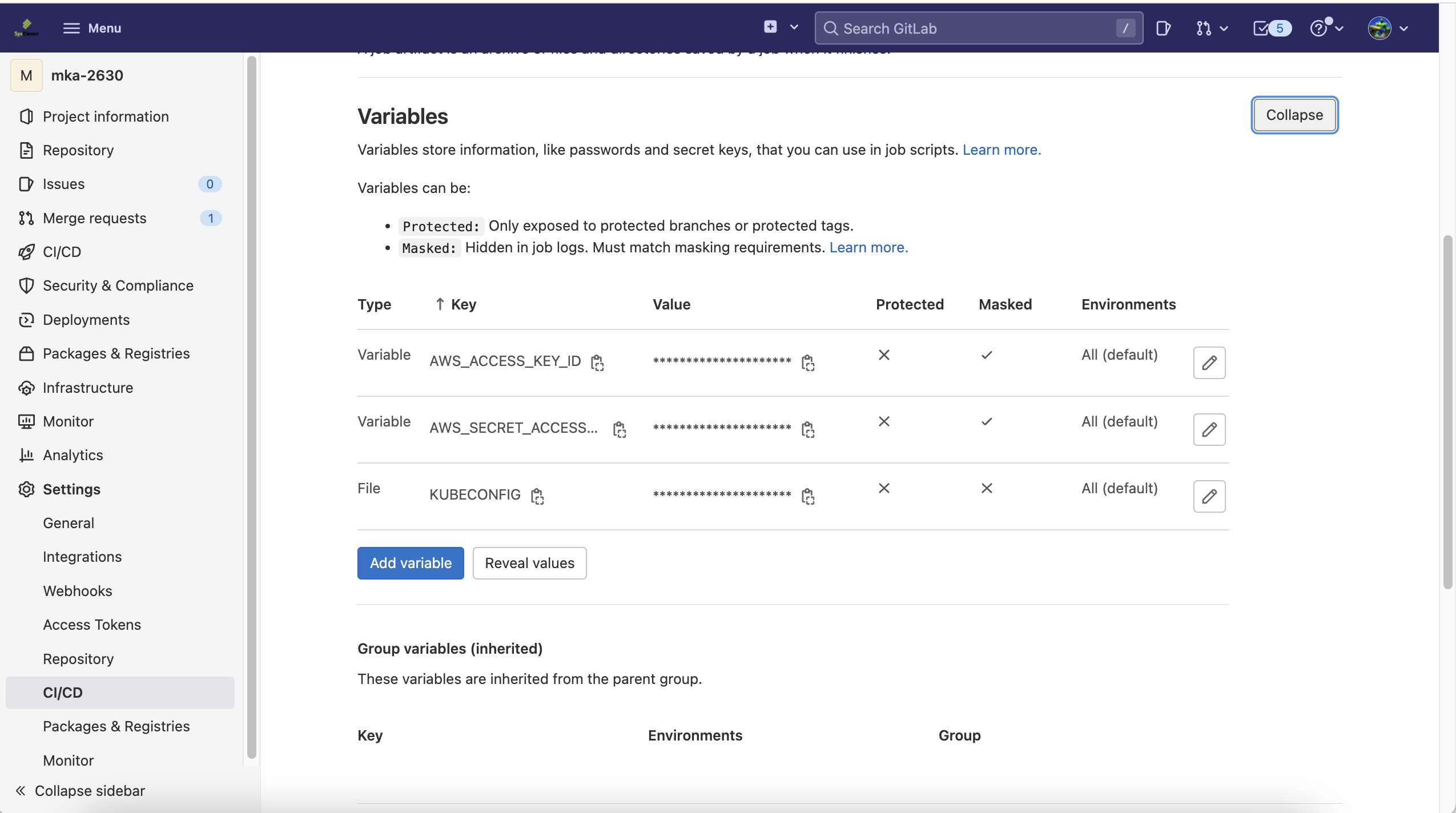 and enter the above requested attributes.
Last thing you proceed with, is to publish the building block to your control repository.
Take a look into your control-repo and make sure your pipeline passed all the pipeline steps.
Required Configuration
If you have provisioned the PG-Operator building block you have already a running Building Block.
By the time the pg-operator was deployed to your cluster successfully, you should see the following pods:
kubectl get pods -n syseleven-pg-operator

NAME                                                        READY   STATUS      RESTARTS   AGE
backrest-backup-pg-db-v6qgp                                 0/1     Completed   0          25m
pg-db-5bf9df4dd5-9tv2z                                      1/1     Running     0          27m
pg-db-backrest-shared-repo-5879c7c449-v6smh                 1/1     Running     0          27m
pg-db-pgbouncer-5d4dd9558d-8m9zz                            1/1     Running     0          26m
pg-db-pgbouncer-5d4dd9558d-ghq26                            1/1     Running     0          26m
pg-db-pgbouncer-5d4dd9558d-nrwgk                            1/1     Running     0          26m
pg-db-repl1-dfbc9ff7f-tc58k                                 1/1     Running     0          24m
pg-exporter-prometheus-postgres-exporter-5dccd4d749-6tb4k   1/1     Running     0          29m
postgres-operator-5d5dccdff8-dm9px                          4/4     Running     0          11d
To access the postgres db from your local workstation, you can forward the postgres with following command.
kubectl -n syseleven-pg-operator port-forward svc/pg-db-pgbouncer 5432:5432

Forwarding from 127.0.0.1:5432 -> 5432
Forwarding from [::1]:5432 -> 5432
As the deployment comes with the default user and password, you can retrieve the password for the user postgres with the following command:
As you did the port forwarding in the previous step, you can invoke a simple psql command to check your deployment.
Of course, you can use any other db client of your choice.
Example:
You will get the password prompt where you can paste the password from the above kubectl get secrets command.
Now you should see the following.
psql -h localhost -p 5432 --username=postgres --password
Password:
psql (14.5 (Homebrew), server 14.4)
Type "help" for help.

postgres=# \l
                                  List of databases
   Name    |  Owner   | Encoding |   Collate   |    Ctype    |   Access privileges
-----------+----------+----------+-------------+-------------+-----------------------
 pgdb      | postgres | UTF8     | en_US.utf-8 | en_US.utf-8 | =Tc/postgres         +
           |          |          |             |             | postgres=CTc/postgres+
           |          |          |             |             | pguser=CTc/postgres
 postgres  | postgres | UTF8     | en_US.utf-8 | en_US.utf-8 |
 template0 | postgres | UTF8     | en_US.utf-8 | en_US.utf-8 | =c/postgres          +
           |          |          |             |             | postgres=CTc/postgres
 template1 | postgres | UTF8     | en_US.utf-8 | en_US.utf-8 | =c/postgres          +
           |          |          |             |             | postgres=CTc/postgres
(4 rows)

postgres=#
Next step: check out your control repository to do more fancy configuration for your pg-operator cluster.
Please replace the <> placeholder with your personal settings for example
Create A DefaultUser And DefaultDatabase
The Building Block pg-operator comes with a predefined user pguser and default database pgdb.
You can change it accordingly when deploying the building block by defining it on your values-pg-db.yaml:
How PgBouncer Works
PgBouncer is a connection pooler for PostgreSQL. It reduces the RAM usage of your database by maintaining a pool of connections for each database and user combination.
When using the service pg-db, the PgBouncer takes care of the connection pooling automatically and is part of the Building Block.
Scaling Setup And Further Configuration
You can get more information from our Readme. Please stick to the official documentation of PG-Operator to learn more about scaling and further configuration options.
Known Issues
Please stick to the official Percona Operator for PostgreSQL documentation to get more details on that topic.
Manually deleted PVC
As of version 1.2.0 if you manually delete a persistent volume claim of this building block, it will not be recreated. Please create the Persistent Volume Claim with the correct naming-convention. We work on providing this feature with an upcoming version.
To create a persistent Volume Claim you need to apply a configuration file. The value for metadata.name must be set as accordingly for the corresponding pod. You can find the name by executing kubectl -n syseleven-pg-operator get deployment $NAME -o yaml. Afterwards you edit the name on the configuration file:
apiVersion: v1
kind: PersistentVolumeClaim
metadata:
  annotations:
    volume.beta.kubernetes.io/storage-provisioner: cinder.csi.openstack.org
    volume.kubernetes.io/storage-provisioner: cinder.csi.openstack.org
  finalizers:
    - kubernetes.io/pvc-protection
  labels:
    pg-cluster: pg-db
    vendor: crunchydata
  name: pg-db-repl1 #rename pvc accordingly
  namespace: syseleven-pg-operator
spec:
  accessModes:
    - ReadWriteOnce
  resources:
    requests:
      storage: 1G #adjust volume size accordingly
  storageClassName: sys11-quobyte-external-provisioner
  volumeMode: Filesystem
Database fails to start with existing Backup
When a clean installation is used with an already existing Backup on S3, the Postgres-Operator does not upgrade the stanza. The error message found on your created backup-job or in the logs of pgbackrest should look like this:
kubectl -n syseleven-pg-operator exec -it pg-db-backrest-shared-repo-777b98c59-c6hq7 -- cat /tmp/db-backup.log
ERROR: WAL segment system-id <number> does not match archive system-id <other number>
To fix this issue you can execute a command after applying the corresponding PgTask and the job stanza-create has failed. But before make sure, the correct backup is configured.
You need to use a listed backup in the existing backup.info file inside the s3 bucket, which you can retrieve with
s3cmd get s3://$BACKUP_REPO_NAME/backrestrepo/pg-db-backrest-shared-repo/backup/db/backup.info
cat backup.info
The identifier can be found before the equals sign. In this example the identifier is 20230225-110600F and can be used in the corresponding PgTask:
[backup:current]
20230225-110600F={"backrest-format":5,"backrest-version":"2.38","backup-archive-start":"0000000600000001000000F4","backup-archive-stop":"0000000600000001000000F4","backup-error":false,"backup-info-repo-size":5585382,"backup-info-repo-size-delta":5585382,"backup-info-size":43939724,"backup-info-size-delta":43939724,"backup-lsn-start":"1/F4000028","backup-lsn-stop":"1/F4000138","backup-timestamp-start":1677323160,"backup-timestamp-stop":1677323190,"backup-type":"full","db-id":1,"option-archive-check":true,"option-archive-copy":false,"option-backup-standby":false,"option-checksum-page":true,"option-compress":true,"option-hardlink":false,"option-online":true}
If you use an old or wrong backup, you can identify it by the job pg-db-bootstrap and its logs:
WARN: Detected an earlier failed attempt to initialize
INFO: Correct the issue, remove '/pgdata/pg-db.initializing', and try again
INFO: Your data might be in: /pgdata/pg-db_2022-05-27-11-45-10
In this case, you need to delete your PgTask for restore and try again with the correct identifier.
Now you can apply a PgTask with a restore command, like so:
apiVersion: pg.percona.com/v1
kind: Pgtask
metadata:
  labels:
    pg-cluster: pg-db
    pgouser: admin
  name: cluster1-backrest-restore
  namespace: syseleven-pg-operator
spec:
  name: cluster1-backrest-restore
  namespace: syseleven-pg-operator
  parameters:
    backrest-restore-from-cluster: pg-db
    backrest-restore-opts: --set=20230225-110600F
    backrest-storage-type: s3
    backrest-s3-verify-tls: "false" #we assume you did not provide a certificate for your s3-bucket yet
  tasktype: restore
For this you execute the stanza-upgrade inside the pgbackrest-pod:
kubectl -n syseleven-pg-operator exec -it pg-db-backrest-shared-repo-$YOUR_ID_HERE -- pgbackrest stanza-upgrade
Node Tolerations Are Not Accepted
As of version 1.2.0 the configuration file of this BB does not support a proper yaml-structure for setting tolerations. To set tolerations, add them as nested values:
pgPrimary:
  tolerations: '[{ "key": "node.syseleven.de/storage", "effect": "NoSchedule", "value": "local", "operator": "Equal" }]'
Node Affinities Prevent A Deployment And A Pod Keeps Pending
0/4 nodes are available: 1 node(s) didn't match Pod's node affinity/selector, 3 node(s) had volume node affinity conflict. preemption: 0/4 nodes are available: 4 Preemption is not helpful for scheduling.
This means that the persistent volume a pod tries to reach is located on another node. This happens when a persistent volume has been created before you set affinities, usually on local storage nodes. You need to delete the current persistent volume claim and recreate it. Refer to How to use Local Storage.
Release-Notes
Please find more infos on release notes and new features Release notes PG-Operator