Server Groups
Server groups let you define server placement near other servers. You can choose which instances run on the same host (affinity) or on different hosts (anti-affinity). Choosing affinity reduces network latency, while anti-affinity can improve fault-tolerance and load distribution.
Server groups use a policy and rules. These four policies are available:
affinity- Restricts instances belonging to the server group to the same host.
anti-affinity- Restricts instances belonging to the server group to separate hosts.
soft-affinity- Attempts to restrict instances belonging to the server group to the same host. If the scheduler cannot fit all instances on a single host, it groups instances together.
soft-anti-affinity- Attempts to restrict instances belonging to the server group to separate hosts. If the scheduler cannot place all instances on separate hosts, it tries to spread them as far apart as possible.
List Server Groups
 To get a list of all server groups in a region you can click on the Server Groups icon in the sidebar.
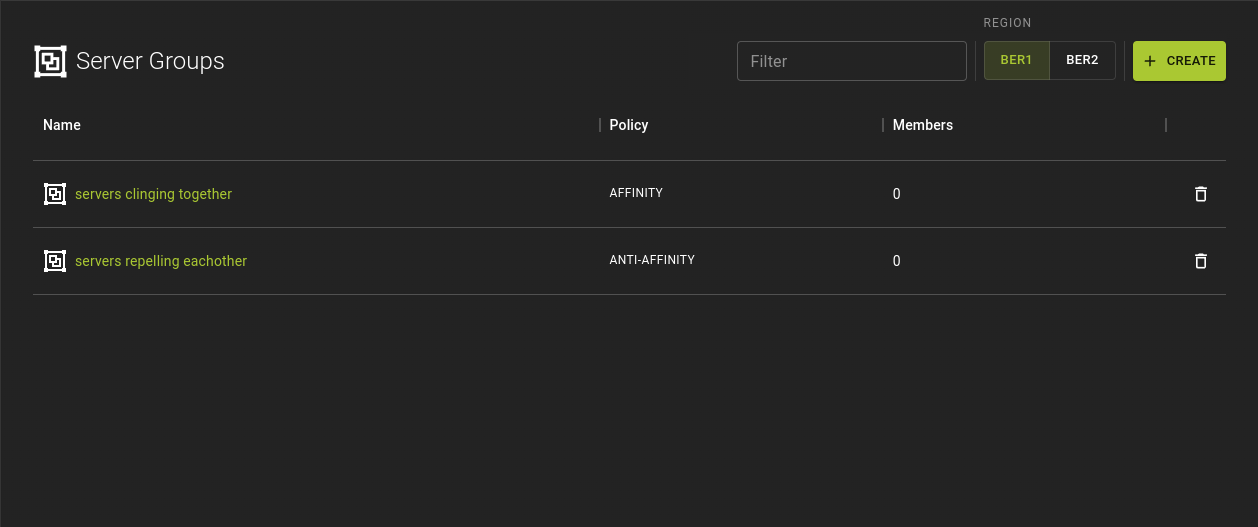
You can access the list of server groups from the side bar, clicking the Server Groups icon.
From the list you can:
- Create a new server group
- Navigate to the details page of a server group by clicking the name of a group.
- Delete a server group using the option
Create Server Group
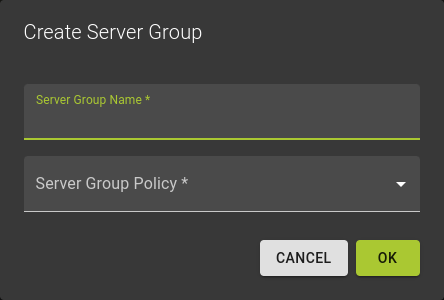 You can create a server group by clicking the Create option on the list of server groups.
To create the server group simply
- Provide a name for the group
- Select the policy to apply.
- Click OK
You can now select the new group during server creation to control placement.
Usage
openstack server group create --policy <policy> <name>
<policy>- Policy associated with the server group you are creating
- Choose from:
affinityanti-affinitysoft-affinitysoft-anti-affinity <name>- Name of the server group to create
Example
Inspect Server Group
Info
Note that server groups are immutable.
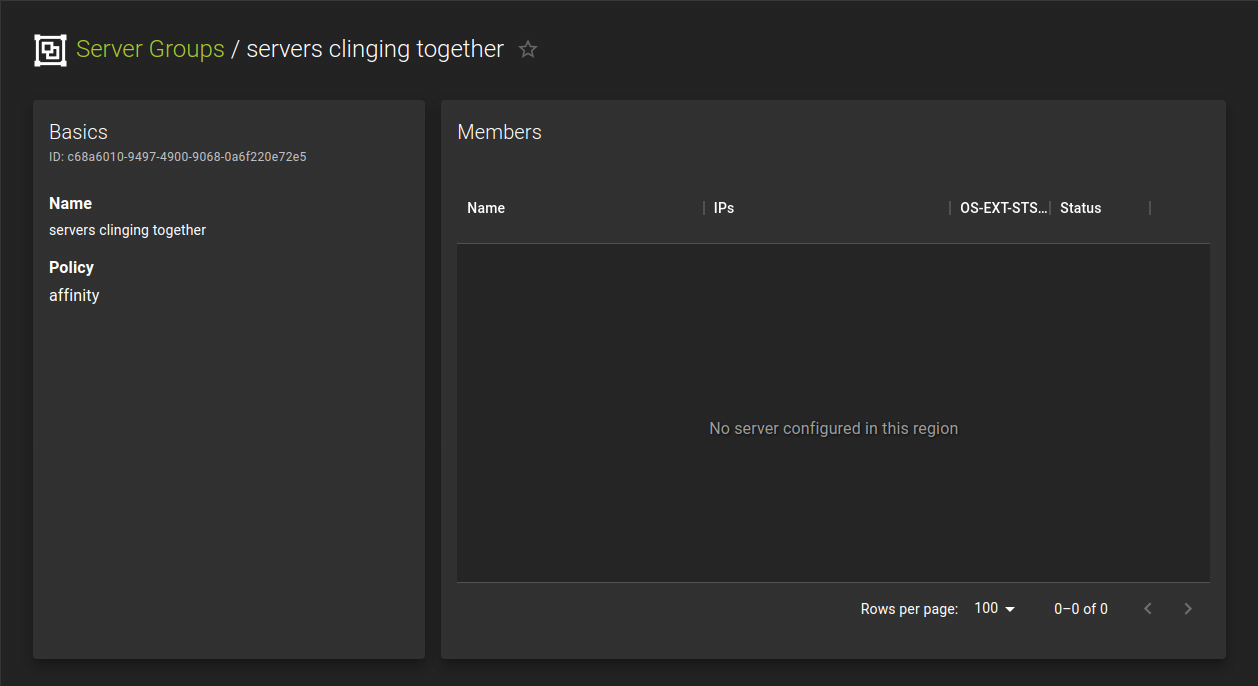 You can access the detail page of a server group from the list of server groups by clicking the name of a group.
The detail page lists the servers that are assigned to the server group.
You can add more servers to a server group by selecting the group during server creation.
Usage
openstack server group show <server-group>
<server-group>- Identifier of group you want to show details for
Delete Server Group
Info
Deleting a server group will not perform any disruptive changes on the servers in that server group
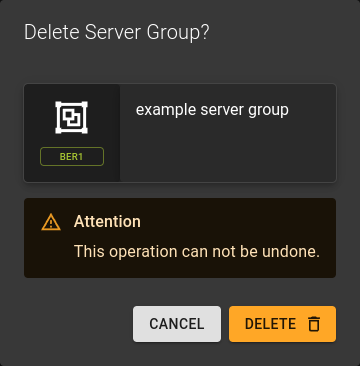
You can delete a server group by clicking the option on the server group list
Usage
openstack server group delete <server-group>
<server-group>- Identifier of server group to be deleted
- Also takes a list of identifiers for bulk deletion