SSH Keys
OpenSSH key pairs provide access to servers via SSH.
SSH Key Ownership
SSH keys apply to the individual user. Unlike other resources, a user can see their own SSH keys. If you plan to deploy SSH keys during server creation, consider using cloud init user data. Cloud init user data is available in the extras section during server creation.
SSH Key Region
SSH keys are valid within the region where you created them. If you plan to use the same key across regions, create a copy of the key in each region.
Listing SSH Keys
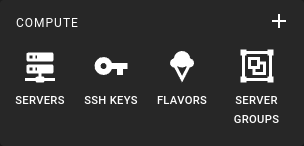 To get a list of all ssh-keys in a region you can click on the SSH Keys icon in the sidebar.
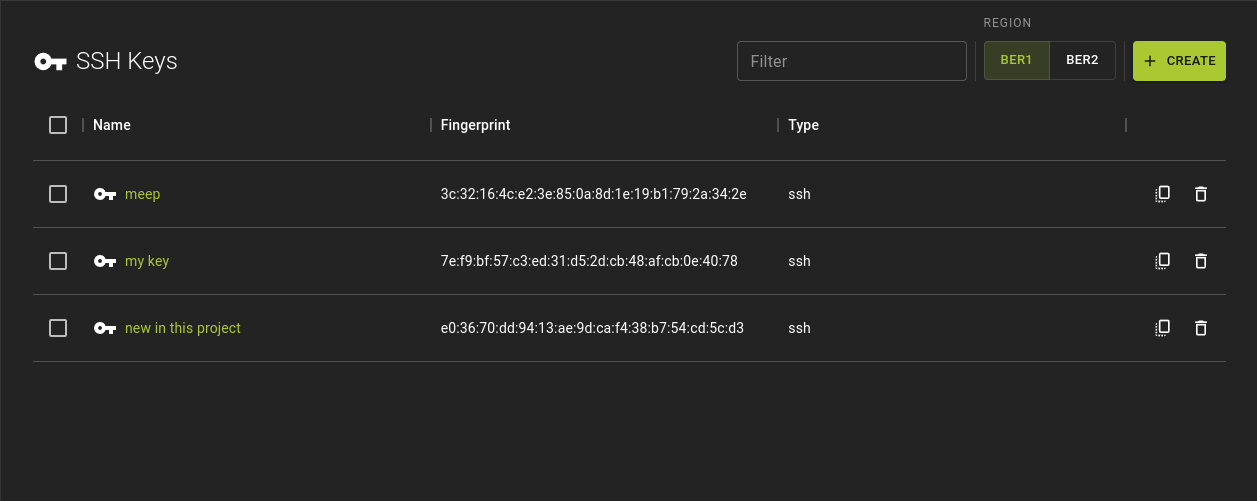 The list of SSH Keys allows
- Creating a new SSH Key by clicking Create on the top right
- Quickly copying the public key by clicking the icon
- Deleting an SSH Key using the icon
- Navigating to the details page by clicking on the name
Creating an SSH Key
You can create SSH keys by either importing an existing SSH key, for example from your own computer, or by generating one on the server.
Generate an SSH Key
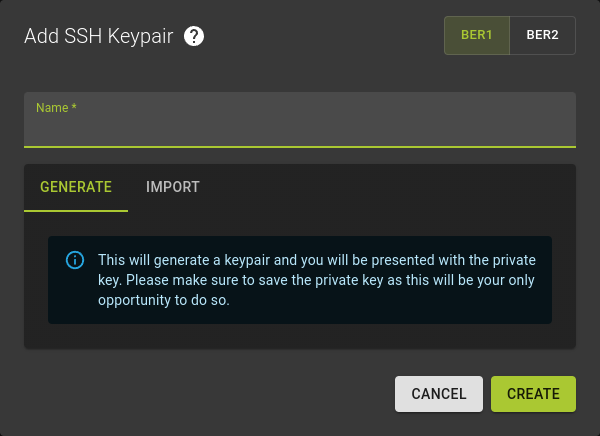 Generating an SSH Key pair is easy.
- Choose a region in which the key should be available. Ber 1
- Provide a name for the key to be generated.
- Verify you are generating the key for the correct region.
- Click Create
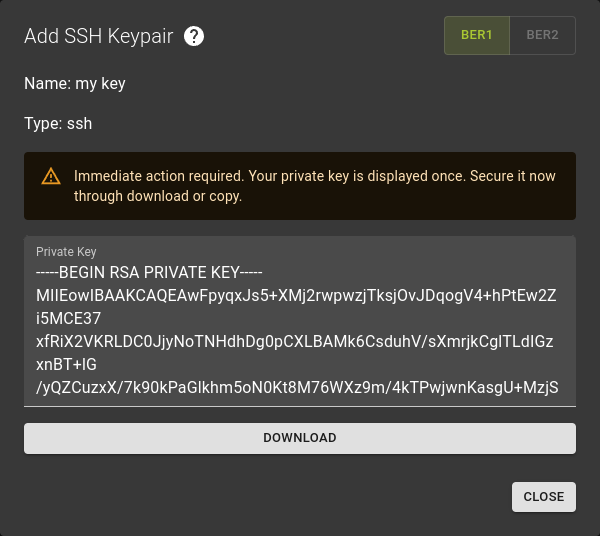
- The generated key will then be presented to give you an opportunity to save the private key to your computer. You can either copy the contents or simply download it
Don't forget to save your private key.
Make sure you really secure the private key in this step as you will not have another opportunity to do so later. The private key will be presented ONLY ONCE for security reasons.
- Click close once you have secured the private key
Import an SSH Key
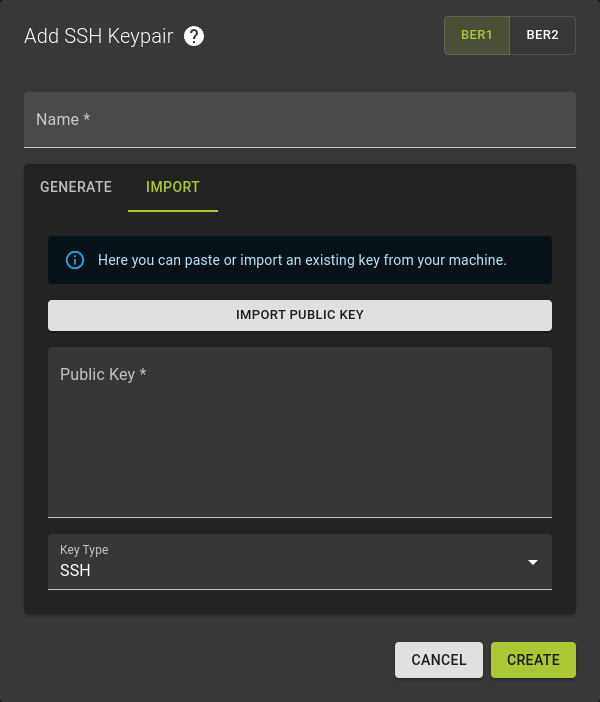 To import an existing SSH Key
- Name the key you are importing
- Verify you are generating the key for the correct region.
-
Provide the public key by
- either using the Import Public Key option and selecting the file
- or copy-pasting the contents of the file
-
Click Create
Usage
openstack keypair create --public-key <file> <name>
<name>- Name for the imported public key
<file>- Path to the public key file you want to import
Example
Inspecting an SSH Key
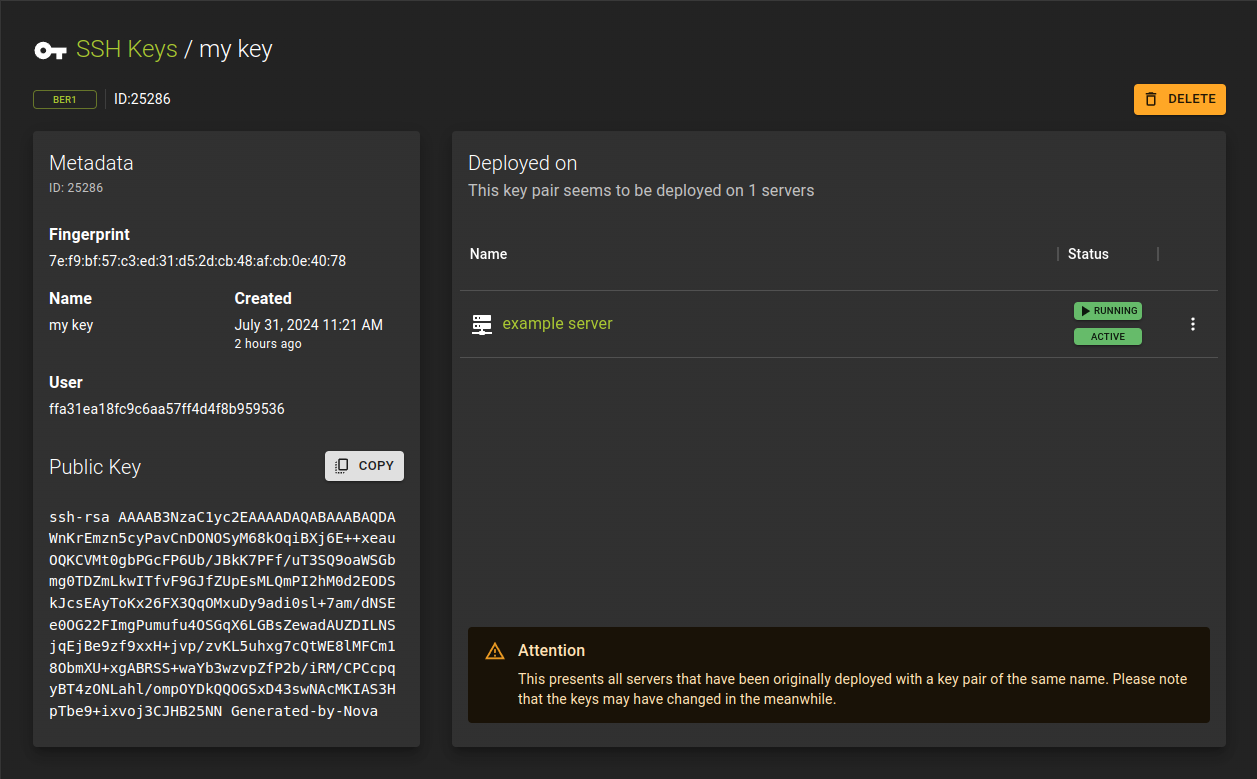
- You can copy the public key using the copy option
- Lists the servers that were deployed using the ssh key. You can also perform a variety of server actions from the list by clicking
Deleting an SSH Key
Does not revoke SSH Keys
Deleting an SSH key removes it for future server creation. The key remains active on existing servers.
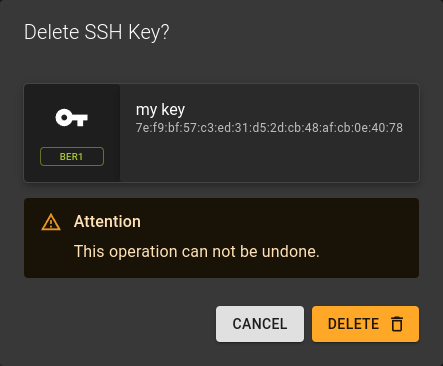 To delete an ssh key you can
- Use the in the list of SSH Keys and select the
DELETEoption - or you can select Delete on the top right of the details page.
Confirm the deletion by clicking Delete in confirmation dialog.
Usage
openstack keypair delete <name>
<name>- Name of the keypair you want to delete.
- Also takes a list of names to perform a bulk delete