Single LAMP Server
Goal
- Launch an instance via Horizon Dashboard
- Automated installation of a web server running PHP, as well as a database server and a database.
Prerequisites
- You need to have the login data for the OpenStack Cloud API (username and passphrase).
- Knowledge how to use a terminal/SSH and SSH-keys.
Launch Stack
- Log in to the Horizon Dashboard using the username and password (API credentials) that were provided by us.
- To launch the example stack using the dashboard go to "Project" → "Orchestration" → "Stacks".
- Click the button "Launch Stack"
- Select "URL" as "Template Source"
- Copy the URL of the example code file
https://raw.githubusercontent.com/syseleven/heat-examples/master/lamp-single-server/example.yaml - Paste the copied URL into the field "Template URL"
- Select "File" as "Environment Source"
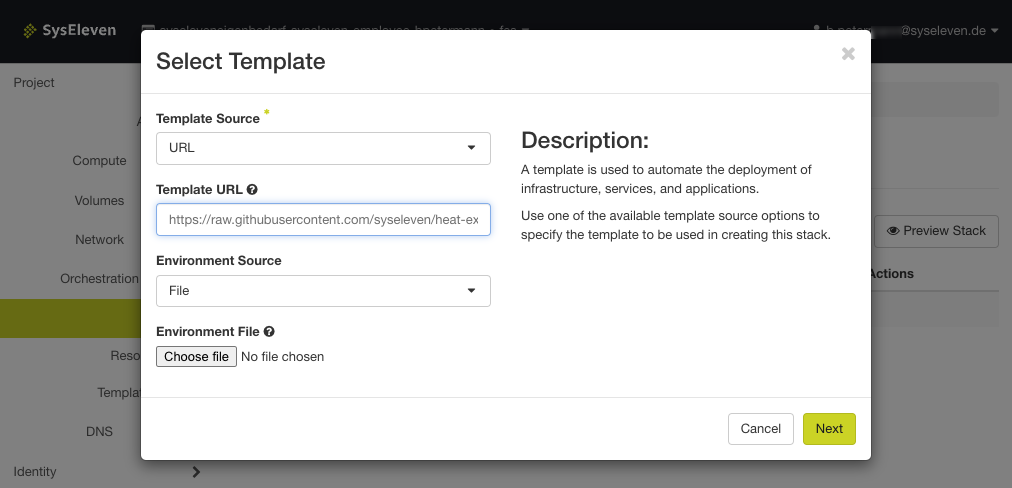
- Click "Next"
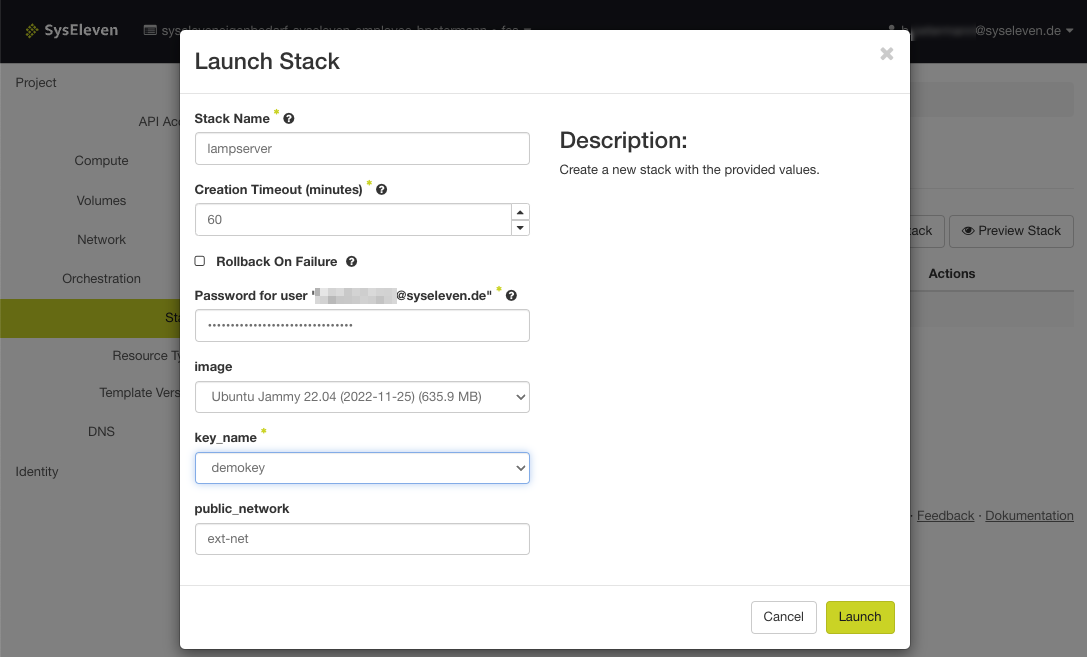
- Write "lampserver" into the field "Stack Name"
- Write the name of your SSH key that you uploaded to the Horizon Dashboard - see SSH How-To
- Click on "Launch"
- Verify that the stack status is "Create In Progress" or "Create Complete"
- Go to "Compute" → "Instances" to retrieve the floating IP that is required to access the instance via SSH
- Copy the floating IP from the example server
- Open a terminal of your choice and log in to the instance via SSH with the username
syseleven
ssh syseleven@<floating-ip> -i ~/.ssh/<private-ssh-key>
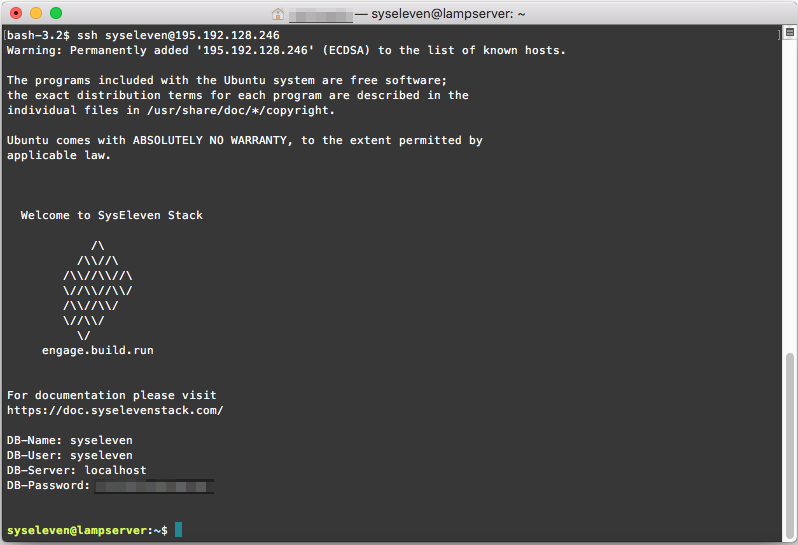
- You should now be logged in your instance via SSH
- You can follow the installation progress:
- In the background, the web server, database server and a up-to-date PHP version is being installed.
-
We can check the progress with the following command:
tail -f /var/log/cloud-init-output.log -
You may also test the webserver:
- This template deploys a simple PHP application.
- You can now place any PHP application to
/var/www/htmland test it.