Floating IPs
Floating IPs allow external access to internal resources by assigning a public IP address to instances or routers.
List Floating IPs
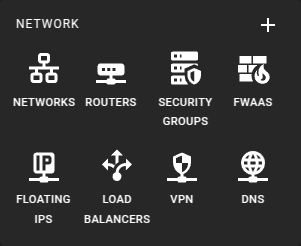 To get a list of all Floating IPs in a region you can click on the
Floating IPs icon in the sidebar.
To get a list of all Floating IPs in a region you can click on the
Floating IPs icon in the sidebar.
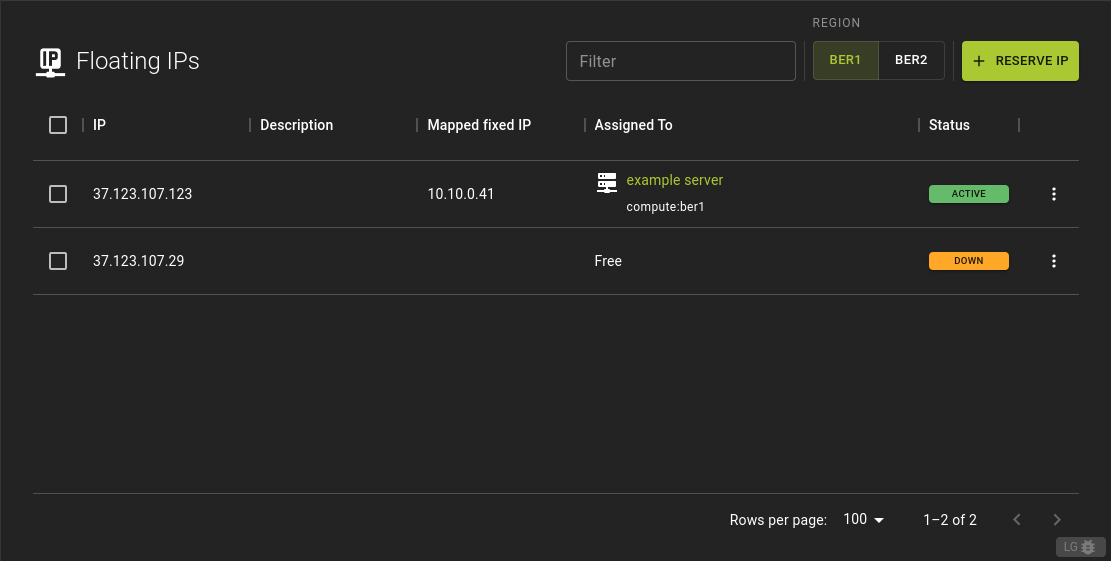 The list provides an overview of all floating IPs in your environment.
Each row displays details about the associated resource, and you can access more information by clicking on the name or ID of the resource.
Additionally, you can perform actions for a floating IP by clicking the option at the very end of a table row. This will pop up a menu with common actions to perform on a floating IP.
Usage
openstack floating ip list
Output
+--------------------------------------+----------------------+------------------+------+--------------------------------------+----------------------------------+
| ID                                   | Floating IP Address  | Fixed IP Address | Port | Floating Network                     | Project                          |
+--------------------------------------+----------------------+------------------+------+--------------------------------------+----------------------------------+
| 5d2f2e3e-cd74-4c15-9b0d-9d9b7c1b7521 | 203.0.113.5          | 192.168.0.5      | None | 2b70e17f-0ed5-4bc8-b64f-e85d91e1ef32 | 7c4e75e9c04b42d68b6a1b54cf9f8509 |
| 6f4b2f92-b6d6-4d1b-933f-8e43fabbc69e | 203.0.113.8          | 192.168.0.12     | None | 2b70e17f-0ed5-4bc8-b64f-e85d91e1ef32 | 7c4e75e9c04b42d68b6a1b54cf9f8509 |
| 9a6a7c4f-7d6e-44b9-b91d-f8a05f1c42c1 | 203.0.113.10         | 192.168.0.7      | None | 2b70e17f-0ed5-4bc8-b64f-e85d91e1ef32 | 7c4e75e9c04b42d68b6a1b54cf9f8509 |
+--------------------------------------+----------------------+------------------+------+--------------------------------------+----------------------------------+
Reserve Floating IP
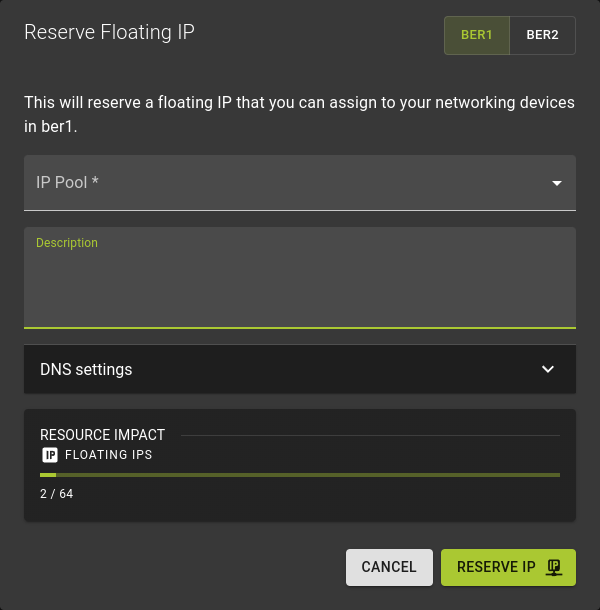
From the list page, click RESERVE IP to open a prompt. Follow these steps to reserve a
Floating IP:
- Select IP Pools: This specifies the network segment from which the IP address will be drawn.
- Provide a Description.
-
Specify DNS Details:
- Domain: Enter the domain associated with the Floating IP.
- Name: Provide a name for the Floating IP.
-
Confirm by clicking
RESERVE IP
Usage
openstack floating ip create
          [--subnet <subnet>]
          [--port <port>]
          [--floating-ip-address <ip-address>]
          [--fixed-ip-address <ip-address>]
          [--qos-policy <qos-policy>]
          [--description <description>]
          [--project <project>]
          [--dns-domain <dns-domain>]
          [--dns-name <dns-name>]
          [--project-domain <project-domain>]
          [--tag <tag> | --no-tag]
          <network>
--subnet <subnet>- Subnet on which you want to create the floating IP (name or ID)
--port <port>- Port to be associated with the floating IP (name or ID)
--floating-ip-address <ip-address>- Floating IP address
--fixed-ip-address <ip-address>- Fixed IP address mapped to the floating IP
--qos-policy <qos-policy>- Attach QoS policy to the floating IP (name or ID)
--description <description>- Set floating IP description
--dns-domain <dns-domain>- Set DNS domain for this floating IP
--dns-name <dns-name>- Set DNS name for this floating IP
--tag <tag>- Tag to be added to the floating IP (repeat option to set multiple tags)
--no-tag- No tags associated with the floating IP
<network>- Network to allocate floating IP from (name or ID)
Inspect and modify a Floating IP
Info
The Floating IP does not have a details page and cannot be modified through the UI. However, you can make changes using the CLI.
Details
Usageopenstack floating ip show <floating-ip>
<floating-ip>- Floating IP to display (IP address or ID)
Modify
Usageopenstack floating ip set
[--port <port>]
[--fixed-ip-address <ip-address>]
[--description <description>]
[--qos-policy <qos-policy> | --no-qos-policy]
[--tag <tag>]
[--no-tag]
<floating-ip>
--port- Associate the floating IP with port (name or ID)
--fixed-ip-address
Fixed IP of the port (required only if port has multiple IPs)
--description- Set floating IP description
--qos-policy
Attach QoS policy to the floating IP (name or ID)
--no-qos-policy- Remove the QoS policy attached to the floating IP
--tag- Tag to be added to the floating IP (repeat option to set multiple tags)
--no-tag- Clear tags associated with the floating IP. Specify both --tag and --no-tag to overwrite current tags
<floating-ip>- Floating IP to modify (IP address or ID)
Floating IP Actions
Info
The action menu changes with its status: it offers Dissociate Floating IP if the IP is
already associated, or Associate Floating IP if it is not.
Associate Floating IP
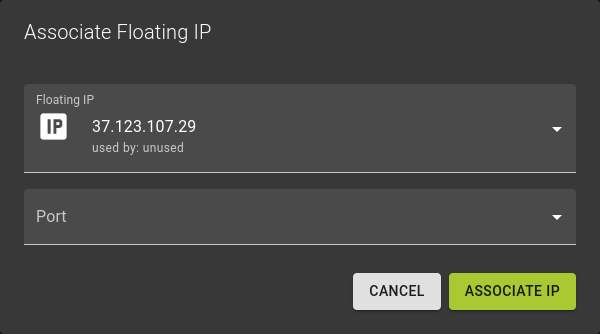
To initiate the association, click the option next to the floating IP in the list.
This opens a prompt where you can select the port to associate with the floating IP.
If no ports are available for selection, you will need to create a port in the network section before proceeding.
Usage
openstack floating ip set
    [--port <port>]
    [--fixed-ip-address <ip-address>]
    [--description <description>]
    [--qos-policy <qos-policy> | --no-qos-policy]
    [--tag <tag>]
    [--no-tag]
    <floating-ip>
--port- Associate the floating IP with port (name or ID)
--fixed-ip-address
Fixed IP of the port (required only if port has multiple IPs)
--description- Set floating IP description
--qos-policy
Attach QoS policy to the floating IP (name or ID)
--no-qos-policy- Remove the QoS policy attached to the floating IP
--tag- Tag to be added to the floating IP (repeat option to set multiple tags)
--no-tag- Clear tags associated with the floating IP. Specify both --tag and --no-tag to overwrite current tags
<floating-ip>- Floating IP to modify (IP address or ID)
Dissociate Floating IP
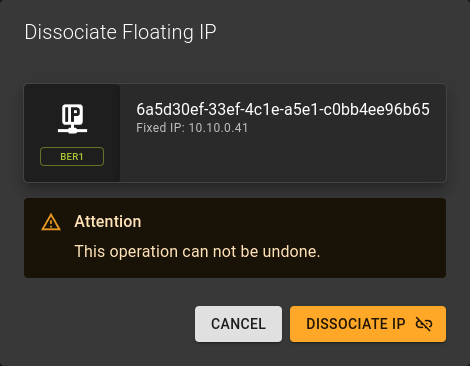 To dissociate the floating IP, click the option next
to it in the list.
To dissociate the floating IP, click the option next
to it in the list.
A prompt will appear, where you can confirm the action by clicking DISSOCIATE IP.
Usage
openstack floating ip unset
    [--port]
    [--qos-policy]
    [--tag <tag> | --all-tag]
    <floating-ip>
--port- Disassociate any port associated with the floating IP
--qos-policy- Remove the QoS policy attached to the floating IP
--tag- Tag to be removed from the floating IP (repeat option to remove multiple tags)
--all-tag- Clear all tags associated with the floating IP
<floating-ip>- Floating IP to disassociate (IP address or ID)
Release Floating IP
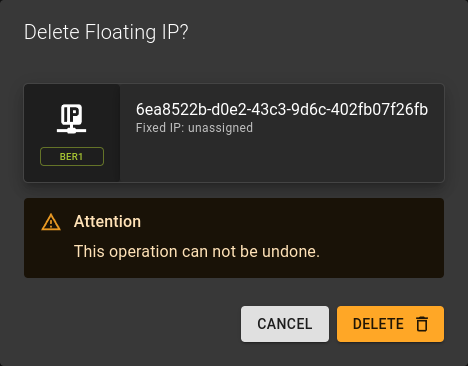 Releasing a floating IP is straightforward.
Use the menu in the list of floating IPs and select
the Delete option.
In the emerging prompt confirm the deletion by clicking Delete .
Tip
Before deleting a floating IP, it is advisable to disassociate it from any resources. While the system may allow deletion even when the IP is associated, disassociating the IP first helps prevent potential issues or conflicts.
Usage
openstack floating ip delete <floating-ip> [<floating-ip> ...]
<floating-ip>- Floating IP(s) to delete (IP address or ID)