Organization Members
Organization members connect users to your organization. Users can belong to separate organizations. You add members by inviting them to join the organization.
List Members
Permission required
- You will need the necessary permissions to perform this operation.
- For details refer to the authorization model
To list the members of an organization, navigate to the details page of an organization and select the Members tab.
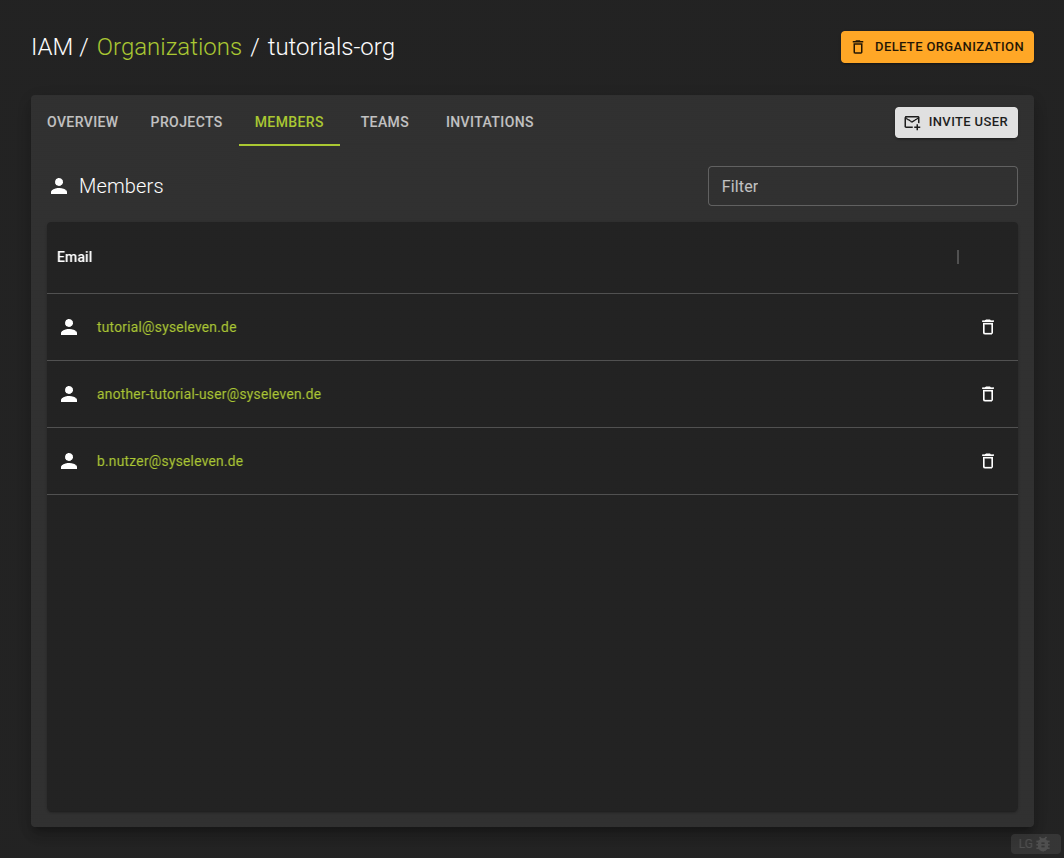
From the list you can:
- Invite additional members
- Navigate to the details page of a member
- Remove a member from the organization
Invite Member
Permission required
- You will need the necessary permissions to perform this operation.
- For details refer to the authorization model
Browse to the target organization. Click on the organization to open the details page and switch to the Members tab.
Click the Invite User button.
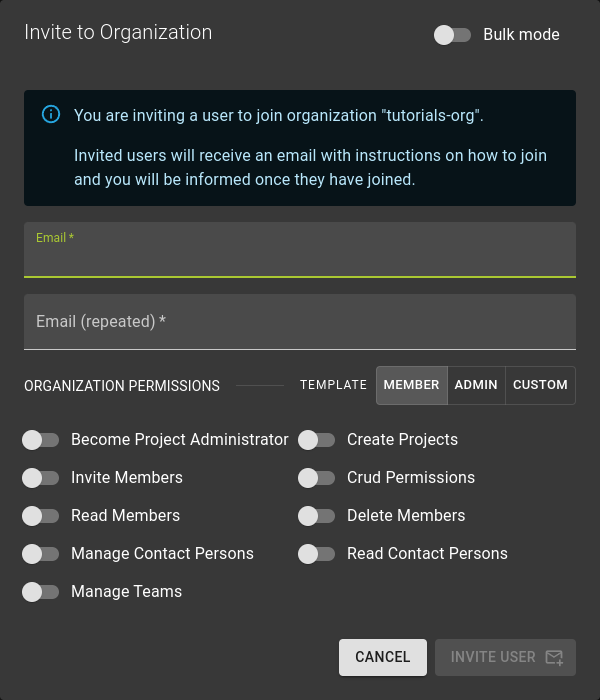
In the emerging dialog:
- Enter and confirm the email address of the user you want to invite
- Assign permissions to the user
See the Authorization Model for more information on permissions.
Manage Members
Permission required
- You will need the necessary permissions to perform this operation.
- For details refer to the authorization model
To get a detailed view for a member of an organization
- Navigate to the organization details page
- Switch to the Members tab
- Click the member name in the list to open the member details page
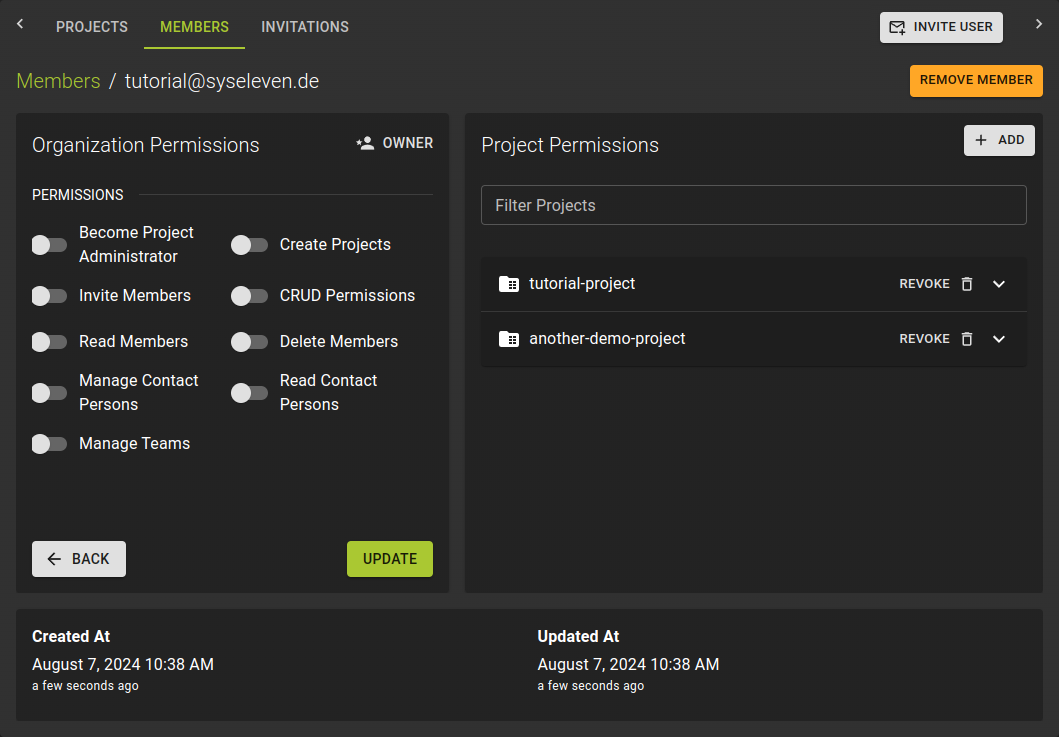
On the details page you can manage:
- The member permissions on the organization
- The member permissions on individual projects of the organization
Edit Organization Permissions
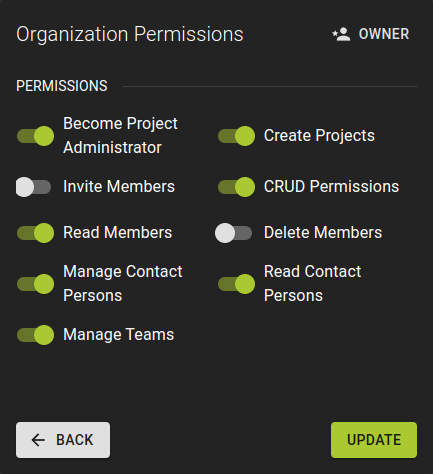 To edit the member permissions on the organization:
- Use the switches to control individual permissions
- Click Update when done
Edit Project Permissions
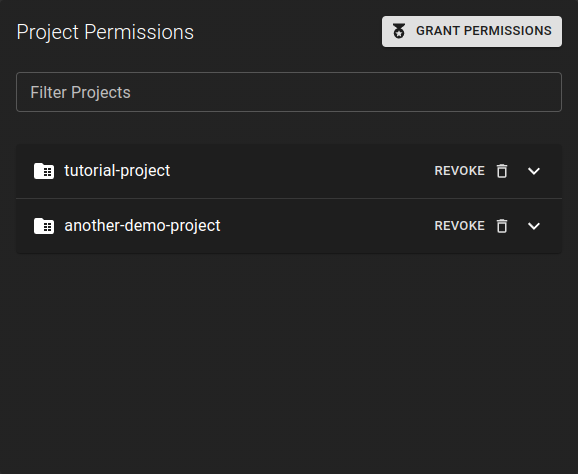
Here you can edit project permissions and grant access to additional projects.
Manage Invitations
Permission required
- You will need the necessary permissions to perform this operation.
- For details refer to the authorization model
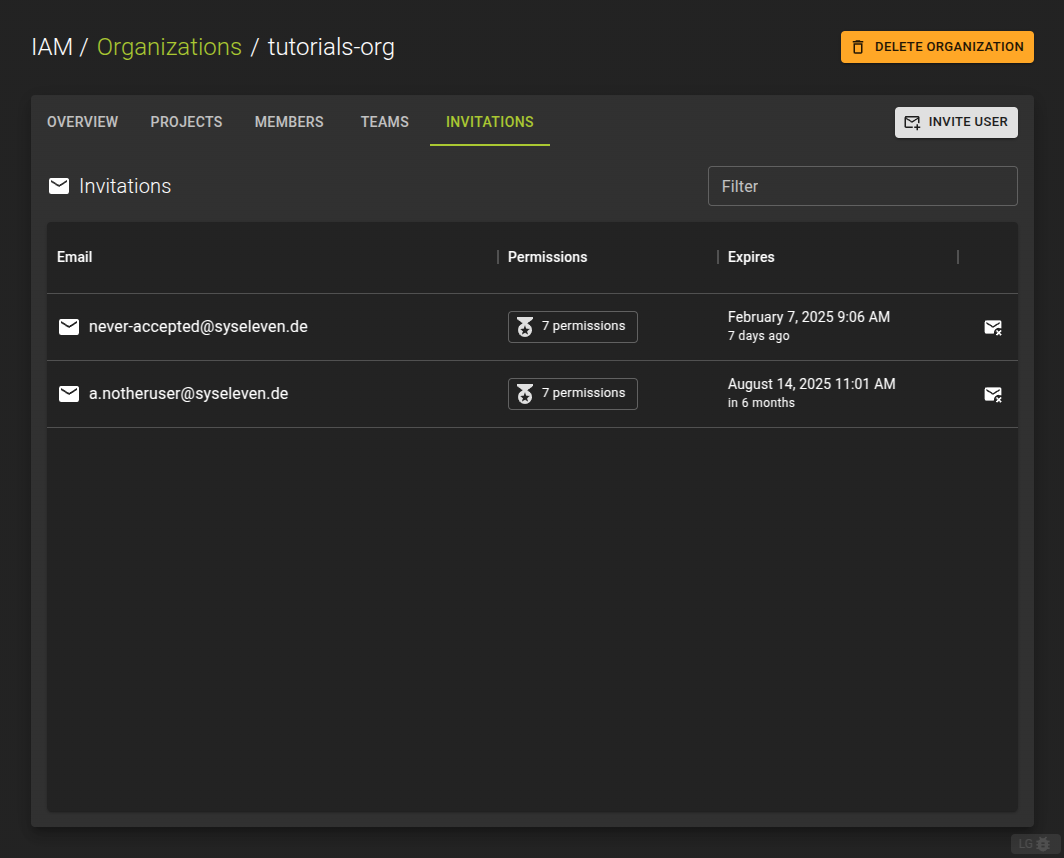
You can list the open invitations sent by your organization in the Invitations tab on the organization details page.
Revoke an open invitation by clicking the icon at the end of each entry in the list. This invalidates any confirmation emails already sent to invitees.
Accepted invitations convert to memberships and do not appear in this list.
Remove Members
Permission required
- You will need the necessary permissions to perform this operation.
- For details refer to the authorization model
Info
All resources belong to the project, and by extension to the organization. Removing a member removes no resources.
To revoke a membership:
- From the list of members in the Members tab, click the icon
- On the member details page, click the Revoke Member button
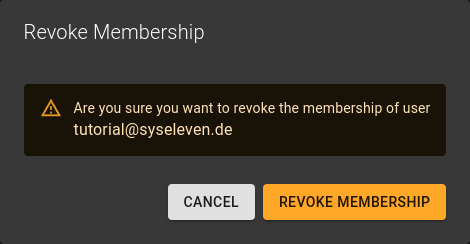
In the emerging dialog, confirm the operation by clicking the Revoke Membership button.