Projects
Projects serve as resource containers within your organization. Use them to manage resources with fine-grained access control.
You can link users, service accounts, and teams to a project to grant access to the project's resources. API Keys (deprecated) and S3 users belong to a project.
Ownership and Access Control
Projects belong to an organization. Project visibility follows these principles:
- Regular users (
memberaffiliation) can see and access the projects that granted them access, for example when they created the project, received specific permissions, or joined a team with specific permissions. Regular users with the permissionBecome Project Administratorcan see and manage ALL projects within the organization - Users with the organization
owneroradminaffiliation can see and manage ALL projects within the organization
List Projects
Permission required
- You will need the necessary permissions to perform this operation.
- For details refer to the authorization model
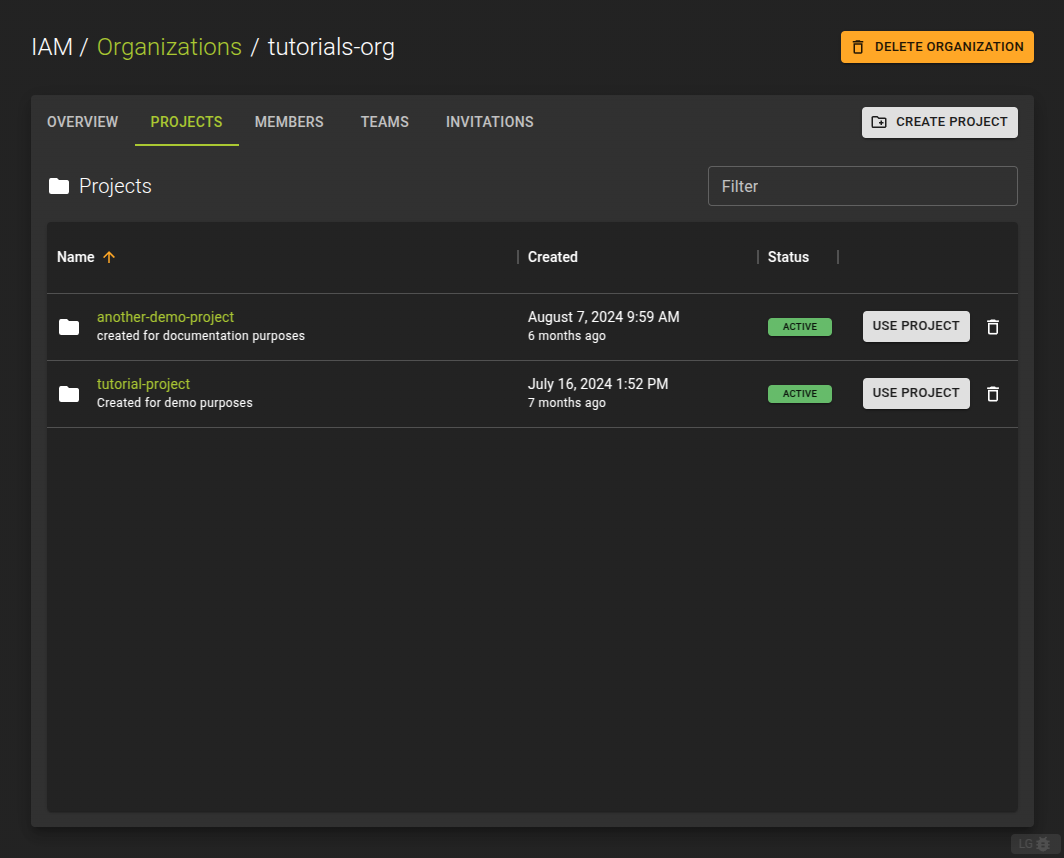
To list all projects within an organization, navigate to the details page of an organization and switch to the Projects tab.
The projects list provides:
- Create new projects by clicking the Create Project button
- Terminate a project by clicking the icon at the end of each entry
- Enter a project context and manage its resources by clicking the Use Project button
Create Project
Permission required
- You will need the necessary permissions to perform this operation.
- For details refer to the authorization model
To create a project
- navigate to an organization detail page
- switch to the Projects tab
- click the Create Project button
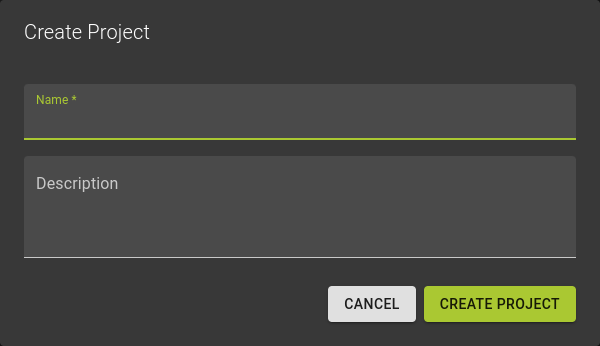
In the emerging dialog
- Name your project
- Optionally provide a description for your project
View and Manage Project
Permission required
- You will need the necessary permissions to perform this operation.
- For details refer to the authorization model
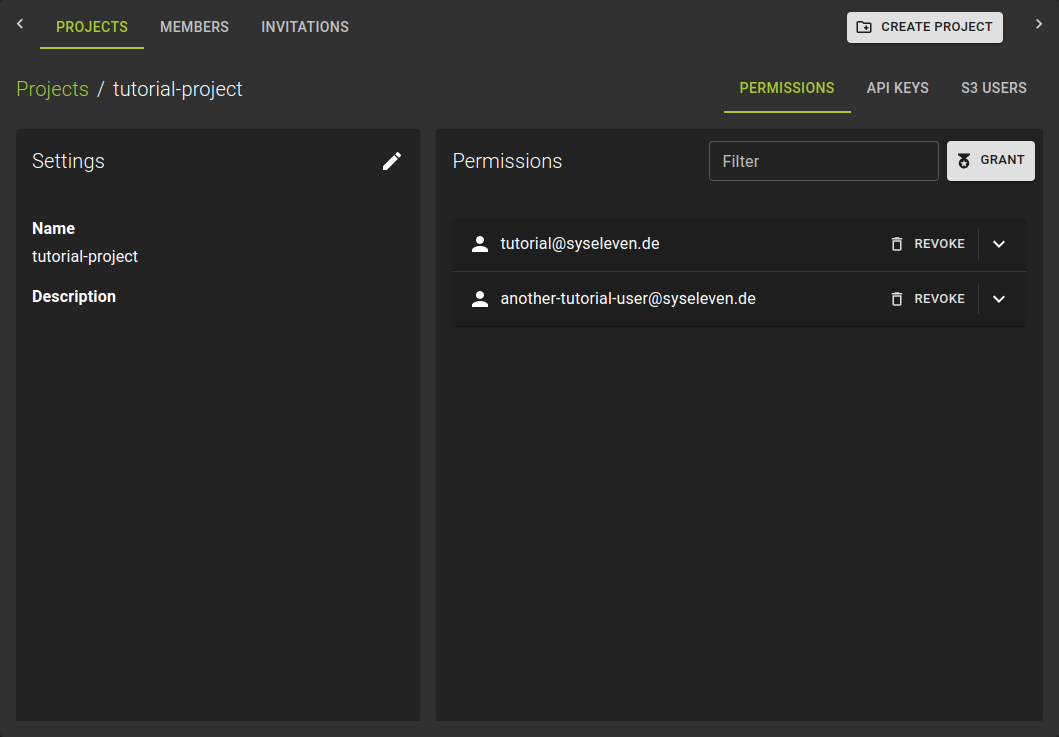
To manage an individual project, navigate to the project details page by clicking its name from the projects list.
Here you can:
- Rename a project and add a description
- Manage the permissions of members on the project
- Manage API keys
- Manage S3 users
Basic Settings
To modify the name or description of a project, click the icon on the settings card on the project details page.
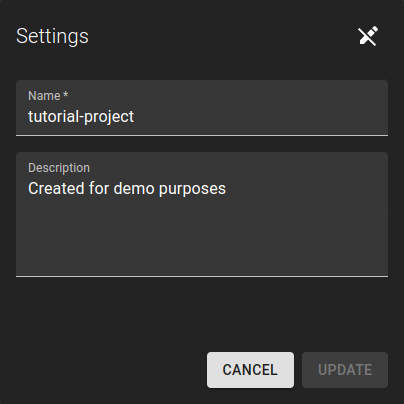
This puts the settings card into edit mode:
- Update name and description as needed
- Confirm the changes by clicking the Update button
Delete Project
Permission required
- You will need the necessary permissions to perform this operation.
- For details refer to the authorization model
Warning
Deleting a project deletes all cloud resources belonging to the project. Use caution; you cannot undo this operation.
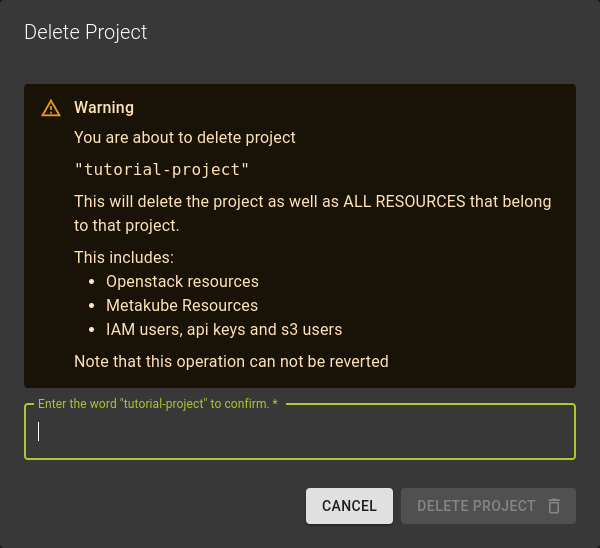
To delete a project
- Navigate to the details page of the organization containing the project and switch to the Projects tab
- Either click the icon at the end of the entry representing your project
- Or on the project details page, click the Delete Project button in the title bar
In the emerging dialog, confirm the operation by:
- Entering the name of the project you want to delete
- Clicking the Delete Project button