Teams
Teams belong to an organization. Team visibility follows these principles:
- Regular users (
memberaffiliation) can see and access the teams that granted them access, for example when they created the team or received specific permissions - Users with the organization
owneroradminaffiliation can see and manage ALL teams within the organization
The Teams feature in IAM groups users and assigns collective permissions. It simplifies user management and enhances collaboration within organizations.
Key benefits:
- Group users together for easier permission management
- Assign permissions to entire teams rather than individual users
- Streamline access control in large organizations
List Teams
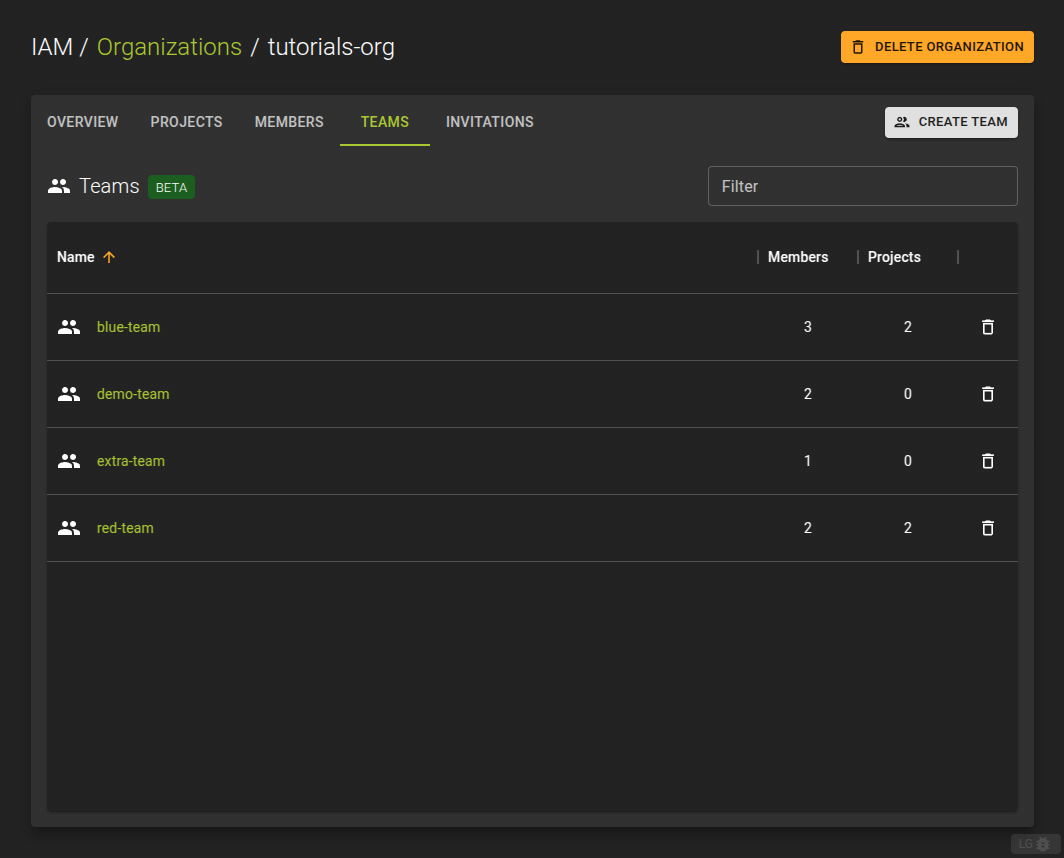
To list all teams within an organization, navigate to the details page of an organization and switch to the Teams tab.
The teams list provides:
- Create new teams by clicking the Create Team button
- Disband a team by clicking the icon at the end of each entry
- Navigation to the team details page where you can manage members and permissions
Create Team
To create a team
- navigate to an organization detail page
- switch to the Teams tab
- click the Create Team button
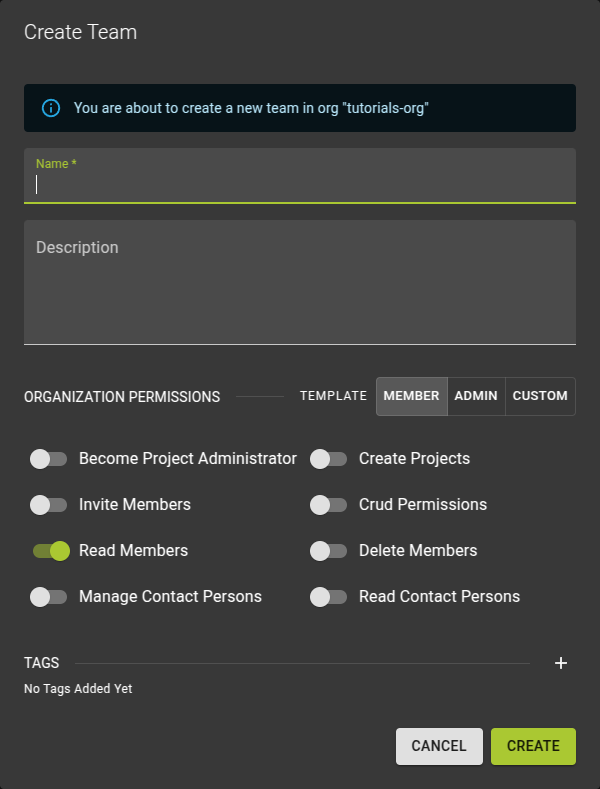
In the emerging dialog
- Name your team
- Optionally provide a description for your team
- Set the team permissions on the organization (all team members inherit these permissions)
- Optionally set tags you can use to store additional information
View and Edit Team
To view and edit a team, navigate to the team details page by clicking its name in the list.
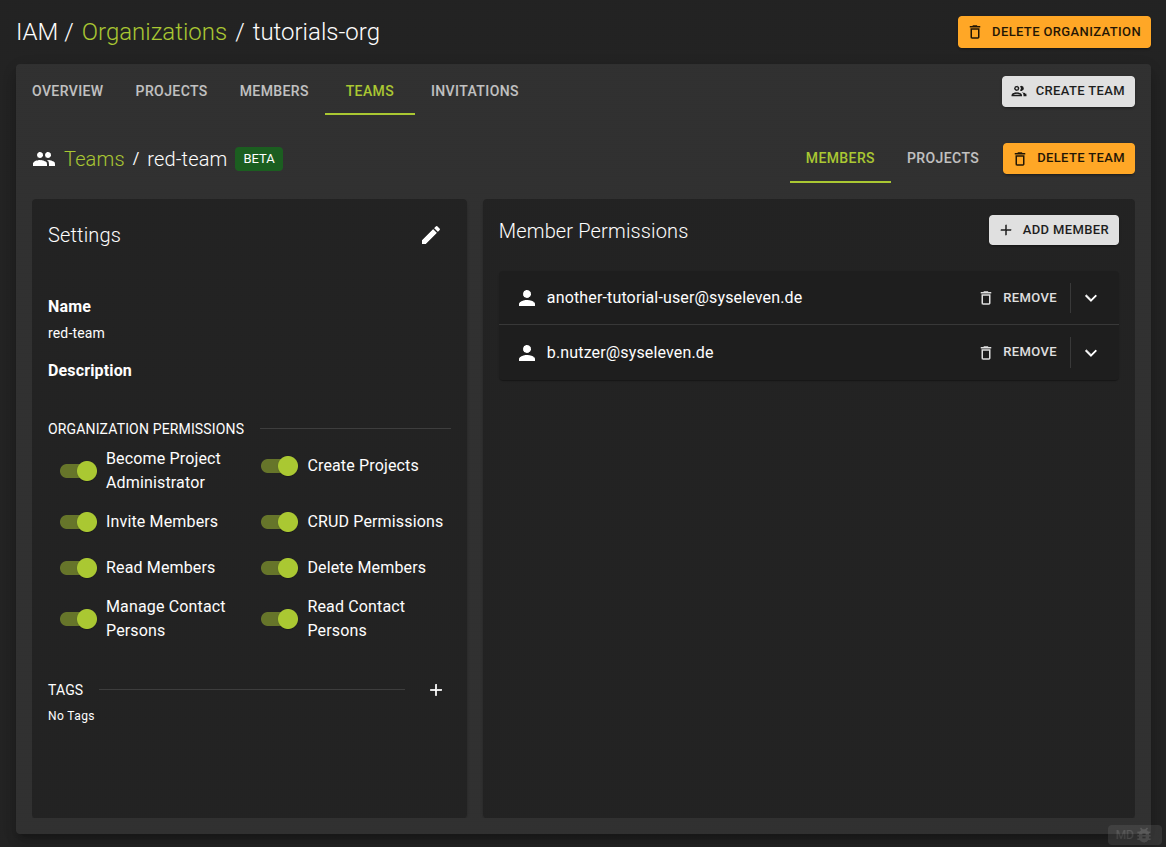
On the details page you can:
- Edit basic properties such as the name and description
- Manage organization-level permissions of the team
- Add or remove team members
- Manage per-project permissions to control access for the team
Edit Basic Settings
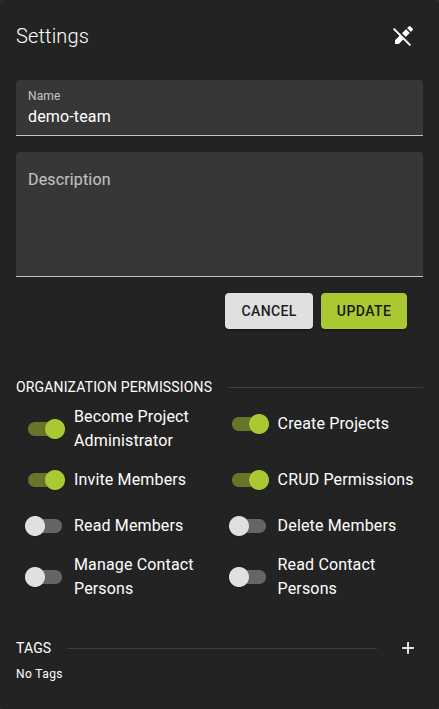
To change the name or description of a team
- Enter edit mode by clicking
- Make your changes and click Update
Manage Organization Permissions
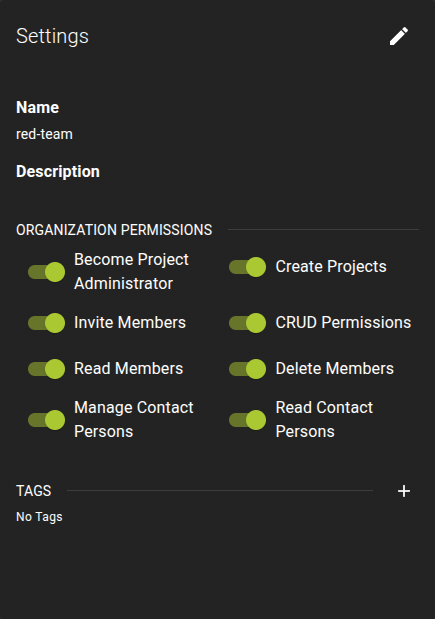
Use the switches to change the team permissions on the organization.
Changes apply automatically.
Manage Team Members and Permissions
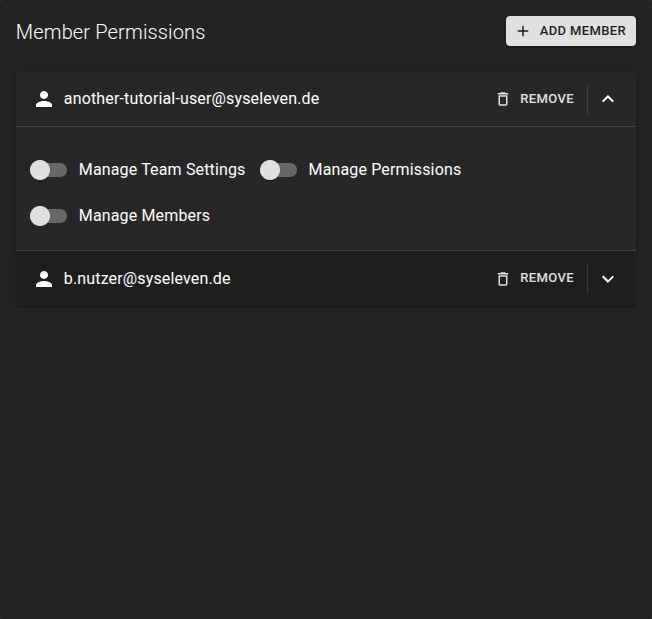
You can view and manage the team members in the Members tab.
Add Member
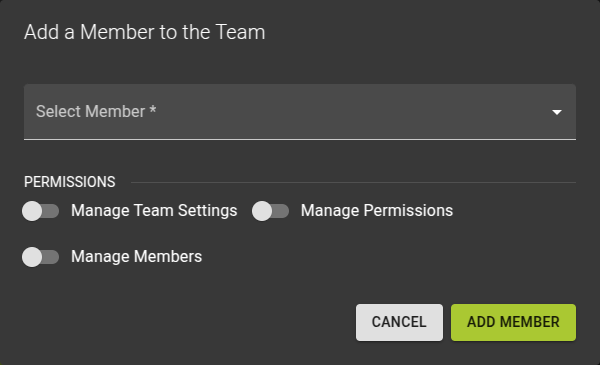
To add a member to the team
- Click the Add Member button
- In the emerging dialog
- Select a member from the drop down
- Select the permissions the new member shall have on the team
- Click on create to complete the operation
Manage Member Permissions
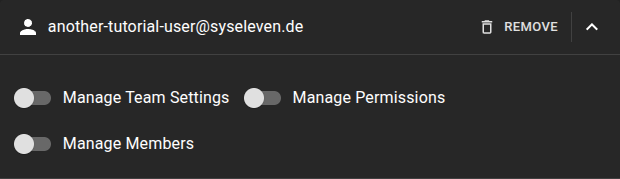
To edit the permissions of a member in the team:
- Expand the member view by clicking on the member
- Toggle the permissions as needed; changes save immediately
Remove Member
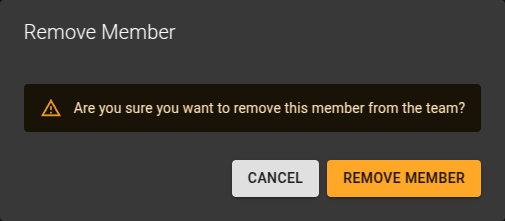
To remove a member and the associated permissions:
- Identify the member in the list and click on the Remove button
- Confirm the deletion in the emerging prompt
Manage Project Access
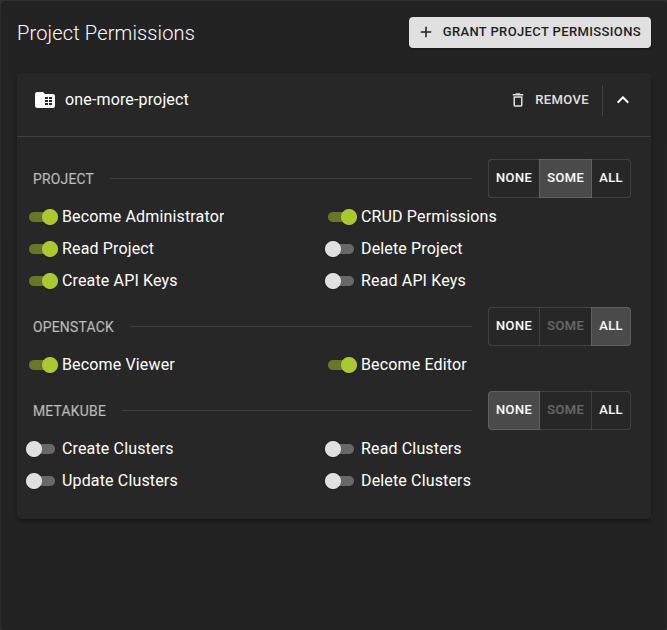
You can list and manage the projects the team has access to in the Projects tab.
Grant Access to Project
To grant the team access to a project:
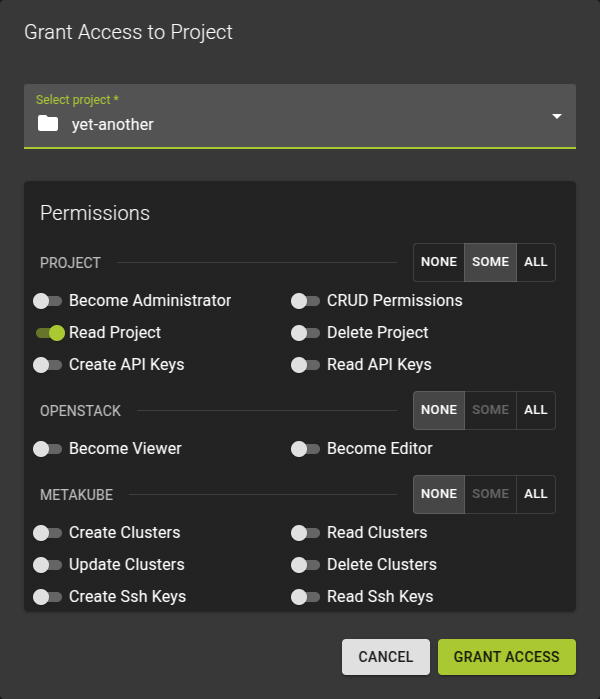
- Click the Grant project permissions button
- In the emerging dialog:
- Select the project from the drop down
- Toggle the permissions the team should receive
- Click Grant access to complete the operation
Manage Project Permissions
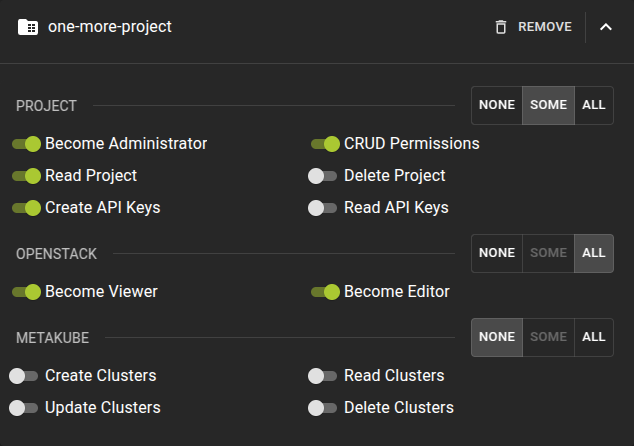
To manage the permissions for a project the team has already access to:
- Identify the project in the list and click it to expand and reveal the permissions
- Toggle the permissions as needed; changes apply immediately
Revoke Project Access
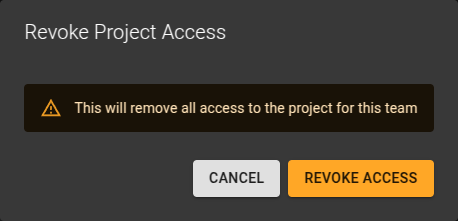
To revoke a team access to a project:
- Identify the project in the list and click the Revoke button
- Confirm the operation in the emerging prompt
Delete Team
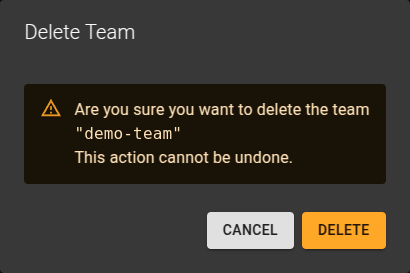
To delete a team
- Navigate to the details page of the organization containing the team and switch to the Teams tab
- Either click the icon at the end of the entry representing your team
- Or on the team details page, click the Delete Team button in the title bar
Confirm the operation in the emerging prompt.