Service Accounts
Service Accounts represent our evolution of API Keys and enable machine access to the Cloud. We designed Service Accounts to replace API Keys and provide more flexibility for programmatic interaction with the Cloud.
Ownership and Access Control
Service Accounts belong to an organization. Service account visibility follows these principles:
- Regular users (
memberaffiliation) can see and access the service accounts that granted them access, for example when they created the account, received specific permissions, or joined a team with specific permissions - Users with the organization
owneroradminaffiliation can see and manage ALL service accounts within the organization
This approach ensures users view service accounts relevant to their work.
Benefits of Service Accounts
Service accounts mirror the membership users hold in organizations. In particular, Service Accounts let you:
- Assign organization permissions, to use with the IAM Terraform Provider
- Assign separate credentials to a single Service Account, for example for credential rotation
- Add or remove permissions without changing the identity of the service account
- Assign permissions across separate IAM projects
The specific design of Service Accounts is still under development. We will update this page as details become available.
List Service Accounts
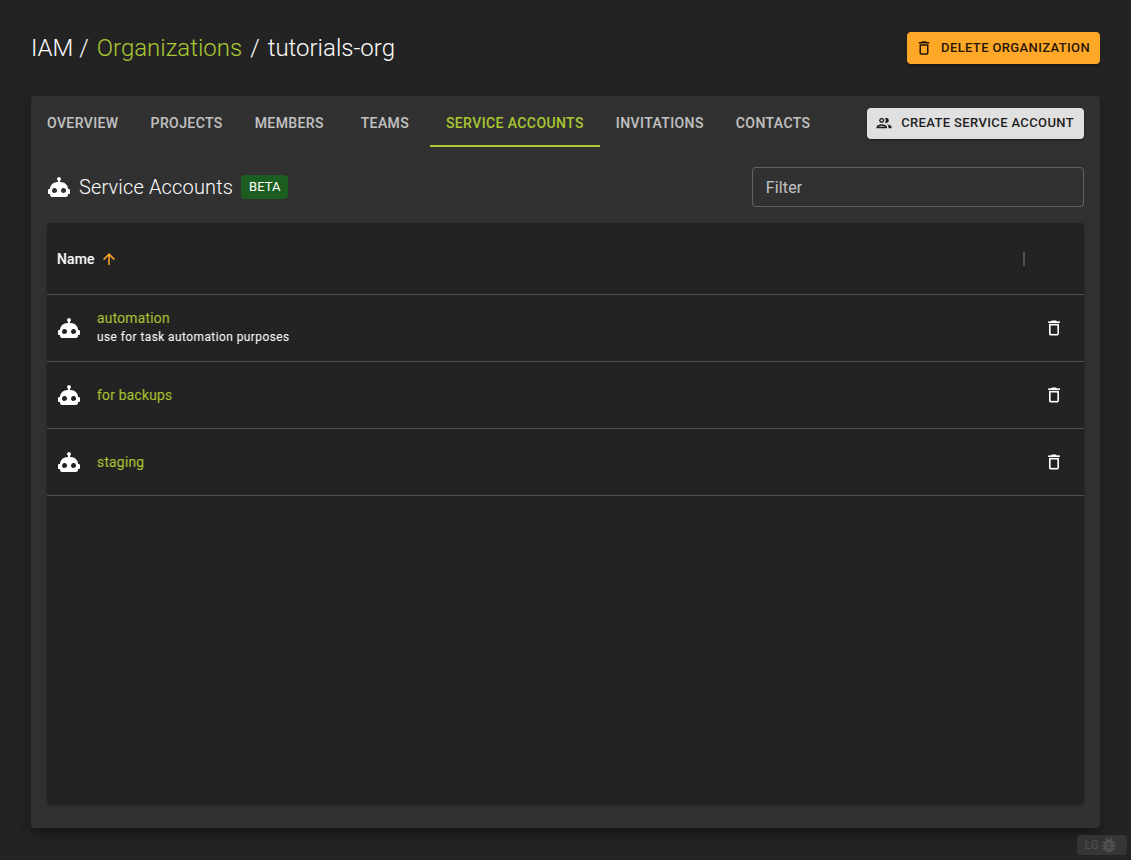 To list all service accounts you can access within an organization, navigate to the details page of an organization and switch to the Service Accounts tab.
The Service Account list provides:
- Create new Service Accounts by clicking the Create Service Account button
- Delete a Service Account by clicking the icon at the end of each entry
- Navigate to the details of a Service Account to manage credentials and permissions
Create Service Account
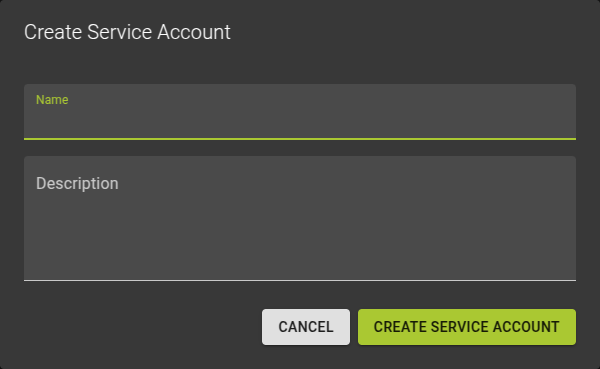
To create a new Service Account, click the Create Service Account button.
In the emerging dialog:
- Name the service account
- Optionally provide a description
- Complete the operation by clicking the Create Service Account button
View and Edit Service Account
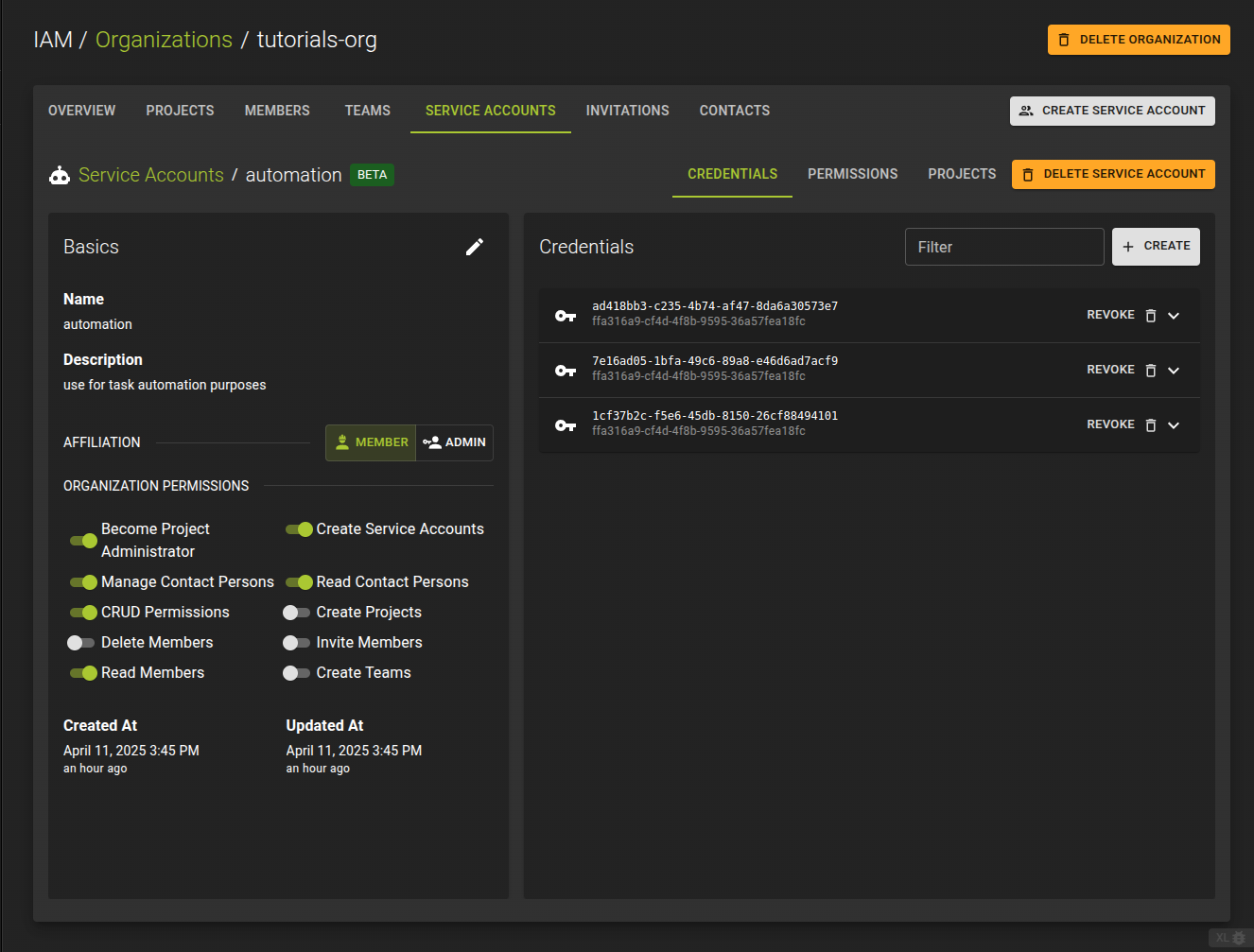 To view and edit a Service Account, navigate to its details page by clicking its name on the list view.
On the details page, you can:
- Edit basic properties like name and description
- Edit organization-level permissions for the service account
- Manage credentials for the service account
- Manage access and permissions for users on the service account
- Manage project access and permissions for the service account
Edit Service Account
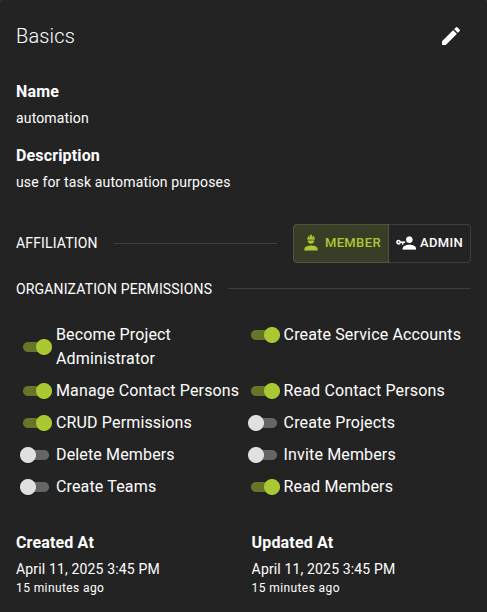
Edit Name and Description
To edit the name and description of the service account, click the button at the top right of the card to enter edit mode:
- Make your changes as needed
- Confirm the changes by clicking the Update button
Edit Organization Permissions and Affiliation
Use the switches to set new permissions; changes apply automatically.
To change the affiliation, select the new affiliation (member or admin).
Manage Credentials
List Credentials
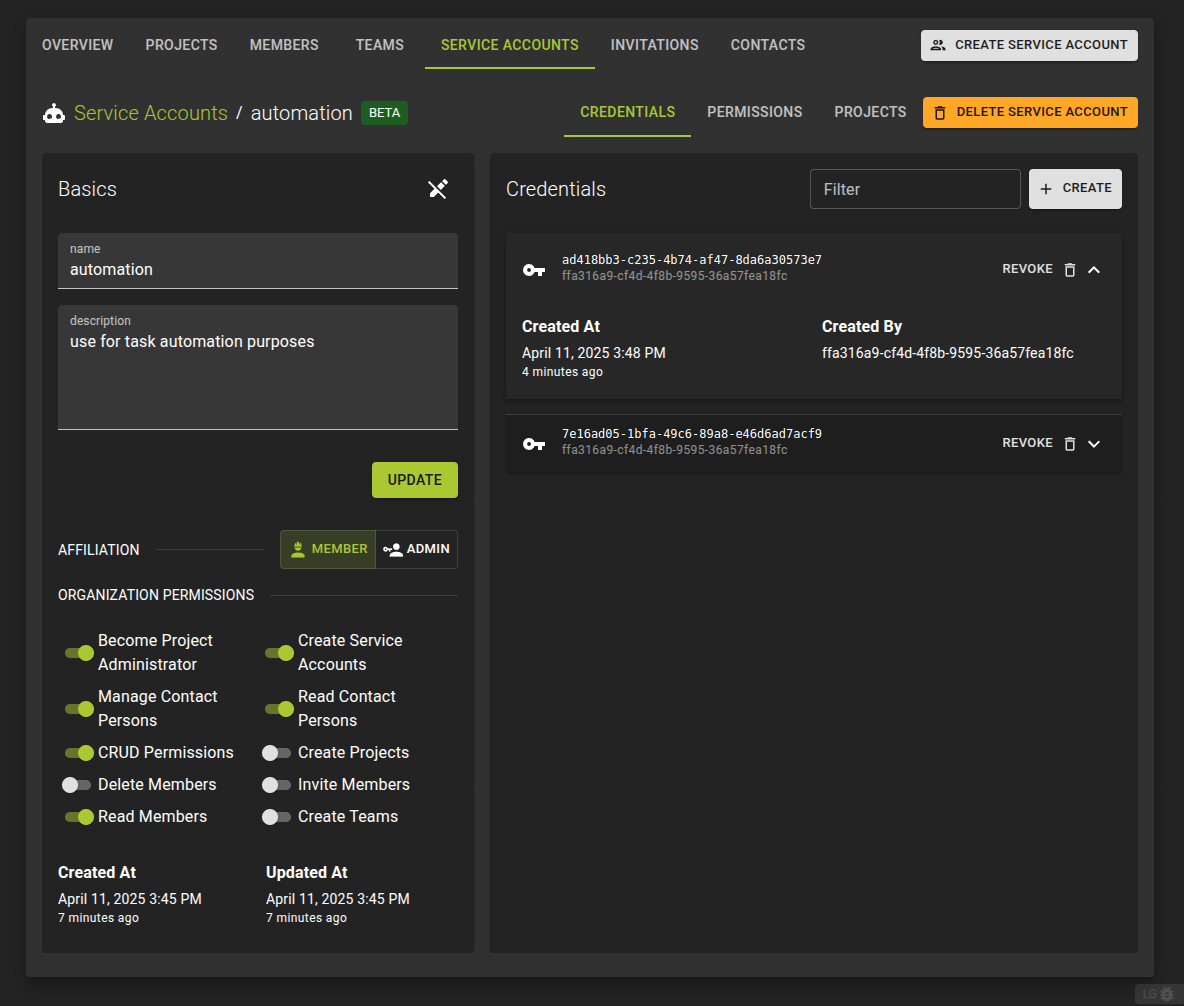 You can manage the credentials of a service account on its details page by switching to the Credentials tab.
Create Credentials
To create a new set of credentials, click the Create button in the credentials card.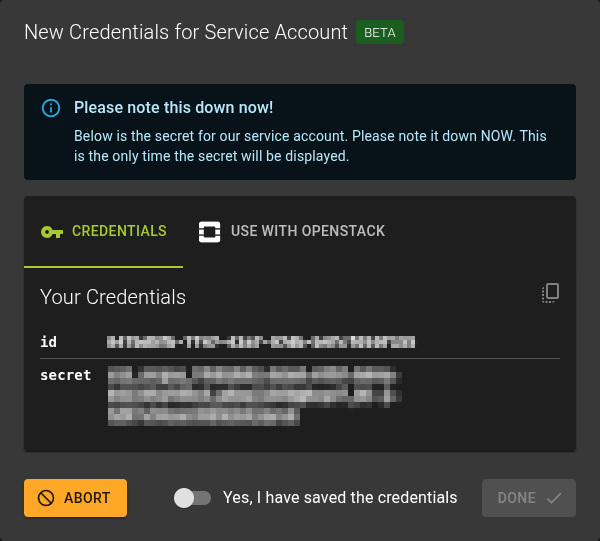 The generated credentials display for use with the APIs.
Note
Secure the credentials now; there is no way to retrieve them later.
Close the dialog once you confirm you have secured the credentials.
Downloading OpenStack Config Files
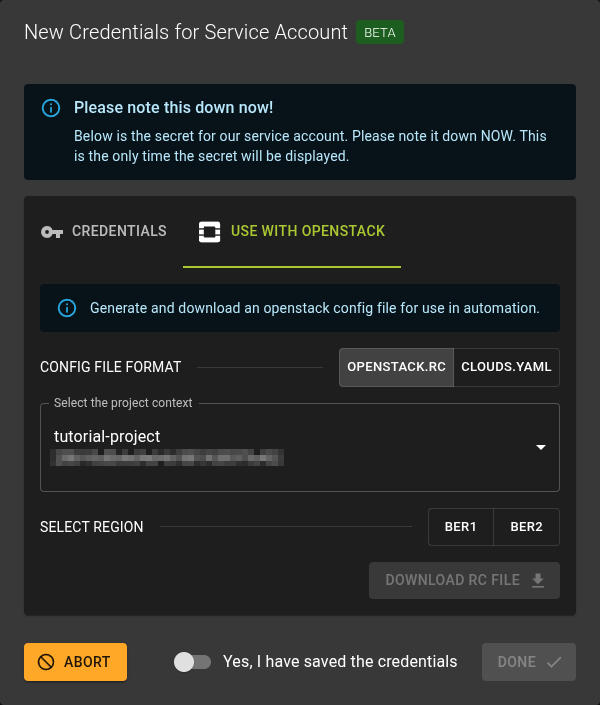 If you plan to use the service account with OpenStack, download the appropriate config files for use with tools like Terraform or the Python OpenStack client during credential creation (supported formats: openstack-rc and clouds.yaml).
You can also regenerate and download the config files later, which may be necessary if you changed the permissions or project access for the service account since initial generation.
To regenerate the config files, click on a service account credential to show its details and then click the Download OpenStack config button. (Requires pasting a valid credential secret you secured earlier during credential creation.)
Revoke Credentials
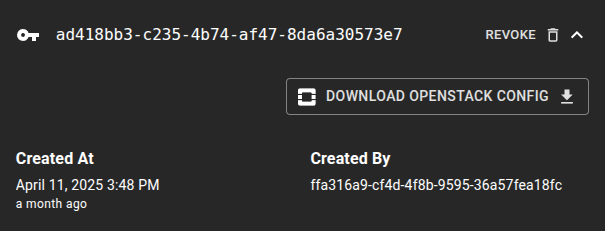 Revoke credentials by clicking the Revoke button on an entry.
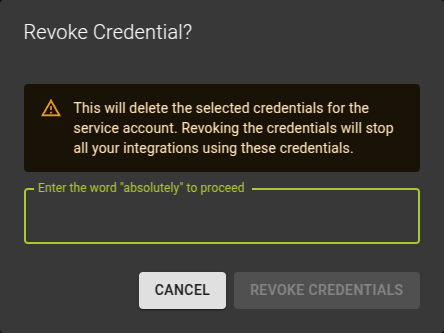 Confirm the operation in the emerging dialog.
Manage Permissions
List Permissions
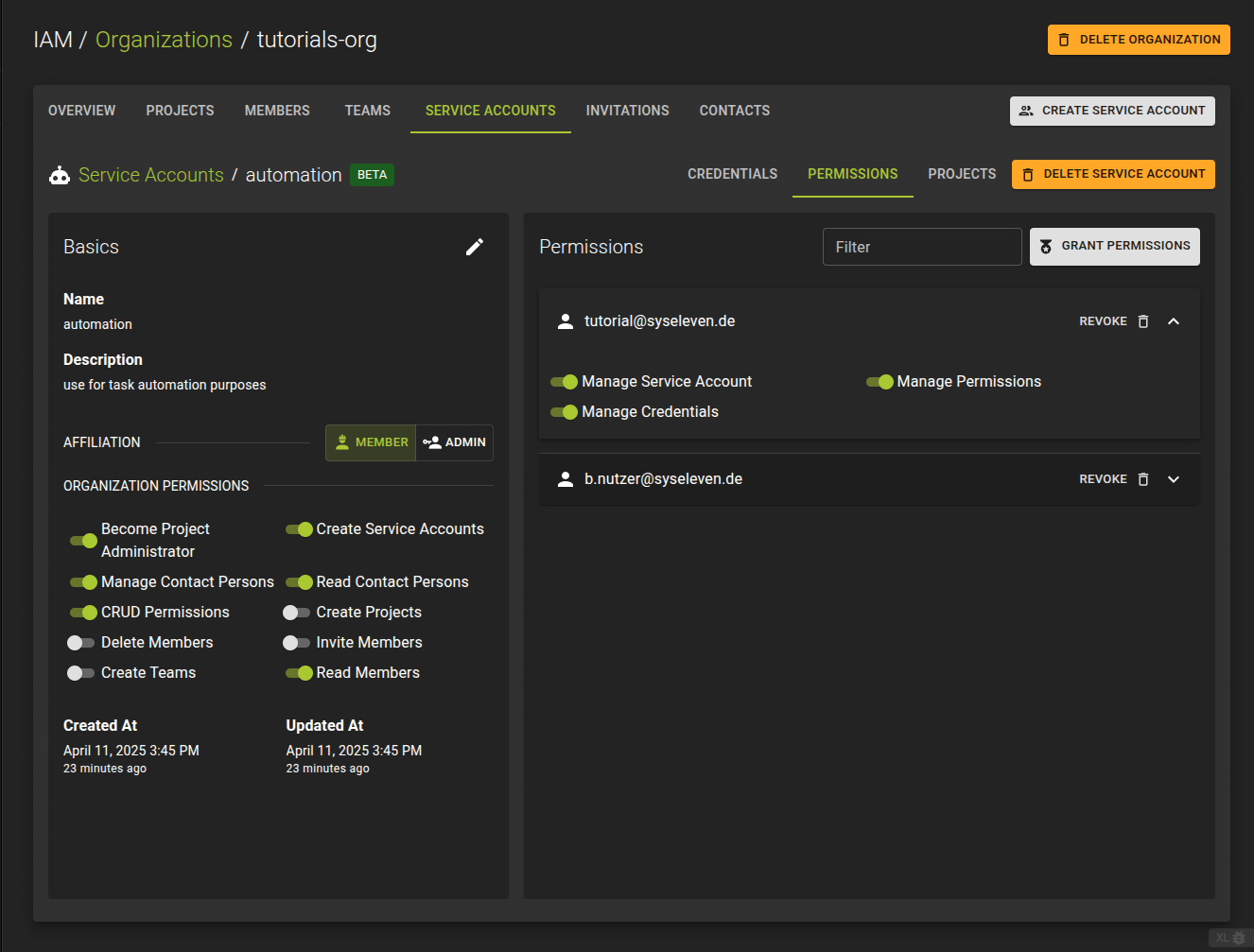 Manage the permissions of a service account on its details page by switching to the Permissions tab.
Grant Permissions
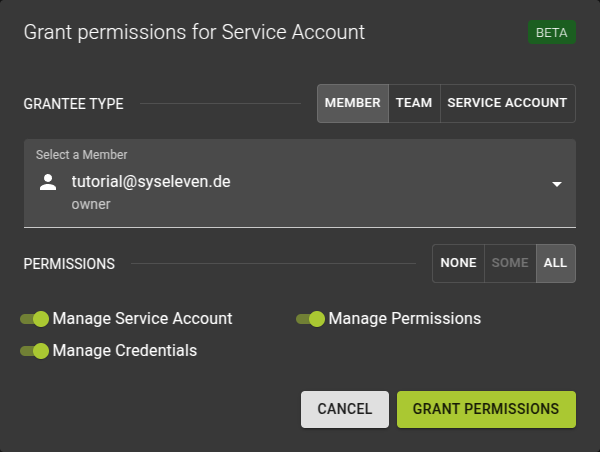
In the emerging dialog:
- Select the member, team, or service account to grant permissions to
- Use the switches to define the permission set
- Complete the operation by clicking Grant permissions
Note
Service accounts can receive permissions on other service accounts.
Edit Permissions
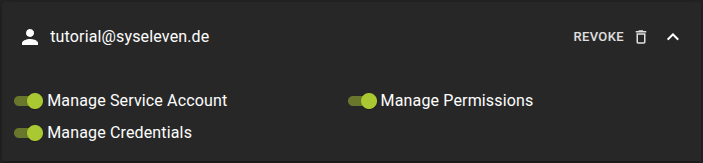 To edit permissions for a user that already has access to the service account:
- In the permissions list, identify the user whose permissions you want to adjust
- Click on the username to expand the view and reveal the permission toggles
- Set the permissions as required using the switches; changes save automatically
Revoke Permissions
To revoke permissions for a user:
- In the permissions list, identify the user you want to revoke access for
- Click the Revoke button next to the user's name
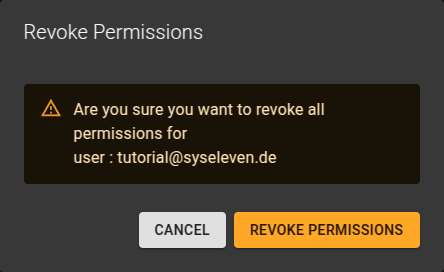
Confirm the operation in the emerging dialog.
Manage Project Permissions
List Project Permissions
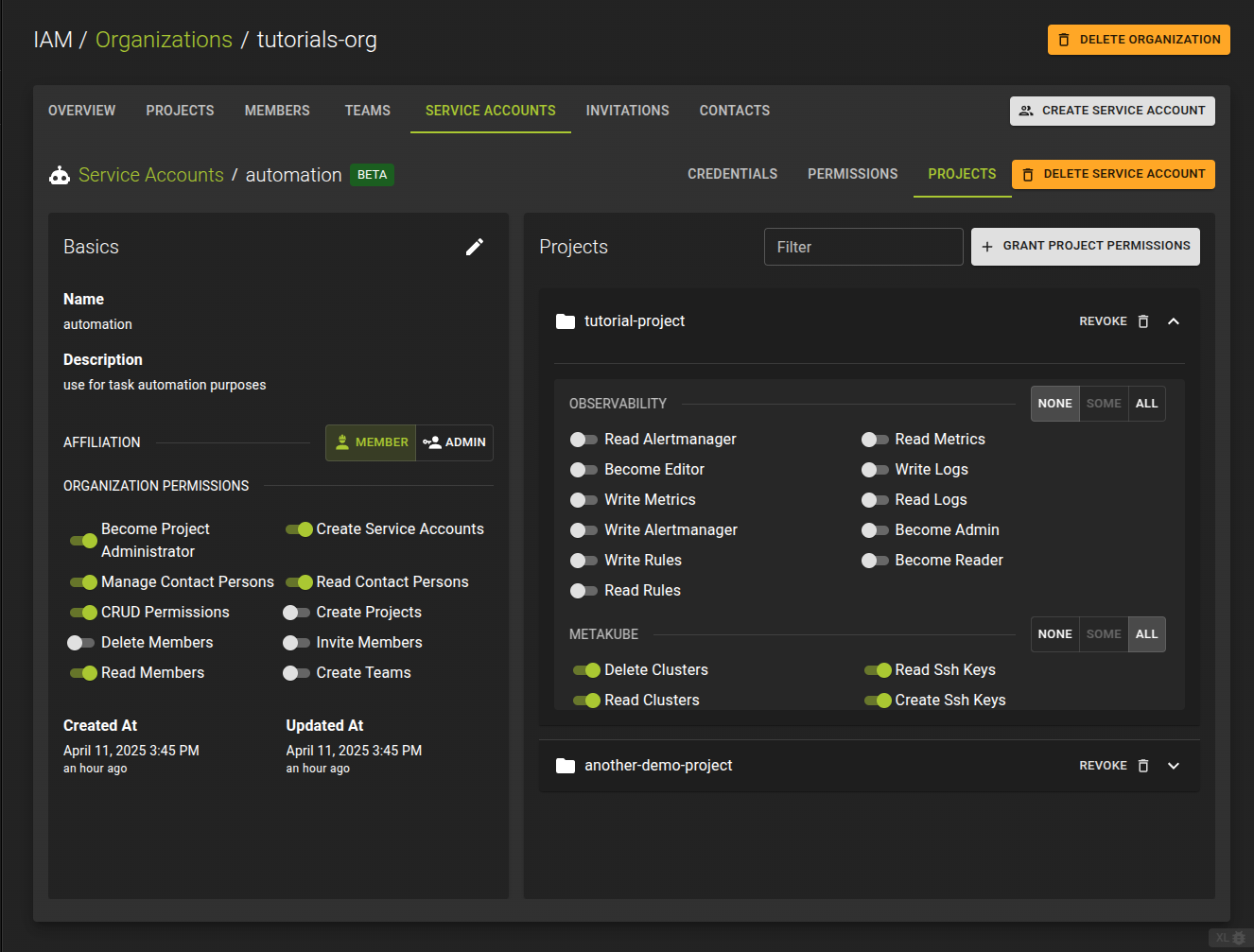 To list all projects that a service account can access, switch to the Projects tab. From here, you can modify existing project permissions or grant access to additional projects.
Grant Project Permissions
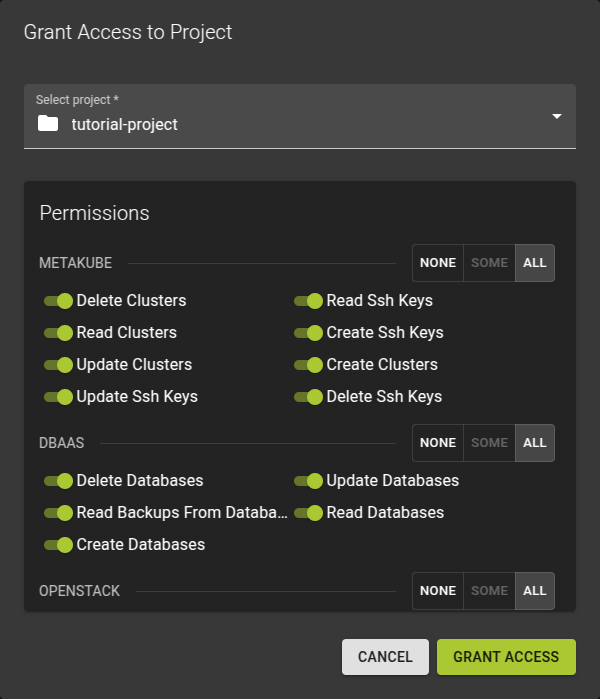
To grant access to a project for a service account, click the Grant Project Permissions button.
In the emerging dialog:
- Select a project from the drop-down
- Set the permissions for the project as needed
- Click the Grant Access button to complete the operation
Edit Project Permissions
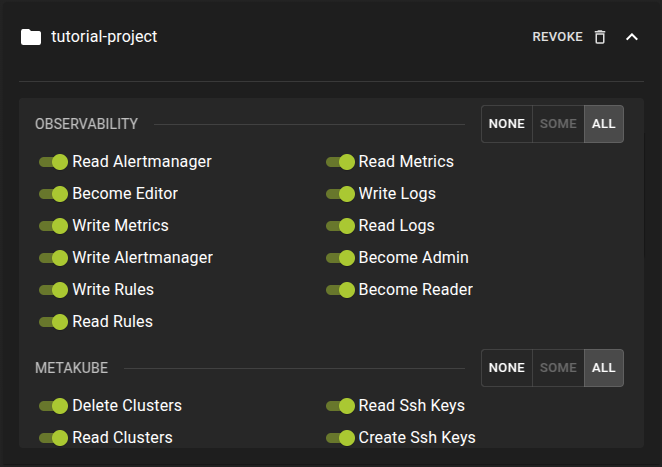 To edit the permissions a service account has on a project:
- Identify the project in the projects list
- Click on the project name to toggle the accordion and reveal the individual permission
- Set the permissions as needed; the permissions update automatically
Revoke Project Permissions
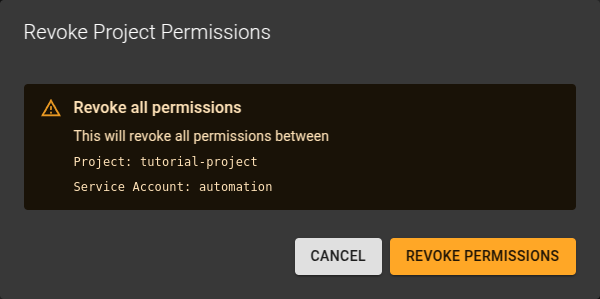 To revoke access to a project for a service account:
- Click the Revoke button next to the project name
- Confirm the operation in the emerging dialog
Delete Service Account
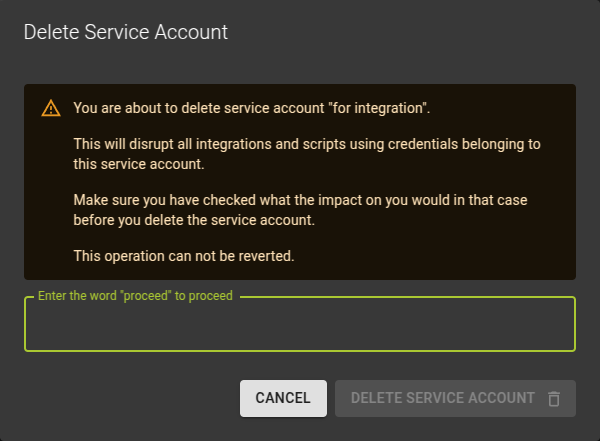 You can delete a Service Account
- From the service account list, click the icon at the end of each row
- On the service account details page, click the Delete Service Account button
Confirm the operation in the emerging dialog.