Organizations
Organizations represent an entire business organization or a major division. Organizations let users act as members or owners, establish overarching cloud policies and permissions, bill as a single entity, and contain all cloud resources.
List Organizations
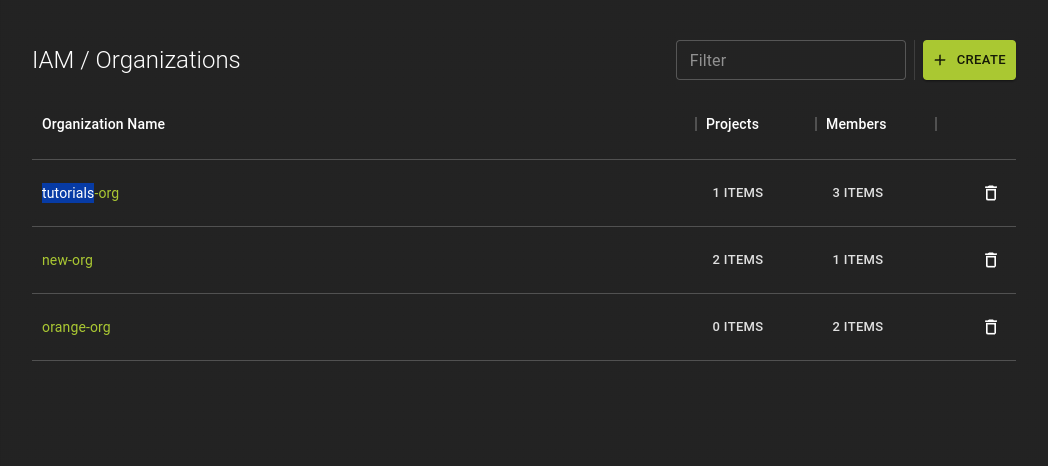
To list all organizations, navigate to the organization overview.
- Either click the logo to go to the splash screen, which is the default view when you log in to the UI
- Click on the project selector in the sidebar to open the dropdown; it lists all organizations and projects you participate in
Create Organization
An organization in Cloud handles resource management and billing at the top level. This guide walks you through creating a new organization.
You can create a new organization in separate ways:
From the project selector
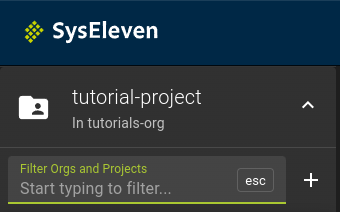
- Click on the project selector to open the dropdown
- Click on the icon next to the
Filter Orgs and Projectsfield
From the list of Organizations
Alternatively, navigate to the list of organizations and click the Create button.
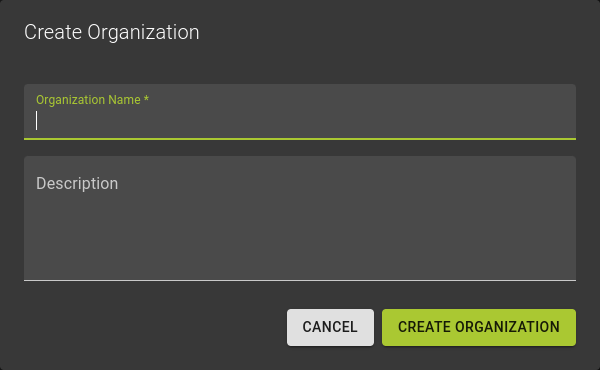
In the emerging dialog:
- Fill in the required information:
- Name: A human-readable identifier for your organization. Choose a name that represents your organization well, as it cannot be renamed later in self-service
- Description: Optional metadata about your organization
- Click the Create Organization button to finalize the process
Organization Creation
- You start with a free on-demand organization
- The organization is the billable entity; all resources and usage within the organization bill to this entity
- You can be a member or owner of several organizations
- Organizations control access to resources; see our IAM documentation for more information
- Soon you will need to provide additional information:
- Company name (name, company form)
- Company address
- Sales tax ID
- SEPA information
- You will also need to review and accept the current price list and acknowledge the plan you are signing up for (initially, this will be the free on-demand plan)
View and Modify Organization
Permission required
- You will need the necessary permissions to perform this operation.
- For details refer to the authorization model
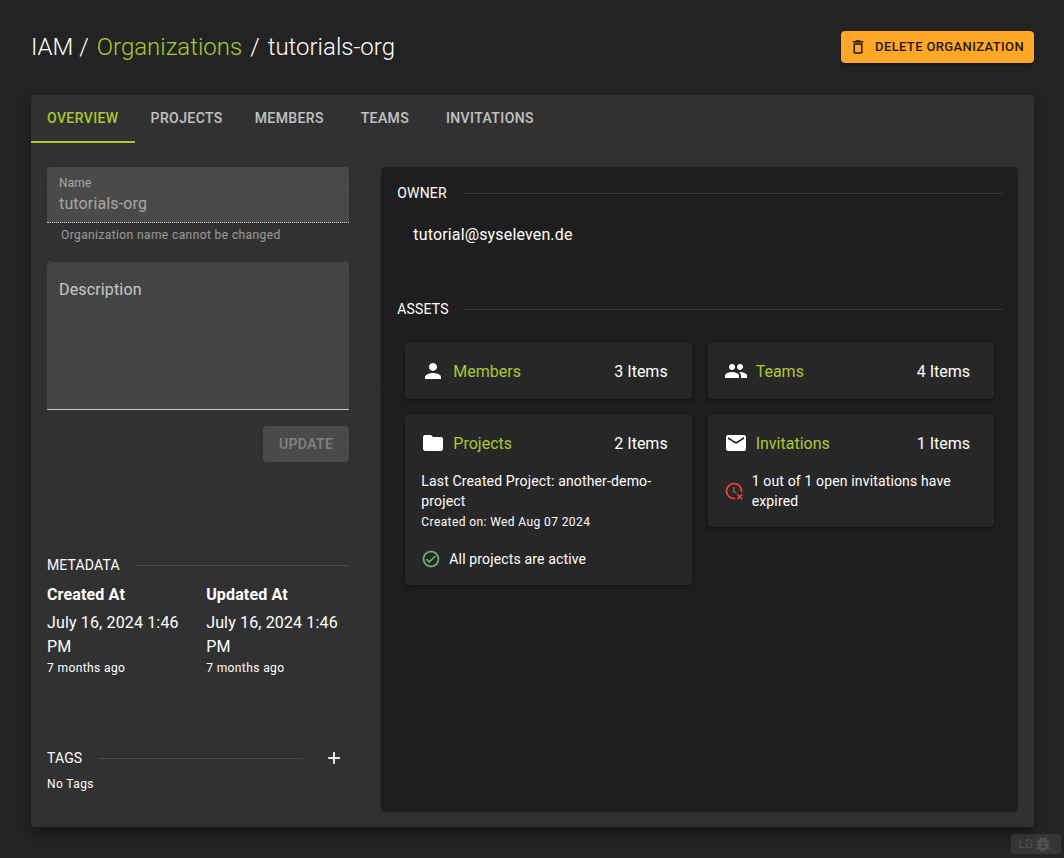 To manage an organization, navigate to the organization details page.
Here you can:
Delete Organization
Permission required
- You will need the necessary permissions to perform this operation.
- For details refer to the authorization model
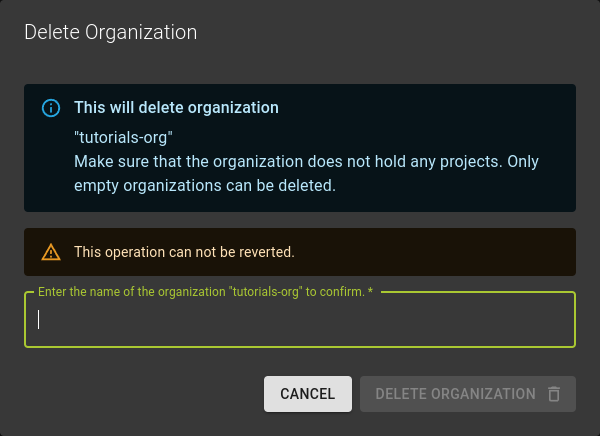
To delete an organization:
- From the list of organizations: click the icon
- On an organization details page: click the Delete Organization button in the title bar
Confirm the operation in the emerging dialog:
- Enter the name of the organization you are trying to delete
- Click the Delete Organization button