Teams
BETA
Teams are currently in BETA state and subject to further changes.
Ownership and Access Control
Teams are owned by an organization. The visibility of teams follows these principles:
- Regular users (
memberaffiliation) can see and access only the teams they have been granted access to (e.g. when they created it, or when they were granted specific permissions) - Users with the organization
owneroradminaffiliation can see and manage ALL teams within the organization
The Teams feature in SysEleven IAM allows grouping users and assigning collective permissions. This feature aims to simplify user management and enhance collaboration within organizations.
Key benefits of Teams:
- Group multiple users together for easier permission management
- Assign permissions to entire teams rather than individual users
- Streamline access control in large organizations
List Teams
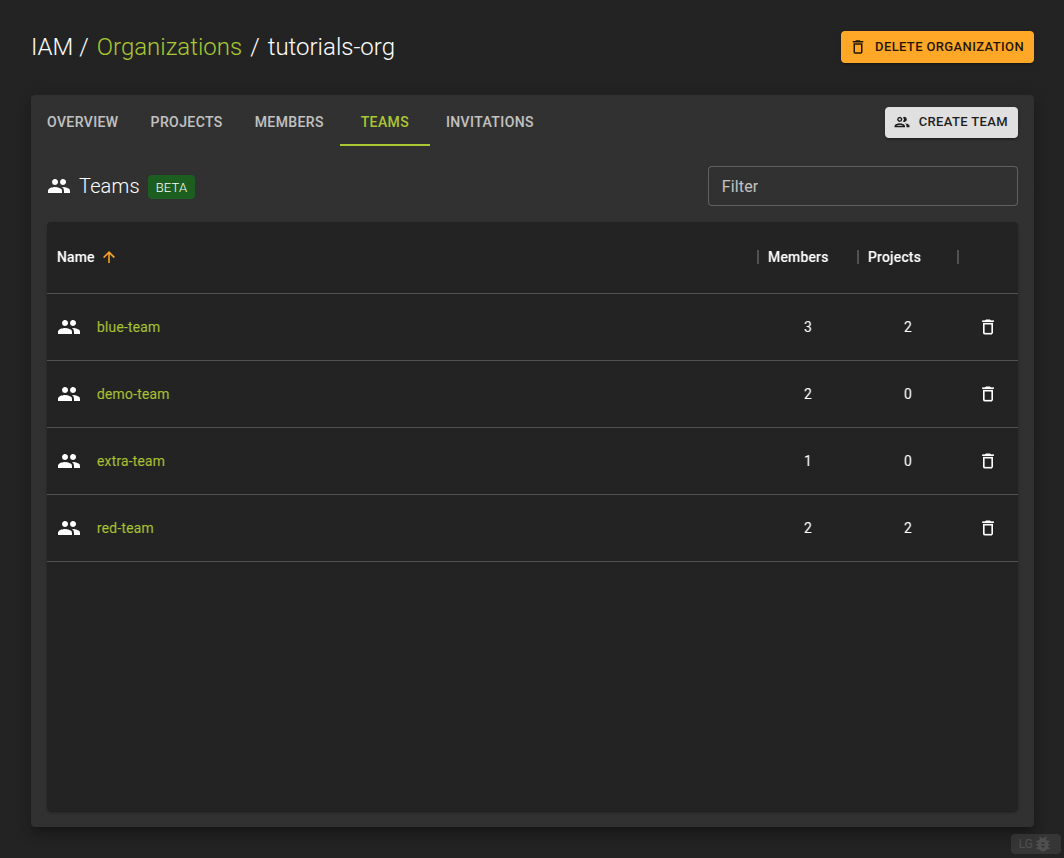
To list all teams within an organization navigate to the details page of an organization and switch to the Teams tab.
The Teams list allows:
- Creation of new teams by clicking the Create Team
- Disbanding a team by clicking the icon at the end of each entry.
- Navigating to the details of a team where you can manage members and permissions of a team.
Create Team
To create a project
- navigate to an organizations detail page
- switch to the Teams tab
- click the Create Team button
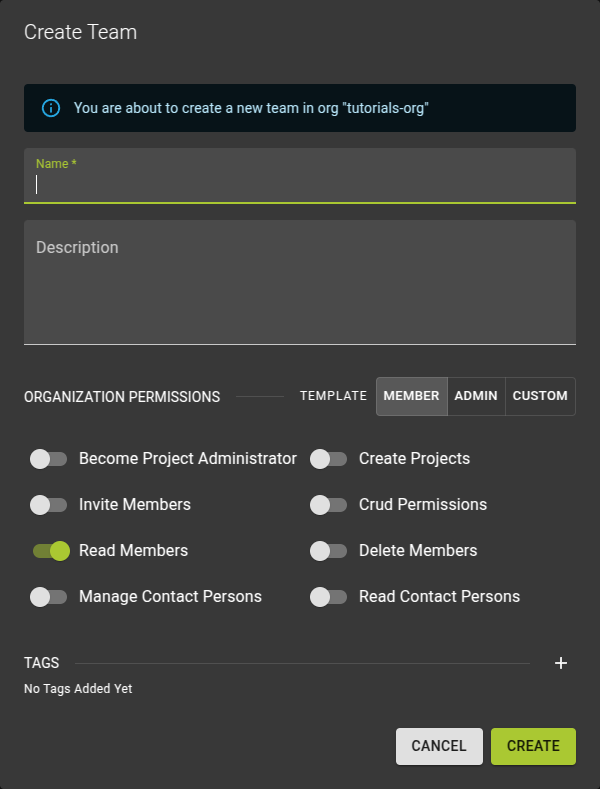
In the emerging dialog
- Name your team
- Optionally provide a description for your team
- Set the permissions of the team on the organization. (all members of a team will inherit these permissions)
- Optionally set tags you can use to keep additional information.
View and modify Team
To view and modify a team navigate to the details page of a team by clicking its name on list.
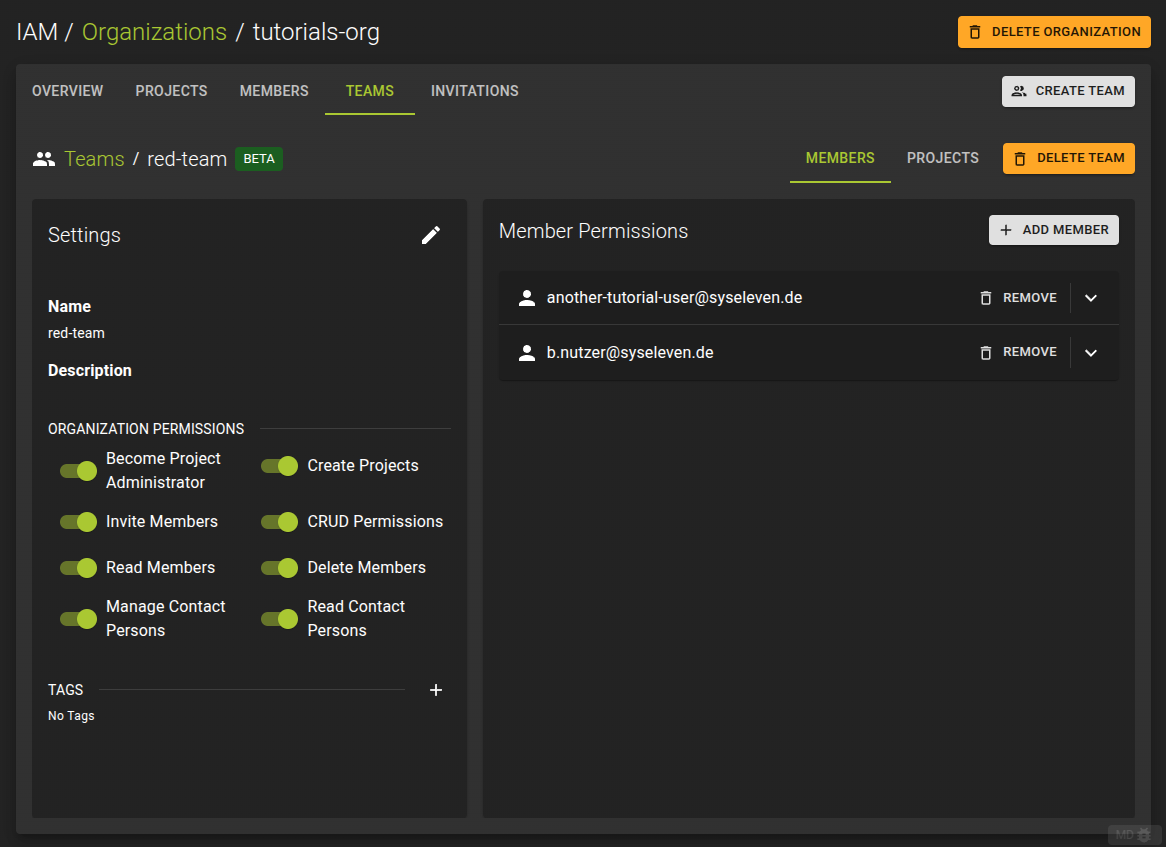
On the details page you can:
- Modify basic properties of the team such as the name and description
- Mange the organization level permissions of the team
- Add members to the team or remove them
- Manage per project permissions to control access for the team
Modify Basic Settings
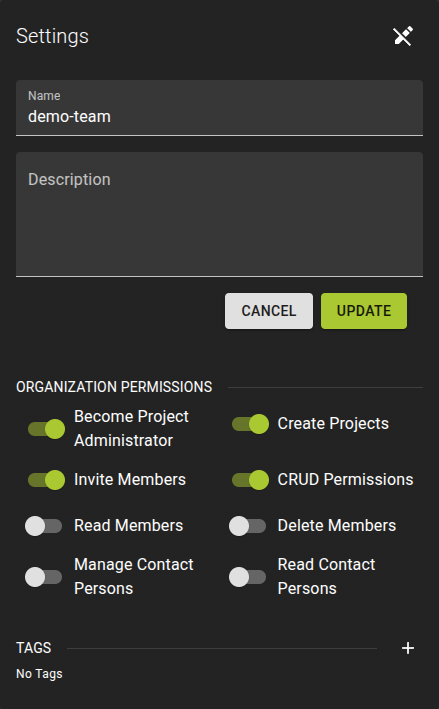
To change the name or description of a team
- Enter edit mode by clicking
- Edit as needed and click Update
Manage Organization Permissions
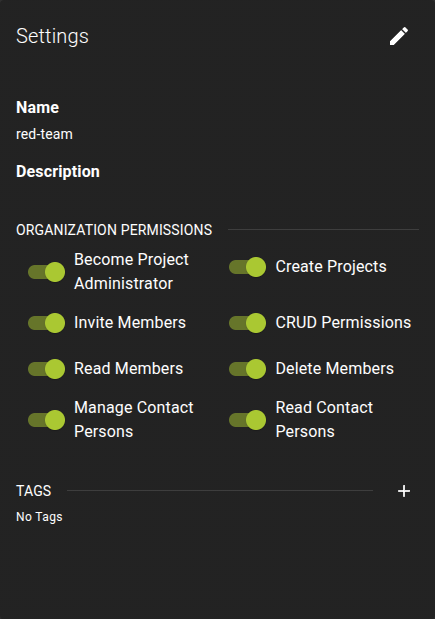
To change the permissions of the team on the organization you can simply use the switches.
Changes are applied automatically.
Manage Team Members and Permissions
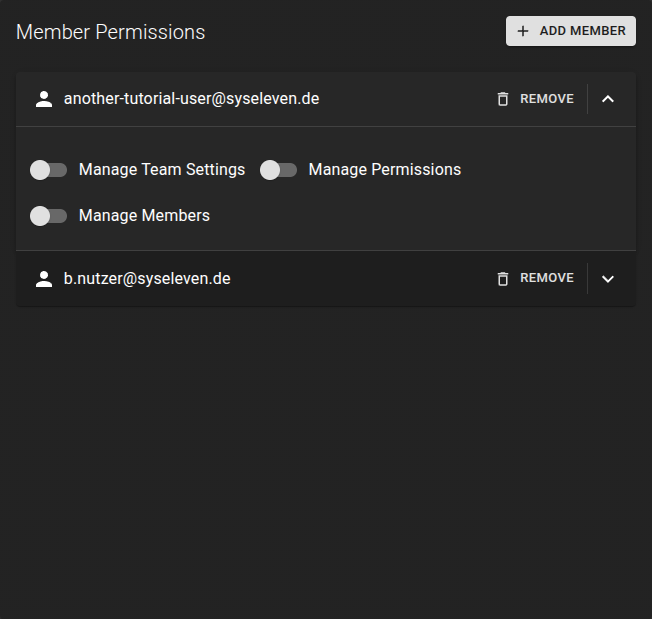
You can view and manage the members of the team in the Members tab.
Add Member
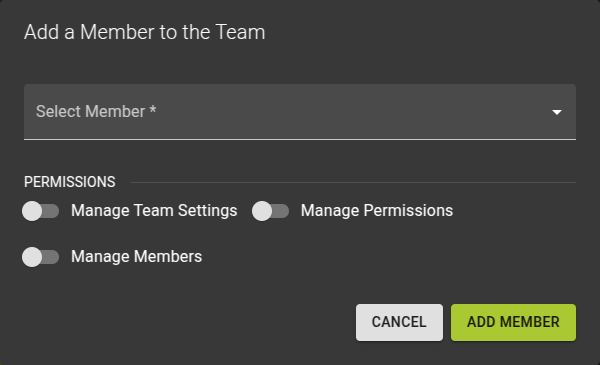
To add a member to the team
- Click the Add Member button
- In the emerging dialog
- Select a member from the drop down
- Select the permissions the new member shall have on the team.
- Click on create to complete the operation.
Manage Member Permissions
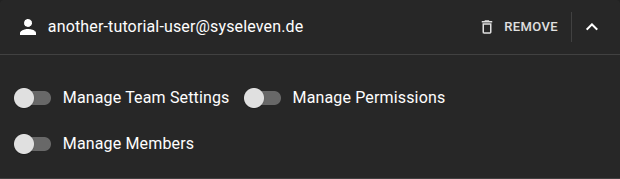
To modify the permissions of the member in the team:
- Expand the member view by clicking on the member.
- Toggle the permissions as needed. The changes are saved immediately and automatically.
Remove Member
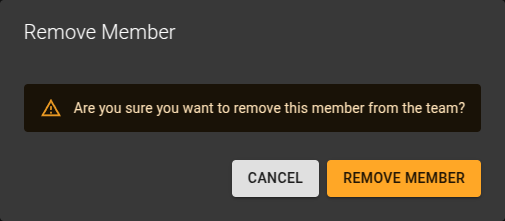
To remove a member and the associated permissions:
- Identify the member in the list and click on the Remove button
- Confirm the deletion in the emerging prompt
Manage Project Access
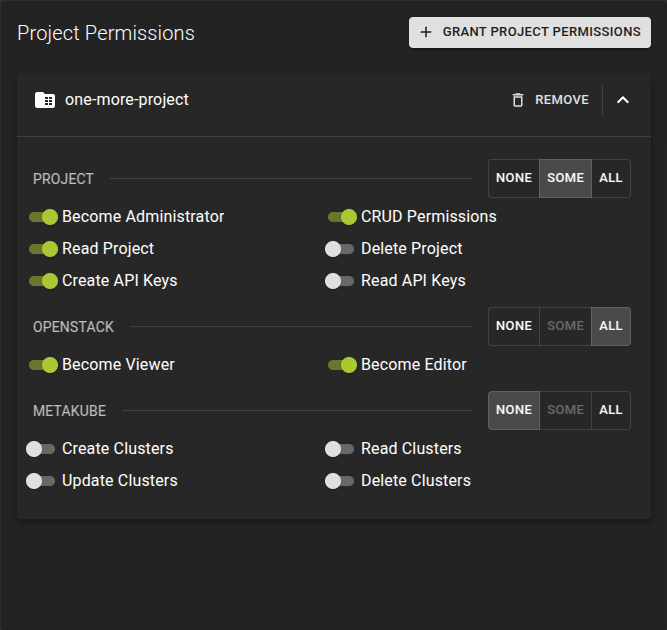
You can list and manage the projects the team has access to in the projects tab.
Grant Access to Project
To grant the team access to a project:
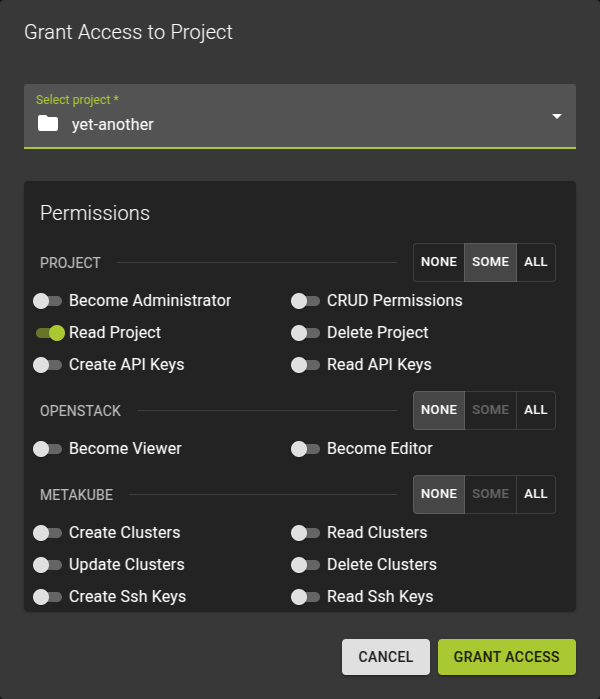
- Click the grant project permissions button.
- In the emerging dialog:
- Select the project from the drop down
- Toggle the permissions the team should receive
- Click Grant access to complete the operation
Manage Project Permissions
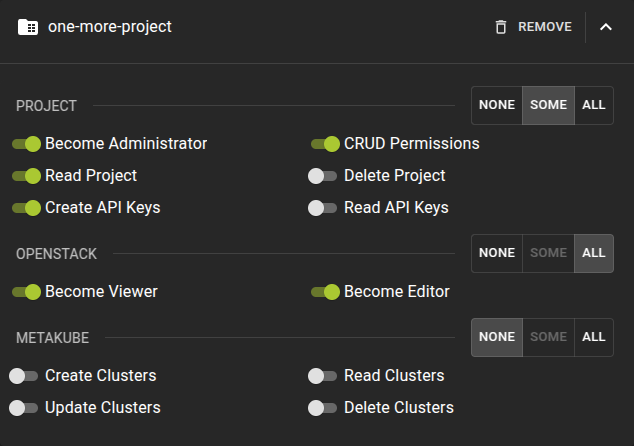
To manage the permissions for a project the team has already access to:
- Identify the project in the list and click it to expand and reveal the permissions
- Toggle the permissions as needed. The changes will be reflected immediately and automatically
Revoke Project Access
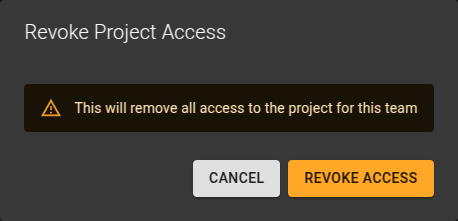
To revoke a teams access to a project:
- Identify the project in the list and click the revoke button.
- Confirm the operation in the emerging prompt
Delete Team
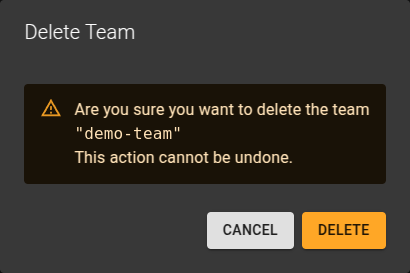
To delete a project
- Navigate to the details page of the organization containing the team and switch to the Teams tab.
- Either click the icon at the end of the entry representing your team
- Or on the details page of a team click the Delete Team button in the title bar.
Confirm the operation in the emerging prompt