SysEleven OpenStack Cloud - SSH Keys
Concepts
OpenSSH key pairs are used for accessing servers via SSH.
SSH Key Ownership
- Please note that in SysEleven OpenStack Cloud SSH Keys are scoped on the individual User. Unlike other resources a user can only see their own SSH keys.
- Hence if you intend to distribute multiple SSH keys during server creation consider using cloud init user data. (Available in the extras section during server creation)
SSH Key Region
Please note that SSH Keys are only valid within the region they were create. However if you intend to use the same key across regions you can create copies of the key in each region needed.
Listing SSH Keys
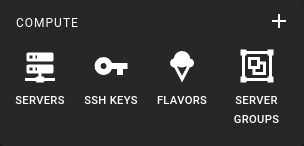 To get a list of all ssh-keys in a region you can click on the SSH Keys icon in the sidebar.
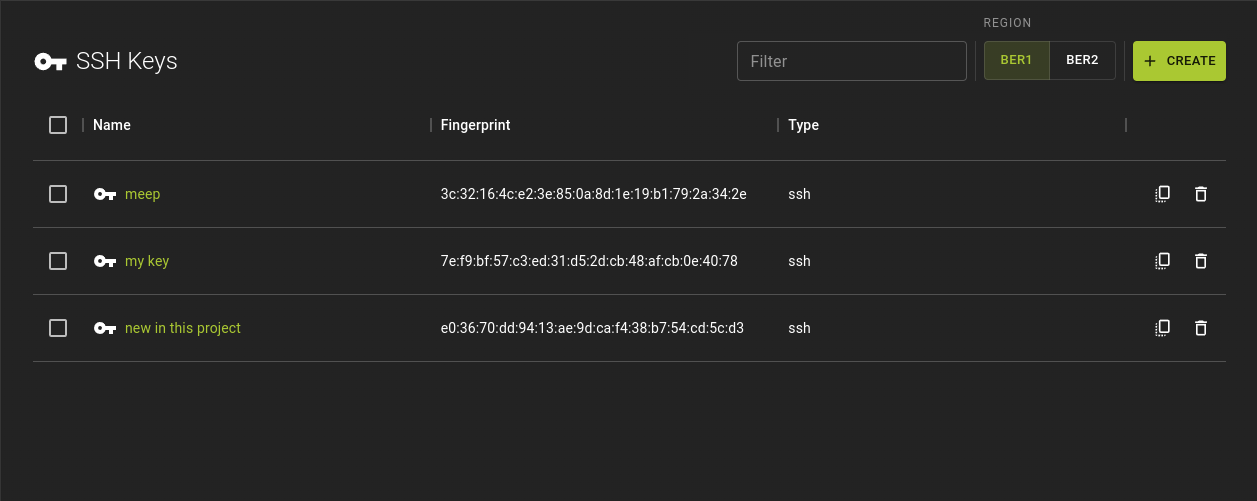 The list of SSH Keys allows
- Creating a new SSH Key by clicking Create on the top right
- Quickly copying the public key by clicking the icon
- Deleting an SSH Key using the icon
- Navigating to the details page by clicking on the name
Example
Creating an SSH Key
SSH Keys can be created by either importing an existing SSH Key, e.g. from your own computer or can be generated on the server side.
Generate an SSH Key
 Generating an SSH Key pair is easy.
- Choose a region in which the key should be available. Ber 1
- Provide a name for the key to be generated.
- Verify you are generating the key for the correct region.
- Click Create
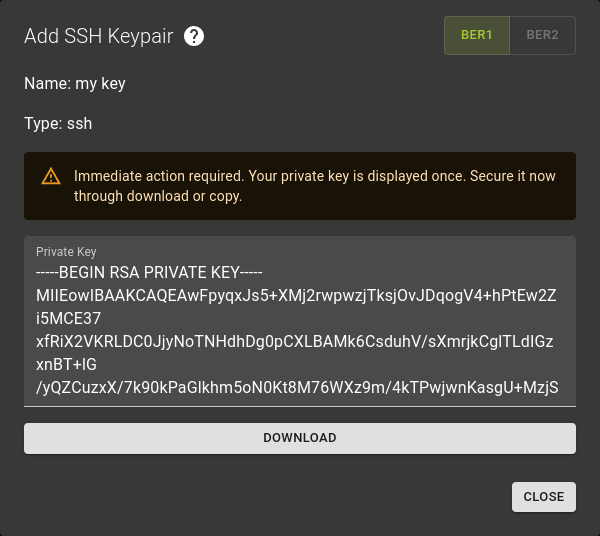
- The generated key will then be presented to give you an opportunity to save the private key to your computer. You can either copy the contents or simply download it
Dont forget to save your private key.
Make sure you really secure the private key in this step as you will not have another opportunity to do so later. The private key will be presented ONLY ONCE for security reasons.
- Click close once you have secured the private key
Example
Import an SSH Key
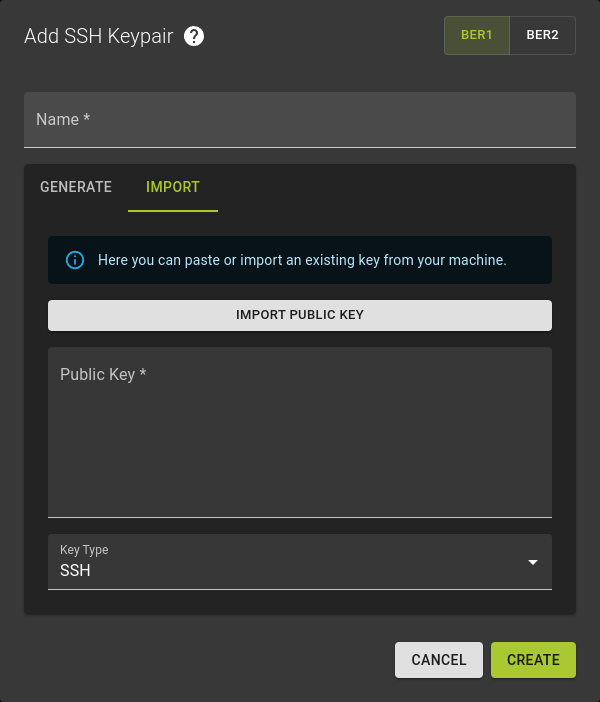 To import an existing SSH Key
- Name the key you are importing
- Verify you are generating the key for the correct region.
-
Provide the public key by
- either using the Import Public Key option and selecting the file
- or copy-pasting the contents of the file
-
Click Create
Usage
openstack keypair create --public-key <file> <name>
<name>- Name for the imported public key
<file>- Path to the public key file you want to import
Example:
Inspecting an SSH Key
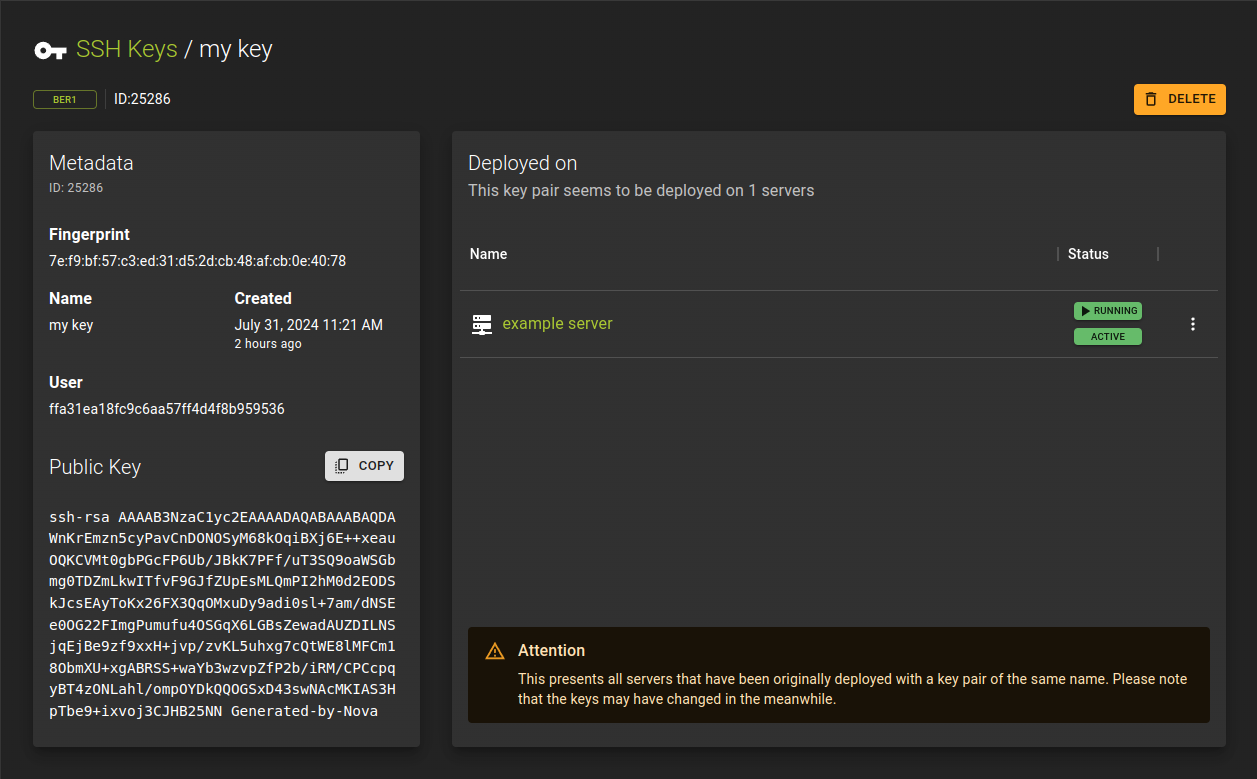
- You can copy the public key using the copy option
- Lists the servers that were deployed using the ssh key. You can also perform a variety of server actions from the list by clicking
Example
Deleting an SSH Key
Does not revoke SSH Keys
Please note that deleting an SSH Key will make it unavailable for new servers but it will not revoke the key on existing servers.
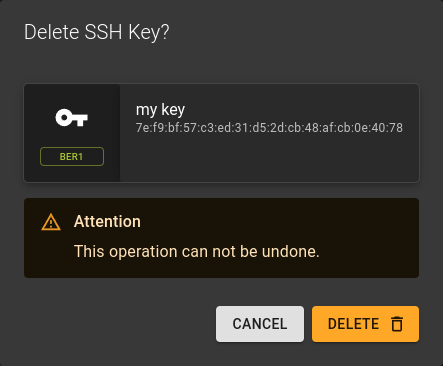 To delete an ssh key you can
- Use the in the list of SSH Keys and select the
DELETEoption - or you can select Delete on the top right of the details page.
Confirm the deletion by clicking Delete in confirmation dialog.
Usage
openstack keypair delete <name>
<name>- Name of the keypair you want to delete.
- Also takes a list of names to perform a bulk delete
Example