Invitations
Prerequisites
- You want to invite a user to join an organization, and you have the necessary permissions to do so.
- Or, you have received an invitation to join an organization.
Accept an invitation
If you have been invited to join an organization, follow these steps to accept or decline the invitation.
Permissions
- The inviter will have granted you specific permissions within the organization. Depending on the permissions granted, you may be able to manage resources, invite other users, or perform other actions within the organization.
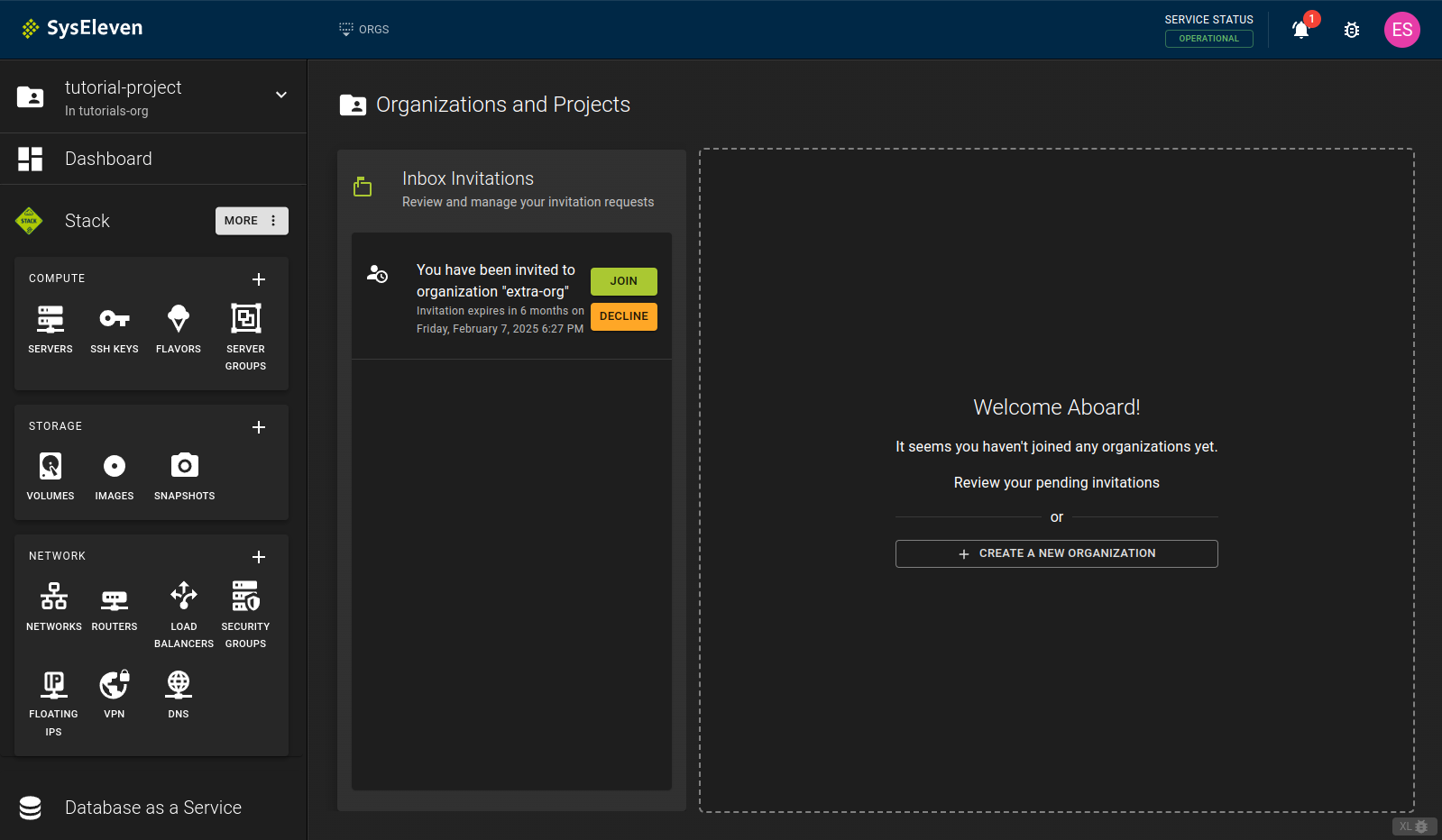
- Head to the Dashboard.
- You will be prompted to accept or decline the invitation. Click on the respective button to accept or decline the invitation.
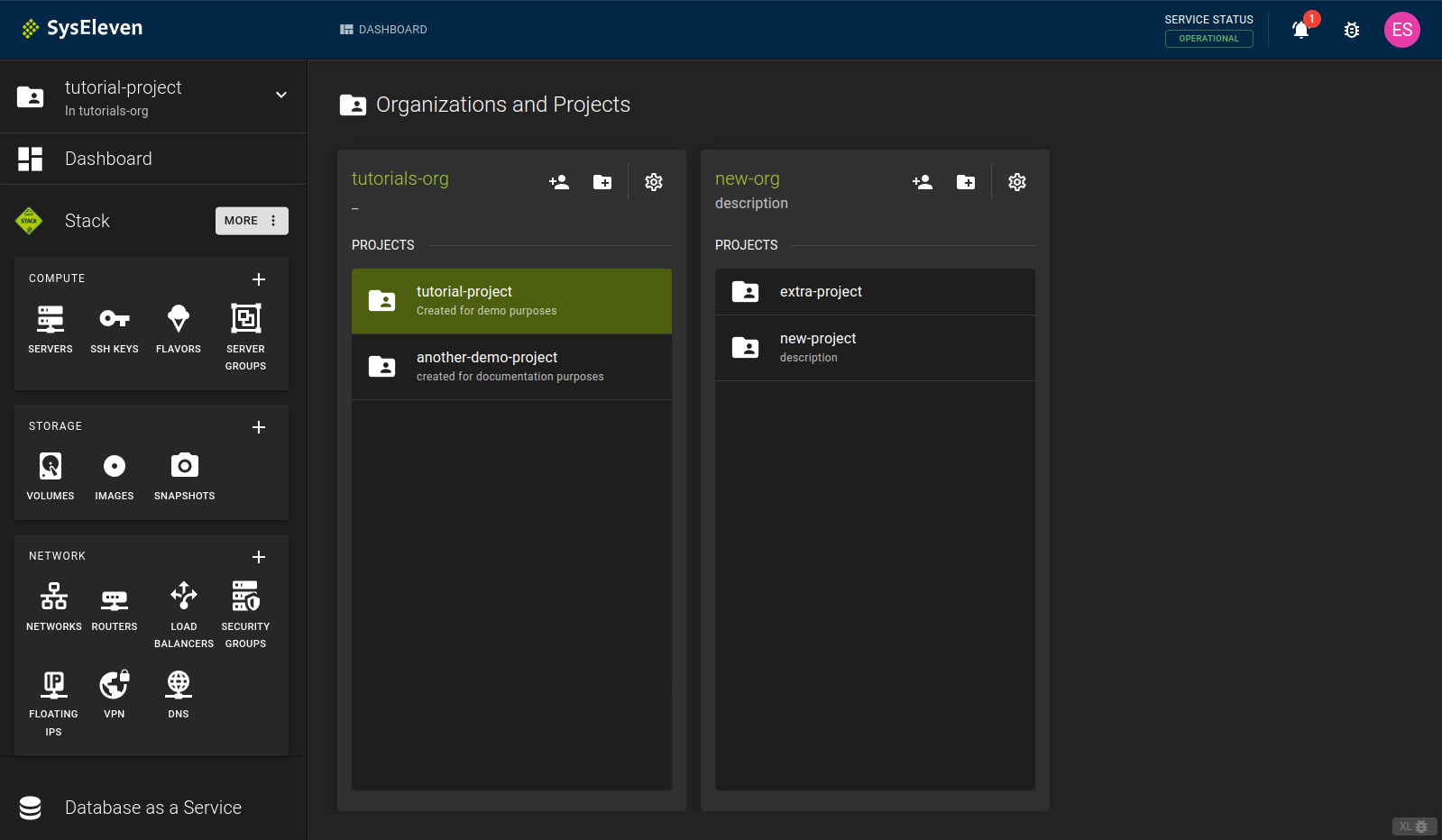
- You have now joined organization and it will be listed
Info
It is possible that after joining an organization you are not seeing any projects within the organization. This can happen for two reasons:
- The organization simply has not created any projects yet
- The organization has invited you to join but has not given you any permissions on the projects yet.
I don't see an invitation
If you are already part of an organization and are not prompted to join another organization, simply click on the notification bell in the top right corner to view open invitations.
Invite a user to an organization
Prerequisites
- You must have the necessary permissions to invite users to an organization.
invite_member_flow_02_create_invitation.png invite_member_flow_03_list_invitations.png revoke_invitation_flow_02_revoke_invitation.png
-
Browse to the organization where you want to invite a user. Click on the organization to open the organization details. Here, click on the
Memberstab.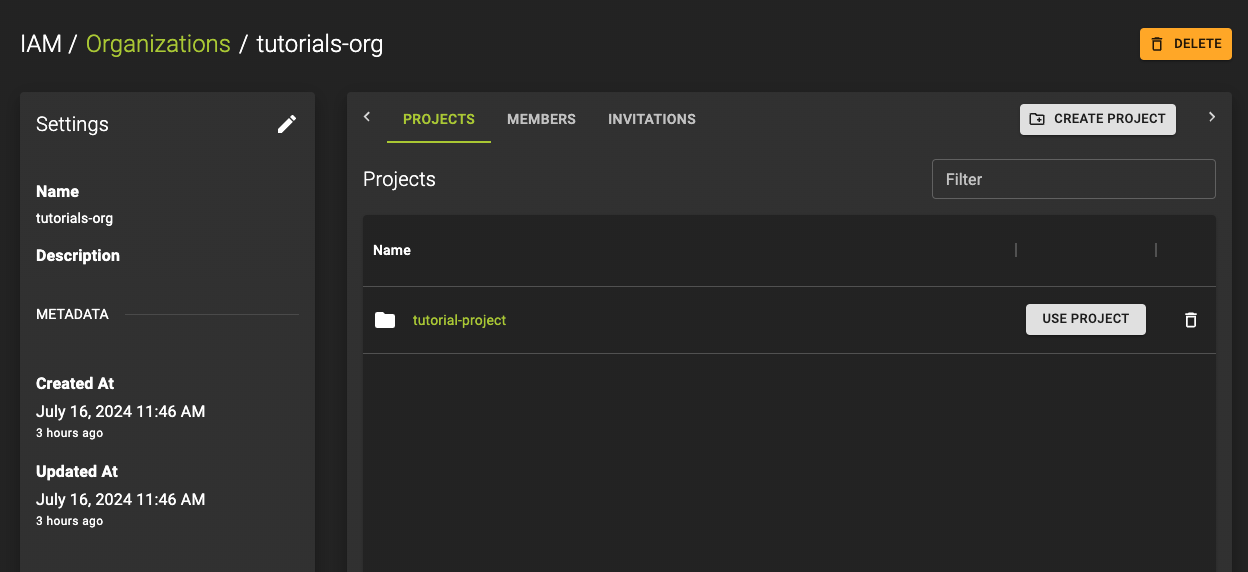
Navigate to Members tab -
Click on the
Invite Memberbutton. Enter the email address of the user you want to invite and assign permissions to the user. Refer to the Permission Model for more information on permissions.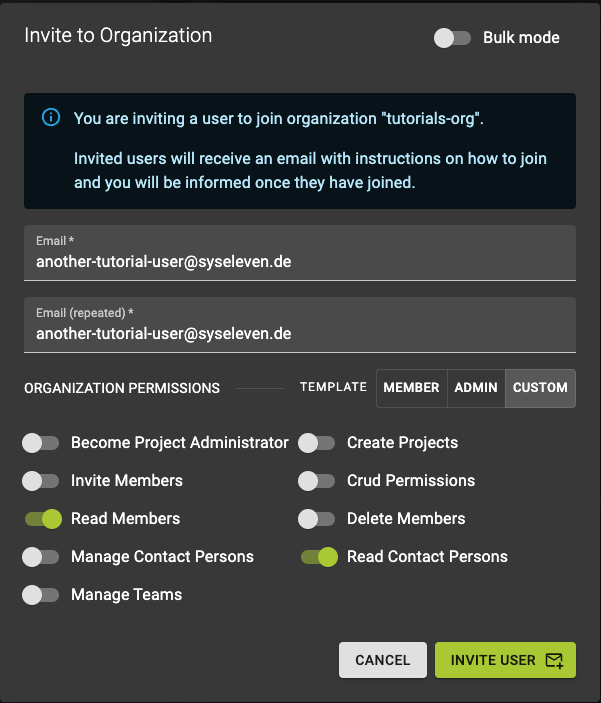
Create Invitation -
Click on the
Invitebutton to send out the invitation.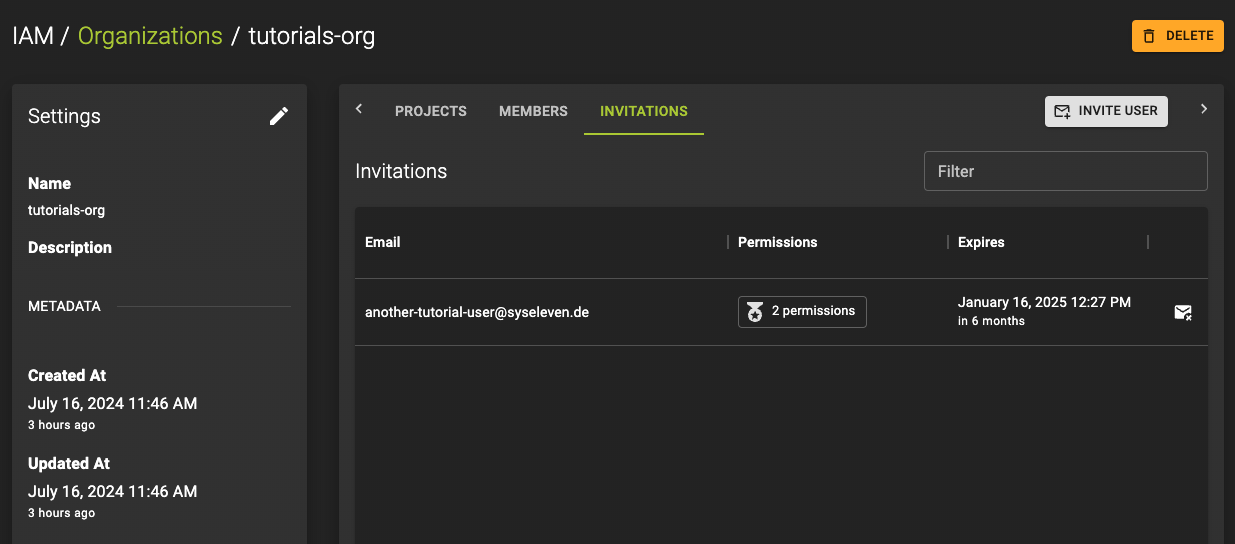
Invitation Sent