Organization Members
Concepts
Organization members are users that are related to your organization. Users can be members in multiple organizations. Members are added by inviting them to join the organization.
List Members
Permission required
- You will need the necessary permissions to perform this operation.
- For details refer to the authorization model
To list the members of an organization you navigate to the details page of an organization and select the Members tab.
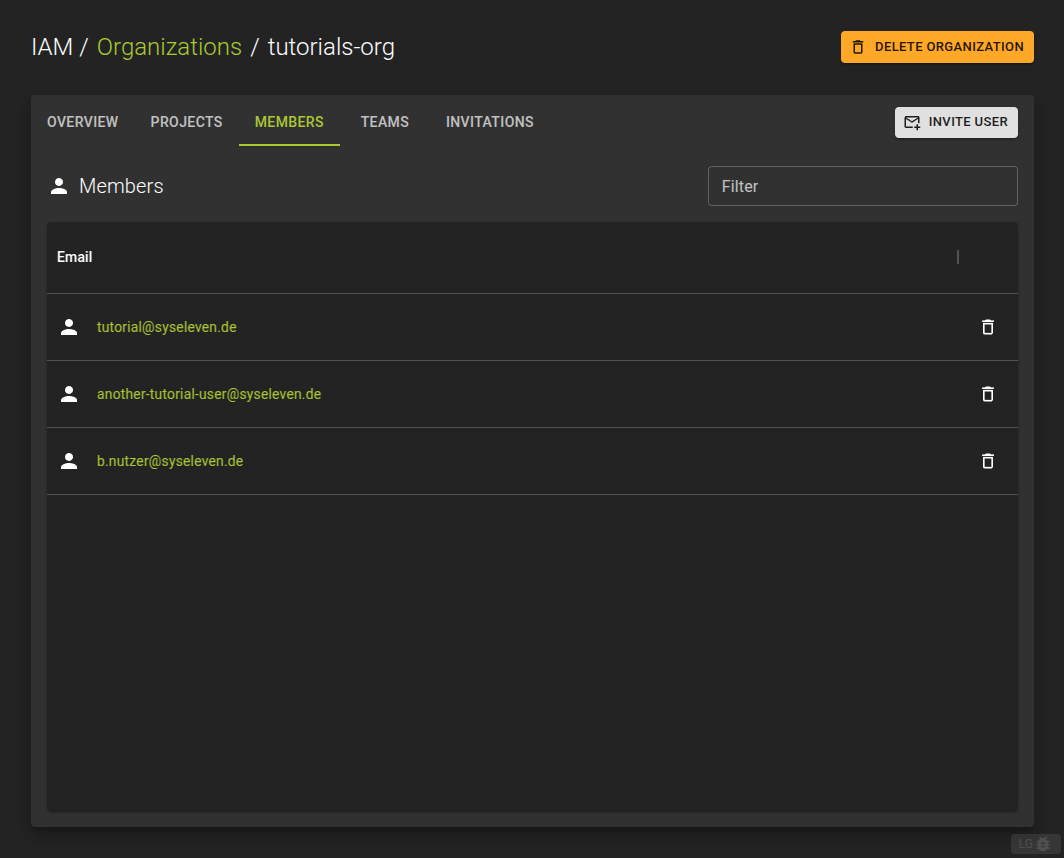
From the list you can:
- Invite additional members
- Navigate to the details page of a member
- Remove a member from the organization
Invite Member
Permission required
- You will need the necessary permissions to perform this operation.
- For details refer to the authorization model
Browse to the organization where you want to invite a user. Click on the organization to open the organization details. Here, switch to the Members tab.
Click on the Invite User button.
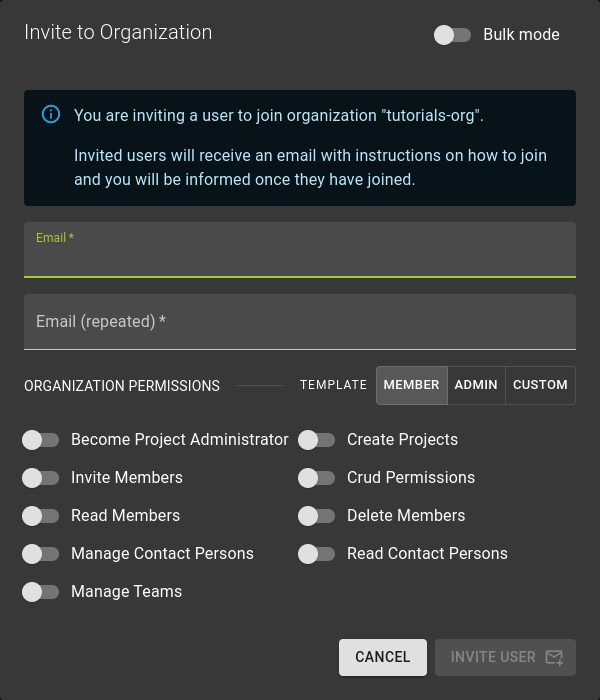
In the emerging dialog:
- Enter and repeat the email address of the user you want to invite
- Assign permissions to the user.
Refer to the Authorization Model for more information on permissions.
Manage Members
Permission required
- You will need the necessary permissions to perform this operation.
- For details refer to the authorization model
To get the a detailed view for a member of an organization
- navigate to the organizations detail page
- switch to the members tab.
- navgate to the details page of the member by clicking the name in the list
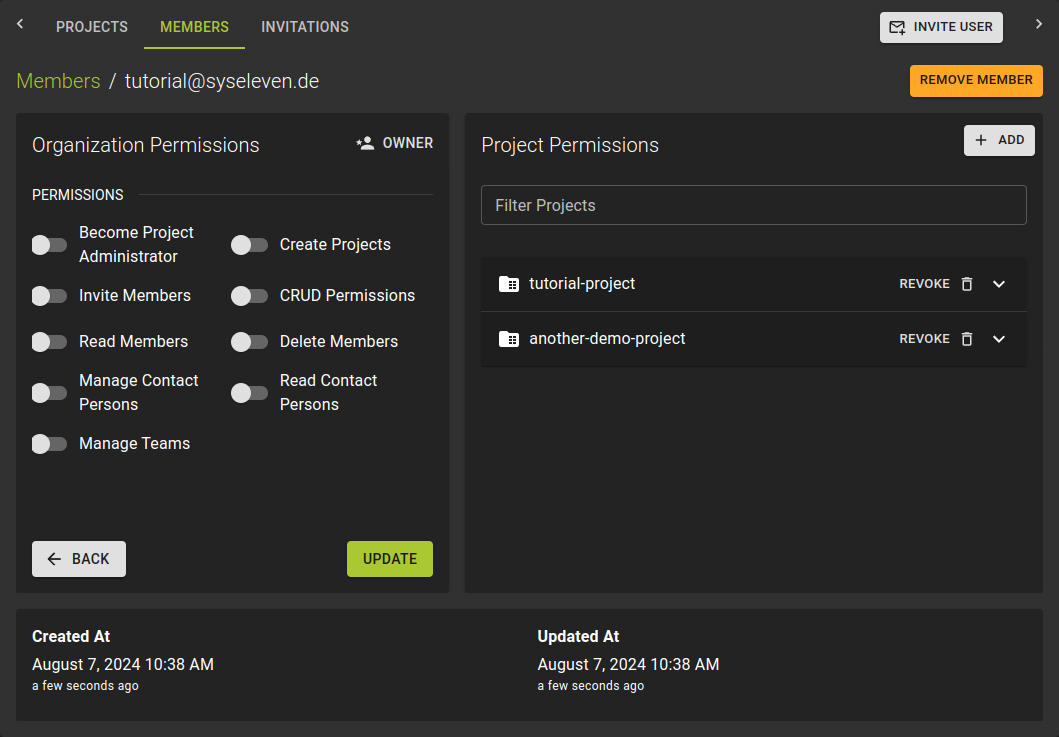
On the details page you can manage
- Permissions of the member on the organization
- Permissions of the member on individual projects of the organization
Modify Organization Permissions
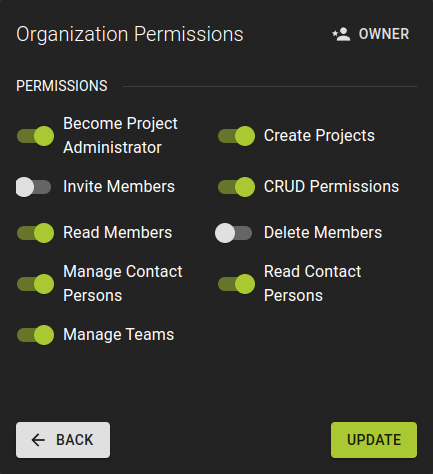 To modify the permissions of the member on the organization
- Use the switches to control individual permissions
- Click Update when you are done
Modify Project Permissions
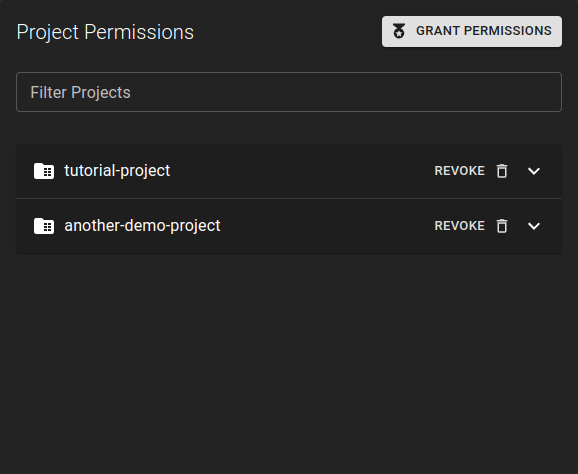
Here you can modify project permissions and grant access to more projects.
Manage Invitations
Permission required
- You will need the necessary permissions to perform this operation.
- For details refer to the authorization model
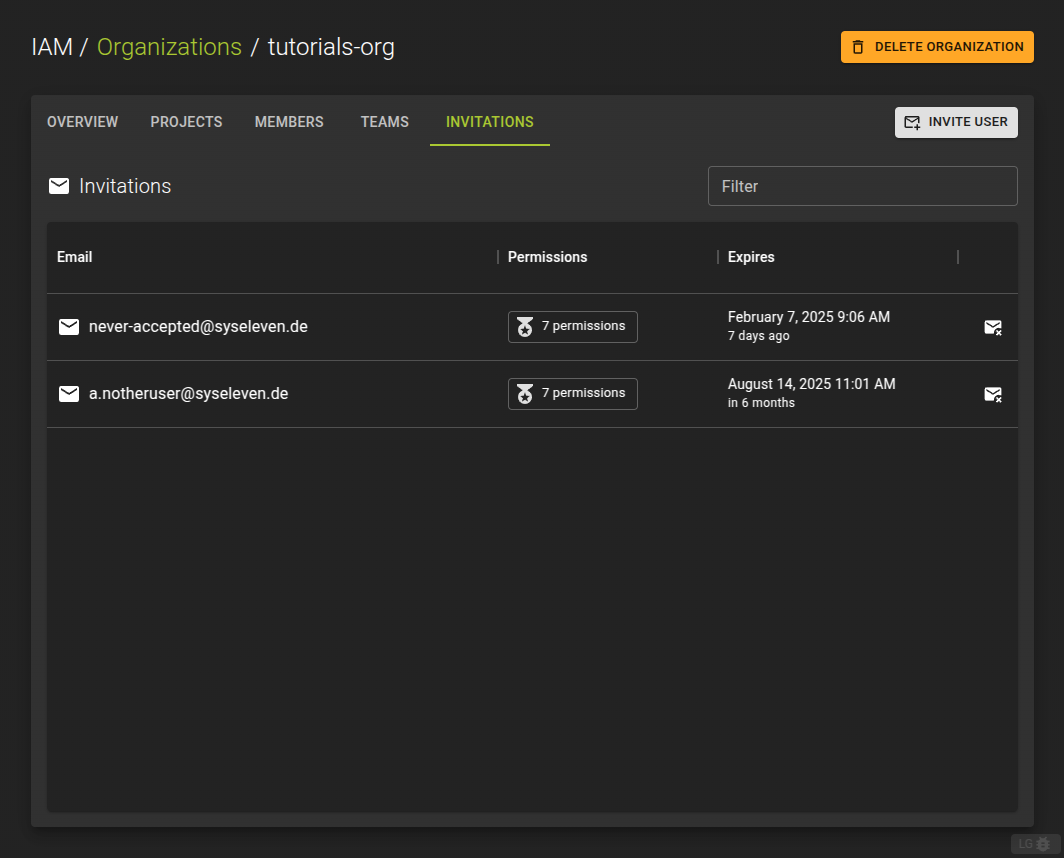
You can list the open invitations sent by your organization in the Invitations tab on your organizations detail page.
You can revoke an open invitation by clicking the icon at the end of each entry in the list. This will invalidate the confirmation emails already sent to invitees.
Already accepted invitations will convert to a membership and not be listed here.
Remove Members
Permission required
- You will need the necessary permissions to perform this operation.
- For details refer to the authorization model
Info
- All resources belong to the project and by extension to the organization.
- Removing a member will not remove any resources.
To revoke a membership you can:
- From the list of members in the Members tab click on the icon.
- On the details page of a member click the Revoke Member button
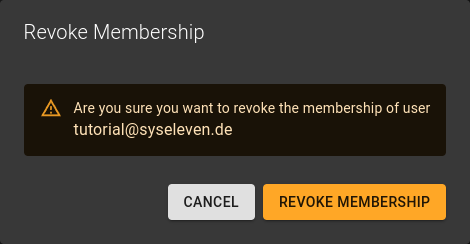
In the emerging dialog confirm the operation by clicking the Revoke Membership button.