SysEleven OpenStack Cloud - Snapshots
Concepts
A snapshot saves a point-in-time copy of a block storage volume.
Snapshot can be used to conserve a certain state of a volume and as a source when creating a new volumes.
List Snapshots
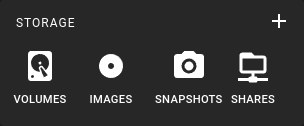 To get a list of all snapshots in a region you can click on the Snapshots icon in the sidebar.
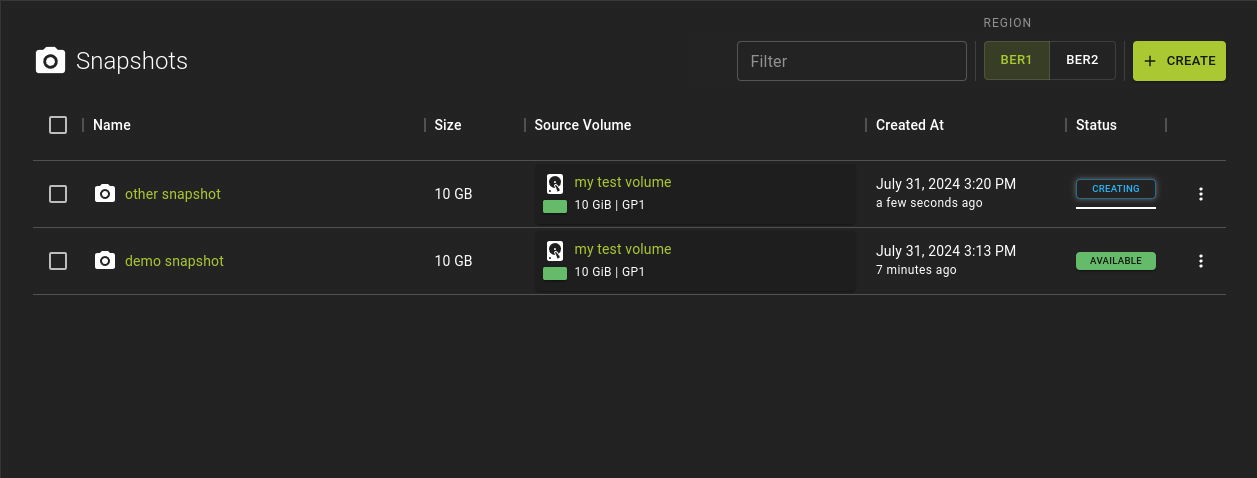
From the list you can:
- Clicking on a snapshot's name or ID to go to its details page.
- Access the original volume from which the snapshot was created.
- Perform actions by clicking the icon at the end of the table row to open a menu with common options.
Usage
openstack volume snapshot list
Output
+--------------------------------------+------------+-----------------------------+-----------+------+
| ID                                   | Name       | Description                 | Status    | Size |
+--------------------------------------+------------+-----------------------------+-----------+------+
| a1b2c3d4-e5f6-7890-abcd-1234567890ab | snapshot-1 | Snapshot of volume-1        | available | 10   |
| b2c3d4e5-f678-9012-abcd-1234567890ab | snapshot-2 | Snapshot of volume-2        | available | 20   |
| c3d4e5f6-7890-1234-abcd-1234567890ab | snapshot-3 | Pre-upgrade volume snapshot | available | 15   |
+--------------------------------------+------------+-----------------------------+-----------+------+
Example
Create Snapshot
Prerequisites
- To create a snapshot, the volume must be in the
availablestate, meaning it should be detached from any instance. Snapshots cannot be created from volumes that arein use. - The volume should be in a stable state (e.g., not undergoing any operations like resizing or attaching).
Warning
- The
--forceoption for creating a snapshot from an attached volume is not supported and may result in the snapshot being in an ERROR state. -
Boot volumes cannot be detached, even when the instance is shut down.
-
Creating snapshots of your server instances may cause temporary latency, with the duration depending on the disk size.
You can trigger snapshot creation in various ways.
From the list of snapshots
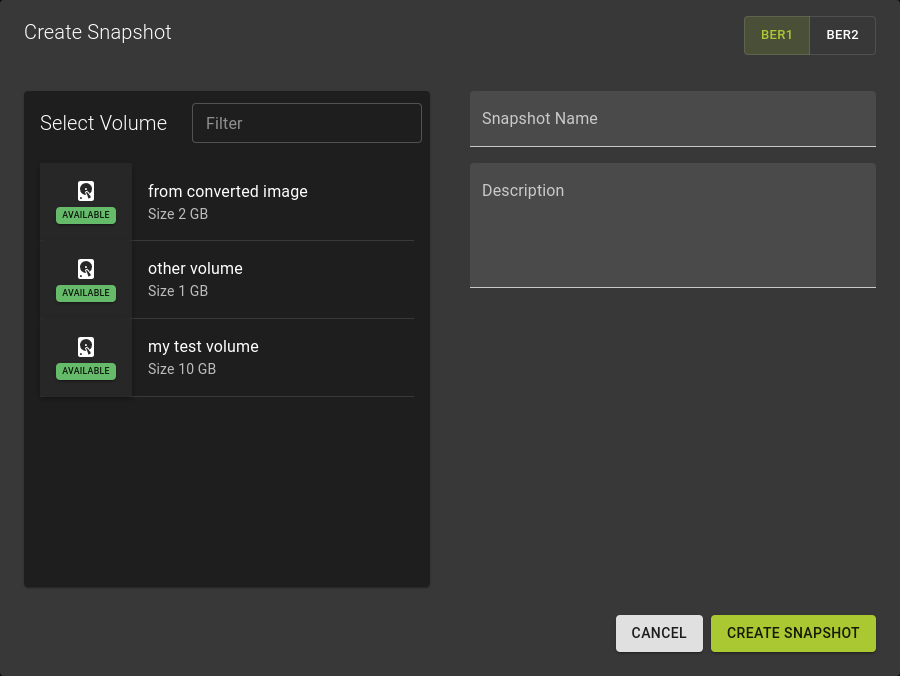
In the emerging dialog:
- Select the volume you want to snapshot.
- Optionally, enter a name and description for the snapshot.
- Click the Create Snapshot button.
From volume related page
- The list of volumes: Use the menu and select
Create Snapshot - The details page of a volume. Click on in the list of volume snapshots
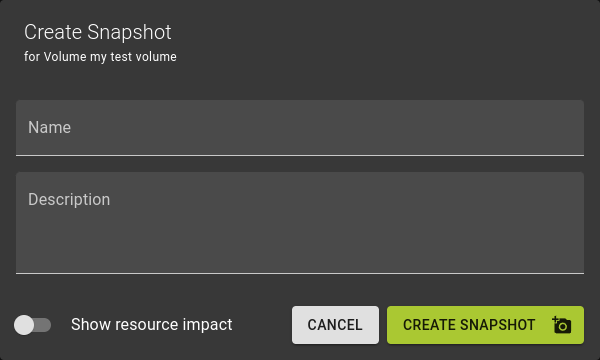
In the emerging dialog:
- Enter a name for the snapshot
- Optionally enter a description.
- Click the Create Snapshot button.
Info
You will be notified when the snapshot is ready through a status update in the snapshots list. The snapshot status will change to available once the process is complete.
Usage
openstack snapshot create   [--name <name>]
                            [--description <description>]
                            [--force]
                            <volume>
<name>- optional
- Name of the snapshot to be created
<description>- optional
- Description for snapshot to be created
--force- When forced the snapshotting will be performed regardless of the state of the volume
<volume>- Identifier of the volume you want to snapshot
Output
Example
Inspect and modify Snapshot
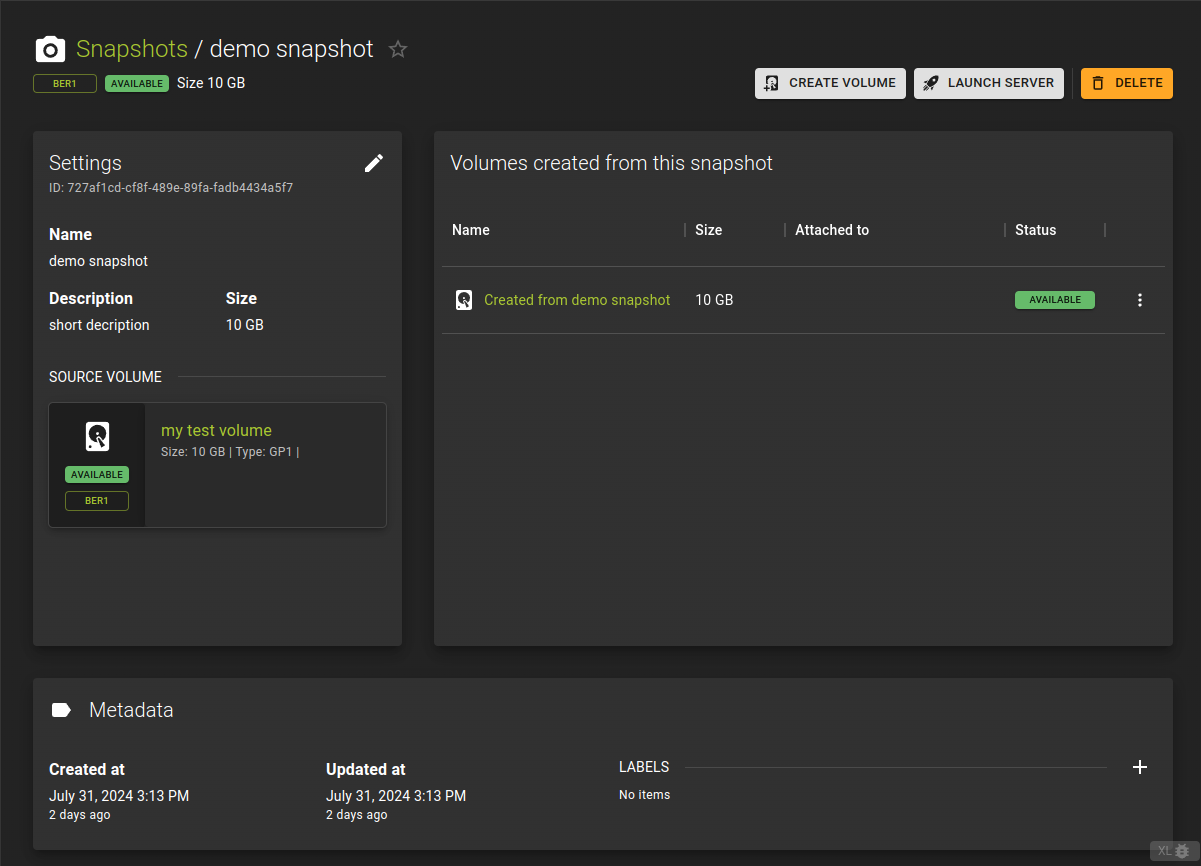 You can view the details of a snapshot by clicking its name or ID from the snapshots list.
On the details page, you can:
- View information about volumes created from the snapshot.
- Edit the snapshot’s name and description.
- Create a new volume or launch a server using the snapshot.
- Add or remove metadata labels.
Usage
openstack snapshot show <snapshot>
<snapshot>- Identifier of the snapshot you want to show details for
Output
Example
Snapshot Actions
You can perform actions either from the snapshot details page or from the snapshots list by clicking the menu, which will reveal the available options.
Create Volume from snapshot
You can create a volume from a snapshot by
- Selecting
CREATE VOLUMEfrom the details page of snapshot - Using the menu in the list of snapshots and selecting
Create Volume
This will simply navigate you to the Volume creation with the snapshot preselected
Launch Server from snapshot
You can launch a server from a snapshot by
- Selecting
LAUNCH SERVERfrom the details page of snapshot - Using the menu in the list of snapshots and selecting
Launch Server
This will simply navigate you to the Server creation with the snapshot preselected
Housekeeping
From the list you can access the housekeeping action for managing snapshots
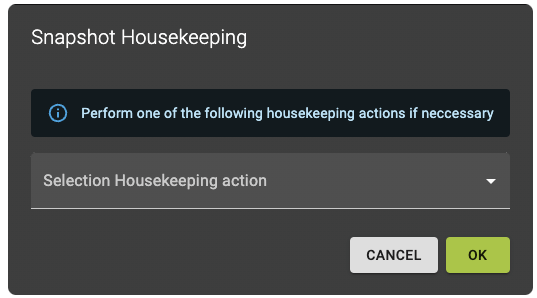 This action includes two options:
- Reset status: resets the snapshot to its original state, which is useful for fixing errors or issues that leave the snapshot in an intermediate or erroneous condition.
- Force delete: permanently removes a snapshot, bypassing its current state and any standard checks.
Reset Status
Usageopenstack snapshot set --state available <snapshot>
<snapshot>- Identifier of the snapshot you want to reset
Force Delete
Usageopenstack snapshot delete --force <snapshot>
<snapshot>- Identifier of the snapshot you want to delete
Example
Delete Snapshot
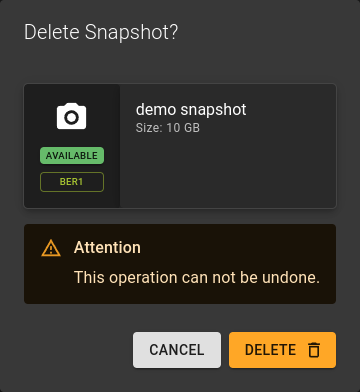 You can delete a snapshot in two ways:
- From the list view use the menu and select
Delete. - From the details view click the Delete option at the top of the page.
Usage
openstack snapshot delete <snapshot>
<snapshot>- Identifier of snapshot to be deleted
- Can also take a list of identifiers for bulk deletion
Example