Service Accounts
Service Accounts are SysEleven's evolution of API Keys and facilitate machine access to the SysEleven Cloud. Service Accounts are designed to replace API Keys and provide more flexibility when interacting with the SysEleven Cloud programmatically.
BETA
Service Accounts are currently in BETA state and subject to further changes.
Ownership and Access Control
Service Accounts are owned by an organization. The visibility of service accounts follows these principles:
- Regular users (
memberaffiliation) can see and access only the service accounts they have been granted access to (e.g. when they created it, or when they were granted specific permissions, or when they were added to a team that has been granted specific permissions) - Users with the organization
owneroradminaffiliation can see and manage ALL service accounts within the organization
This approach ensures that users have a tailored view of only the service accounts relevant to their work.
Benefits of Service Accounts
Service accounts very closely resemble the membership users have in organizations. In particular, with Service Accounts you can:
- Assign organization permissions, to be used with the SysEleven IAM Terraform Provider
- Assign multiple credentials to a single Service Account, e.g. for credential rotation
- Add or remove permissions, without changing the identity of the service account
- Assign permissions across multiple IAM projects
The specific design of Service Accounts is still under development and will be updated here as soon as it is available.
List Service Accounts
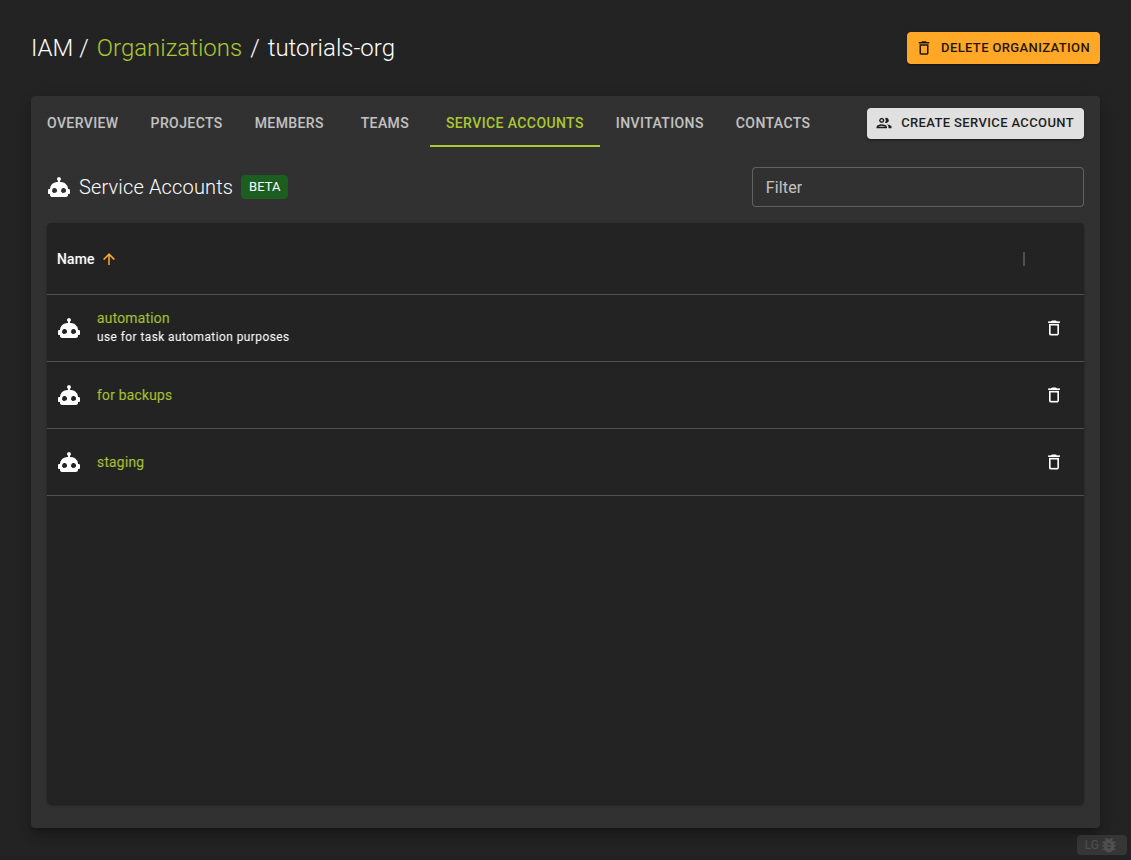 To list all service accounts you have access to within an organization, navigate to the details page of an organization and switch to the Service Accounts tab.
The Service Account list allows you to:
- Create new Service Accounts by clicking the Create Service Account button.
- Delete a Service Account by clicking the icon at the end of each entry.
- Navigate to the details of a Service Account, where you can manage credentials and permissions of a Service Account.
Create Service Account
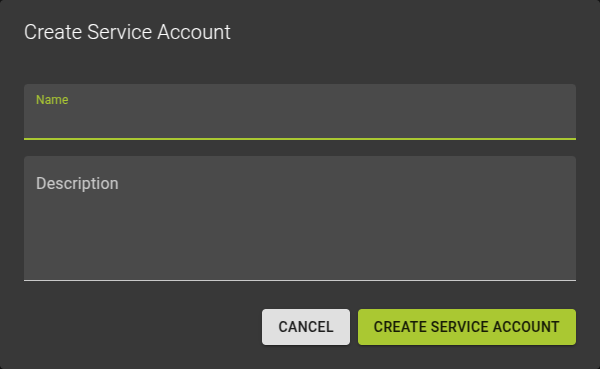
To create a new Service Account, click on the Create Service Account button.
In the emerging dialog:
- Name the service account
- Optionally provide a description
- Complete the operation by clicking the Create Service Account button
View and Modify Service Account
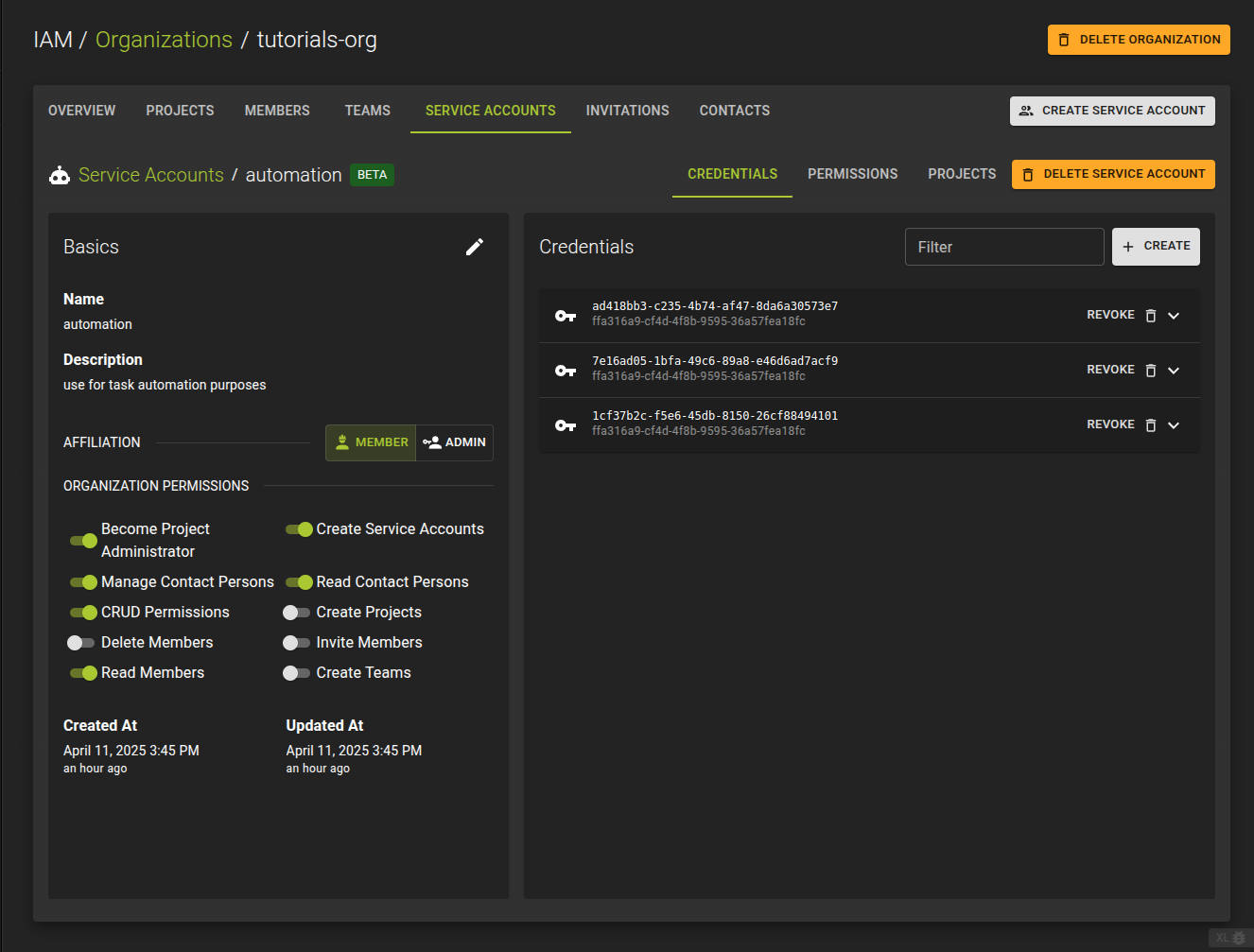 To view and modify a Service Account, navigate to its details page by clicking its name on the list view.
On the details page, you can manage:
- Basic properties like name and description
- Organization level Permissions of the service account
- Credentials for the service account
- Access and permissions for users on the service account
- Access and permissions on projects for the service account
Modify Service Account
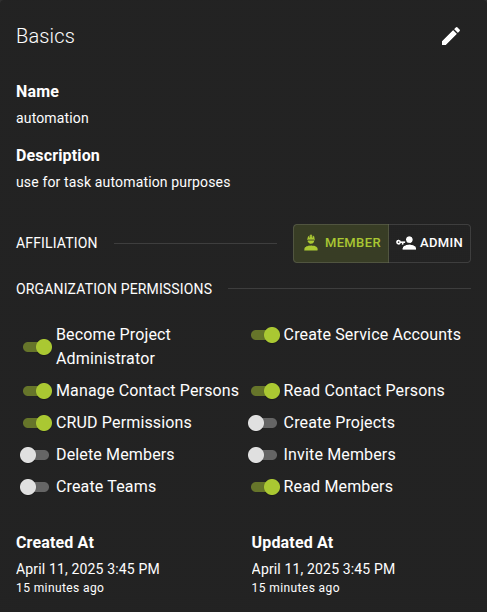
Modify Name and Description
To modify name and description of the service account, click the button at the top right of the card to enter edit mode
- Make your changes as needed
- Confirm the changes by clicking the update button
Modify Organization Permissions and Affiliation
To modify the permissions, use the switches to set the new permissions. The changes to the permissions will be applied automatically.
To change the affiliation, simply select the new affiliation (member or admin)
Manage Credentials
List Credentials
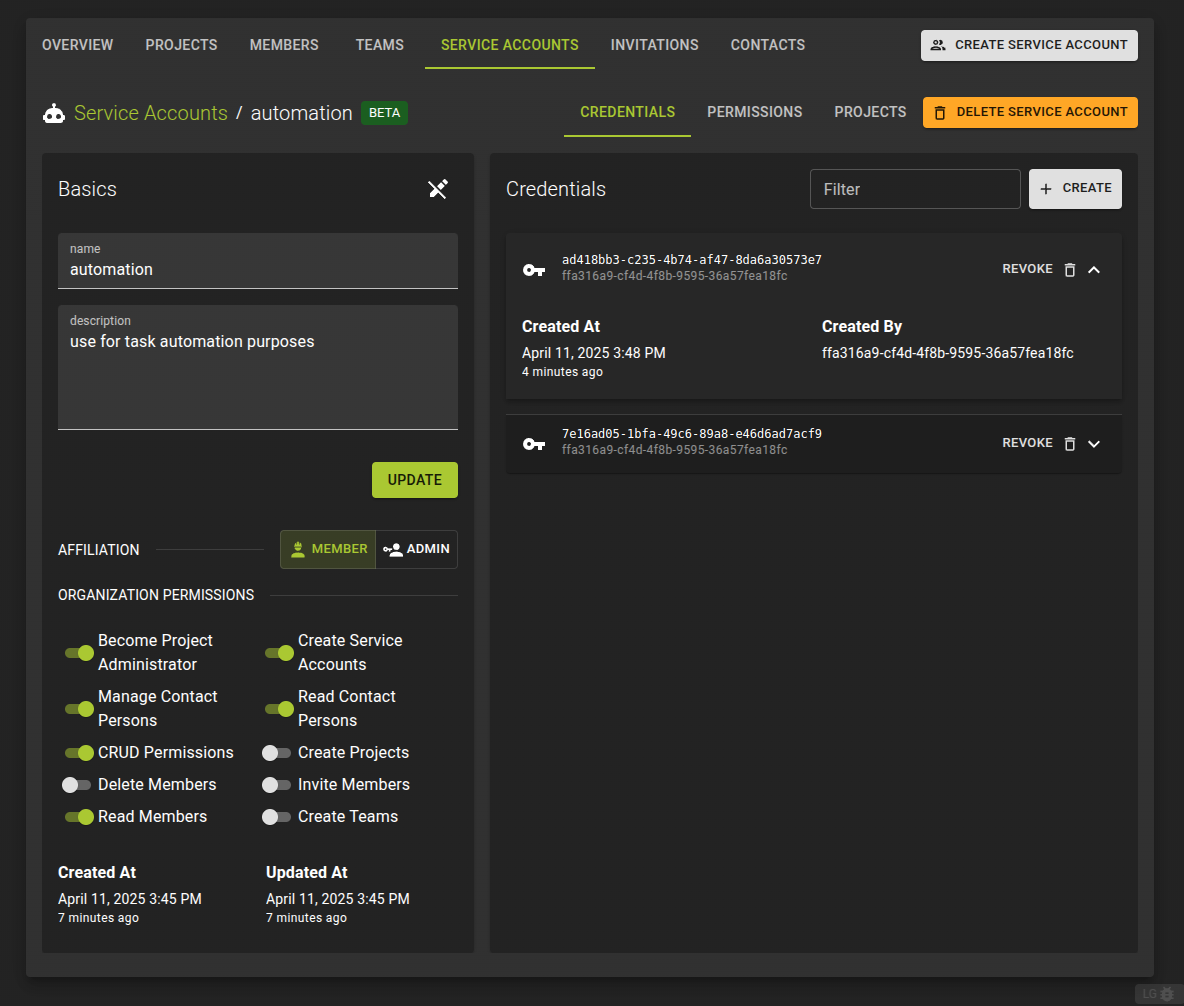 You can manage the credentials of a service account on its details page by switching to the Credentials tab.
Create Credentials
To create a new set of credentials, click on the Create button in the credentials card.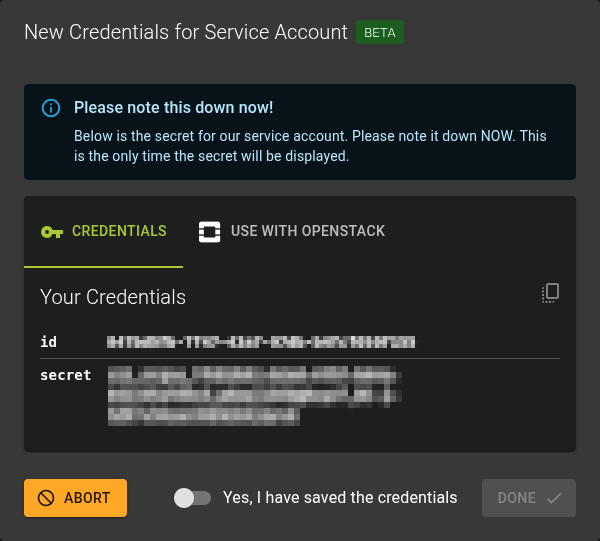 You will now be presented with the generated credentials which you can use against the APIs.
Note
Make sure you secure the credentials now, as there is no way to retrieve them at a later time.
The dialog can be closed once you confirm having secured the credentials.
Downloading OpenStack Config Files
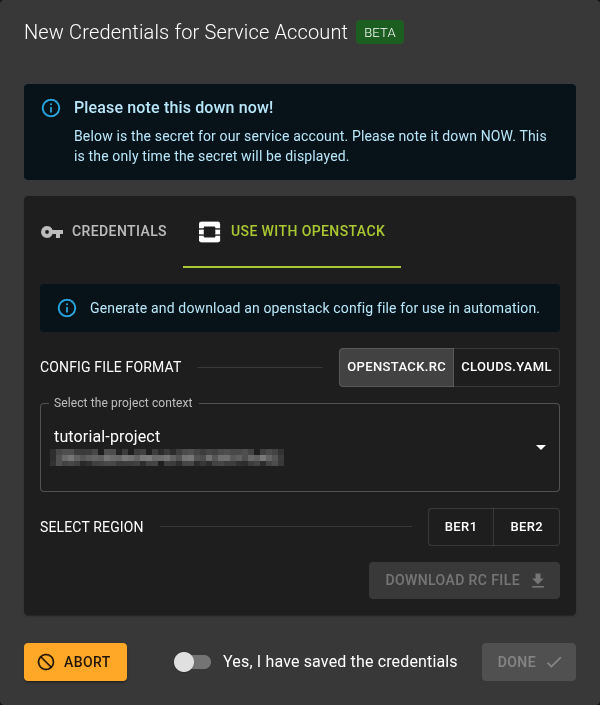 If you intend to use the service account with OpenStack you can download appropriate config files for use with tools such as Terraform or the Python Openstack Client during credential creation. (supported formats are openstack-rc and clouds.yaml)
You may also re-generate and download the config files later. This may be necessary if you have made changes to the permissions or project access for the service account since initial generation.
To regenerate the config files simply click on a service account credential to show its details and then click the Download Openstack config button. (This will require that you paste a valid credential secret that you have secured earlier during the credential creation)
Revoke Credentials
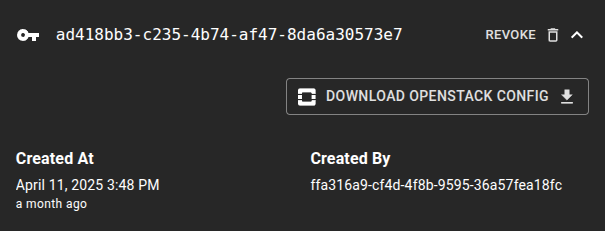 You can revoke credentials by clicking the revoke button on an entry
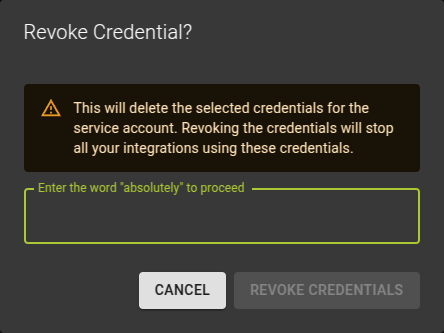 Confirm the operation in the emerging dialog
Manage Permissions
List Permissions
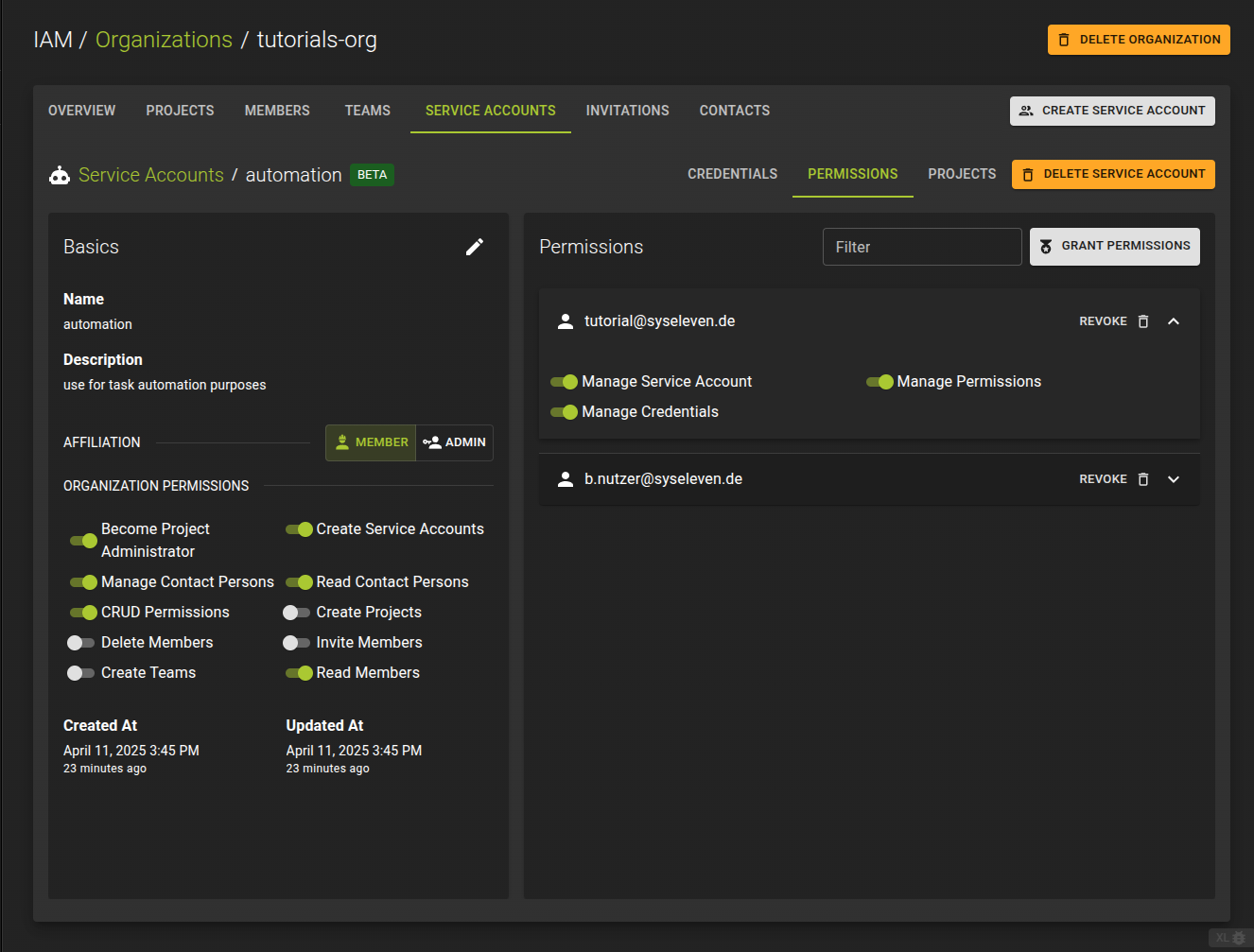 You can manage the permissions of a service account on its details page by switching to the Permissions tab.
Grant Permissions
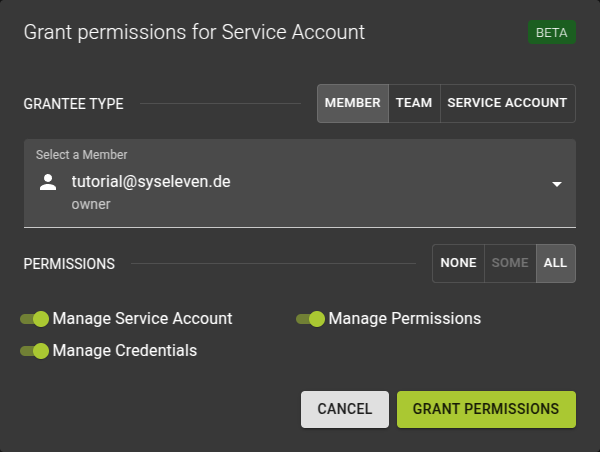
In the emerging dialog:
- Select the member, team or service account to grant permissions to.
- Use the switches to define the permission set
- Complete the operation by clicking on the grant permissions button
Note
Note that service accounts can be given permissions on other service accounts.
Modify Permissions
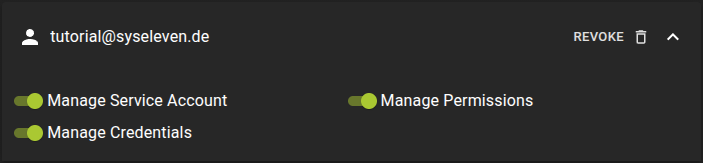 To modify permissions for a user that already has access to the service account:
- On the list of permissions, identify the user you want to adjust permissions
- Click on the username to expand the view and reveal the permission toggles
- Set the permissions as required using the switches. Changes will be saved automatically.
Revoke Permissions
To revoke permissions for a user:
- In the list of permissions, identify the user you want to revoke access for.
- Click on the revoke button next to the user's name
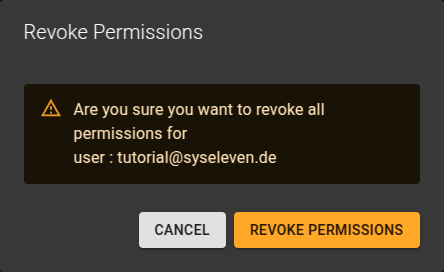
Confirm the operation in the emerging dialog
Manage Project Permissions
List Project Permissions
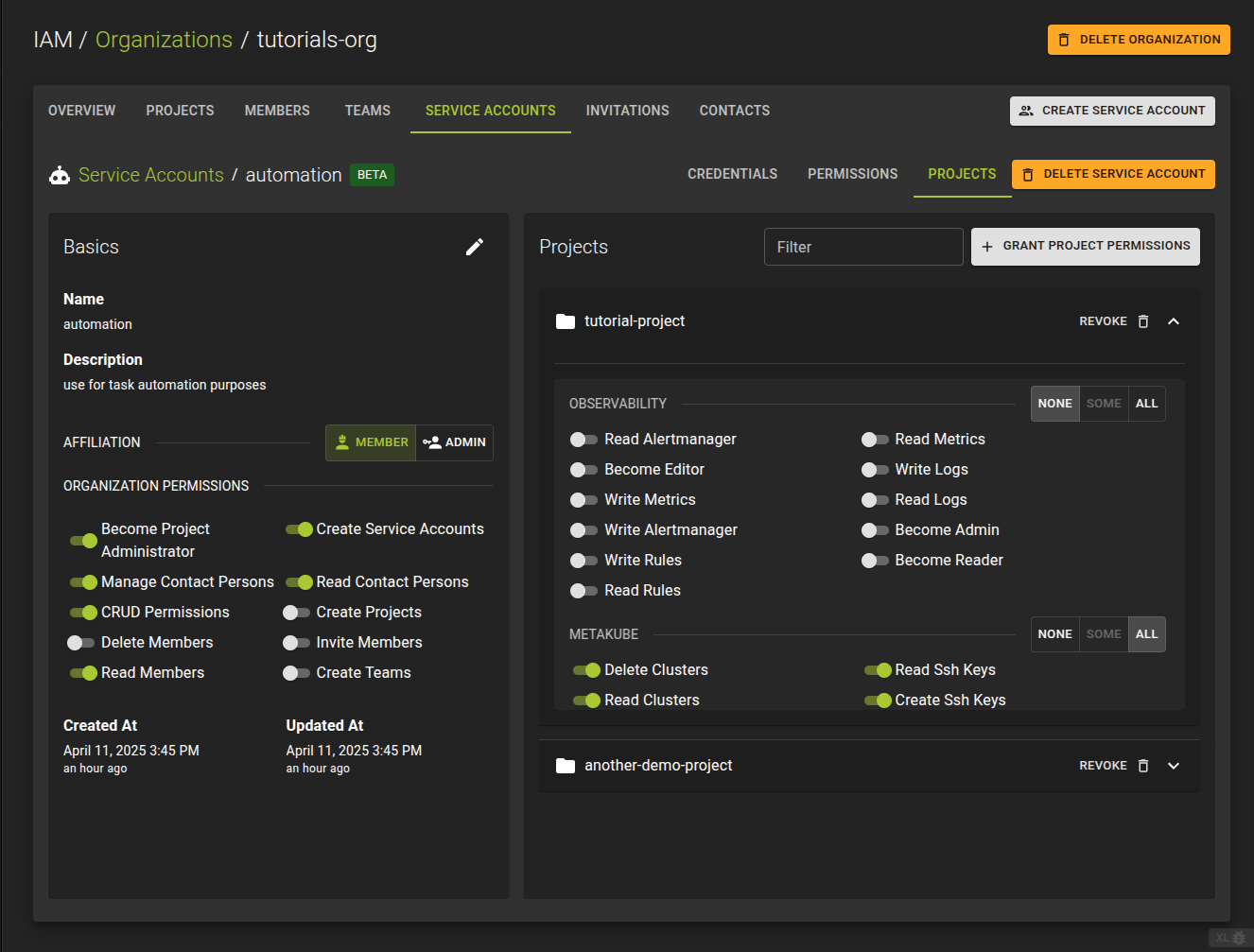 To list all projects that a service account can access, switch to the Projects tab. From here, you can modify existing project permissions or grant access to additional projects.
Grant Project Permissions
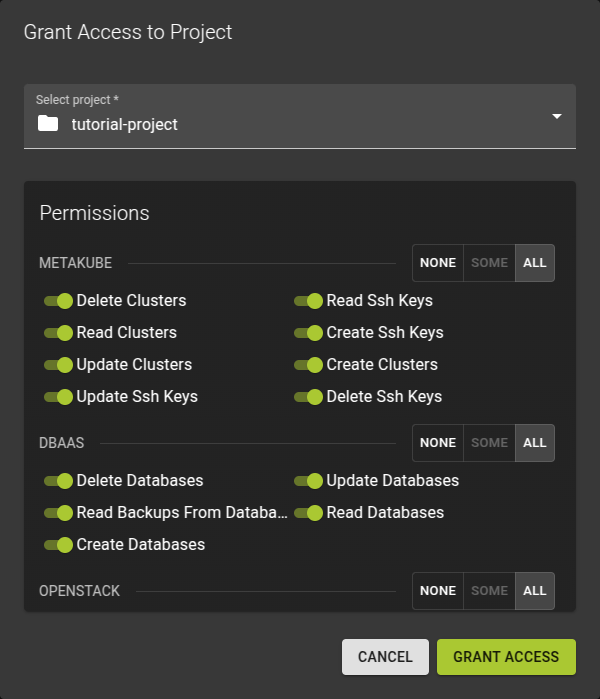
To grant access to a project for a service account, click on the Grant Project Permissions button.
In the emerging dialog:
- Select a project from the drop-down
- Set the permissions for the project as needed
- Click the Grant Access button to conclude the operation.
Modify Project Permissions
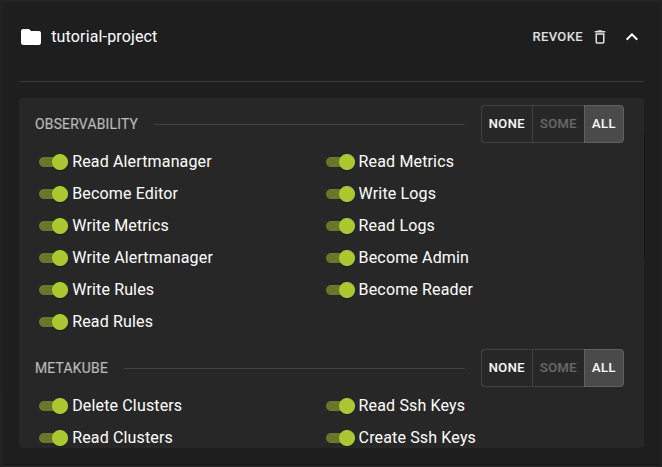 To modify the permissions a service account has on a project:
- Identify the project in the projects list
- Click on the project's name to toggle the accordion and reveal the individual permission.
- Set the permissions as needed. The permissions will be updated automatically.
Revoke Project Permissions
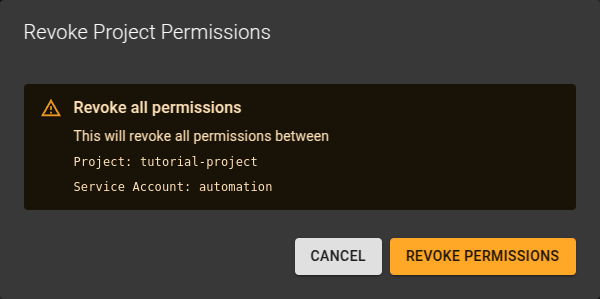 To revoke access to a project for a service account:
- Click the revoke button next to the project's name.
- Confirm the operation in the emerging dialog.
Delete Service Account
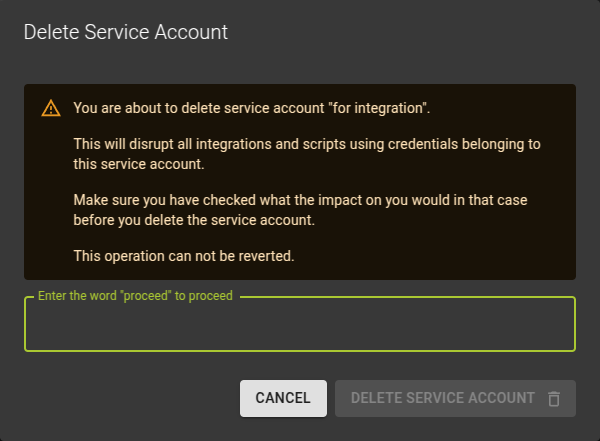 You can delete a Service Account
- From the list of service accounts by clicking the icon at the end of each row
- On the details page of a service account by clicking the delete service account button
Confirm the operation in the emerging dialog.