SysEleven DBaaS
Authentication Requirements
For using the DBaaS API you need to have a Service Account with the necessary permissions. Refer to the Service Account Documentation for details on how to create a Service Account.
List Databases
 To list your databases click on the Databases icon in the sidebar
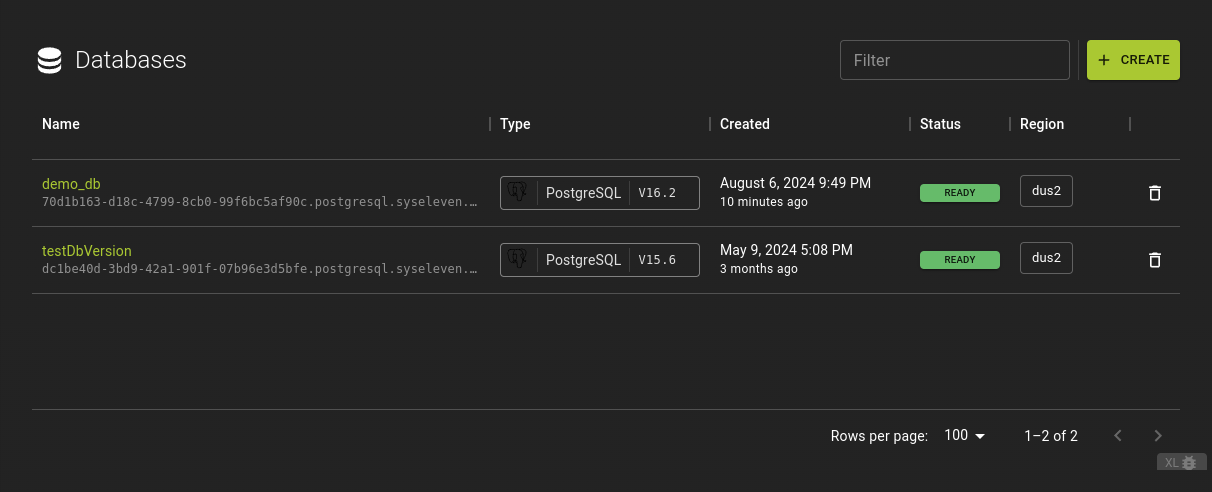 From the databases list you can:
- Create new databases
- Show the details of a database by clicking its name
- Delete databases
Create Database
To create a database click on the Create button in the title bar of the databases list.
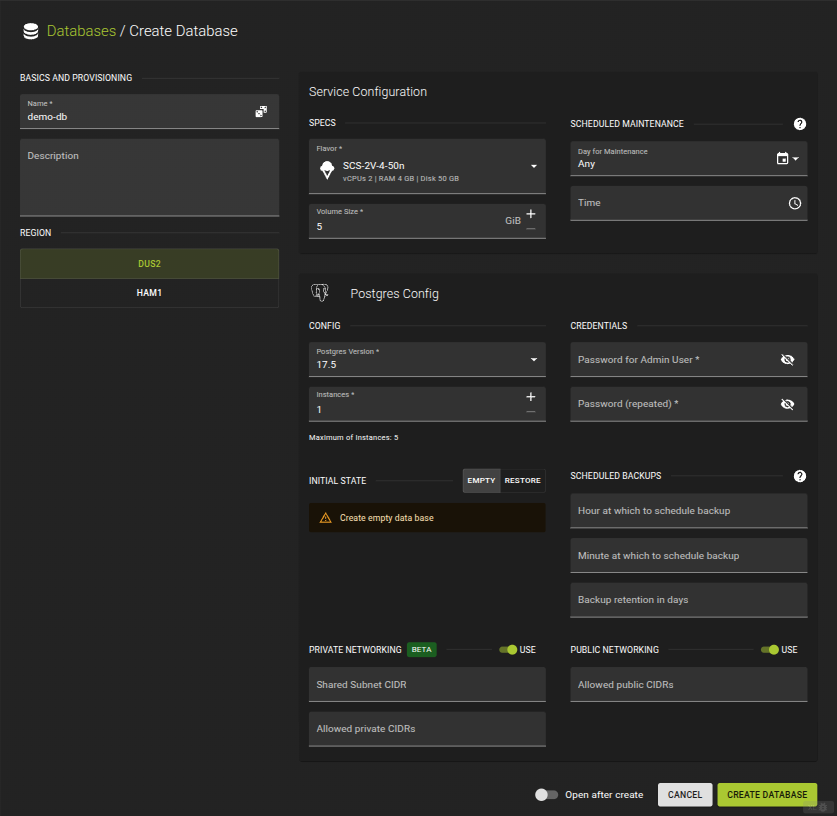 Database creation requires you to enter properties for
- Basics and region
- The service configuration
- The database configuration (specific to the type of database you are creating)
Basics and Provisioning
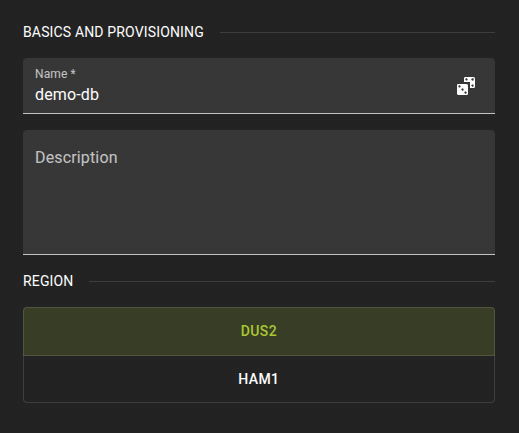
Name- A name for your database
Description- Optional description of your database
Region- Selects the region where you want the database to be provisioned
Service Configuration
Here you can define how the service can be reached and define a policy for scheduled maintenance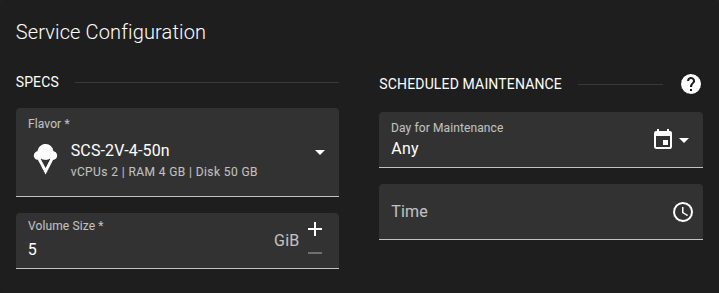
Specs
Flavor- Selects the flavor of the virtual machines that will run your database
Volume Size- Sets the size of the volumes attached to the virtual machines.
Scheduled Maintenance
Here you can define the day and time at which to perform maintenance tasks.
Database Configuration
Here you provide the configuration specific to the type of database you are creating.Info
Currently we only support Prostgresql.
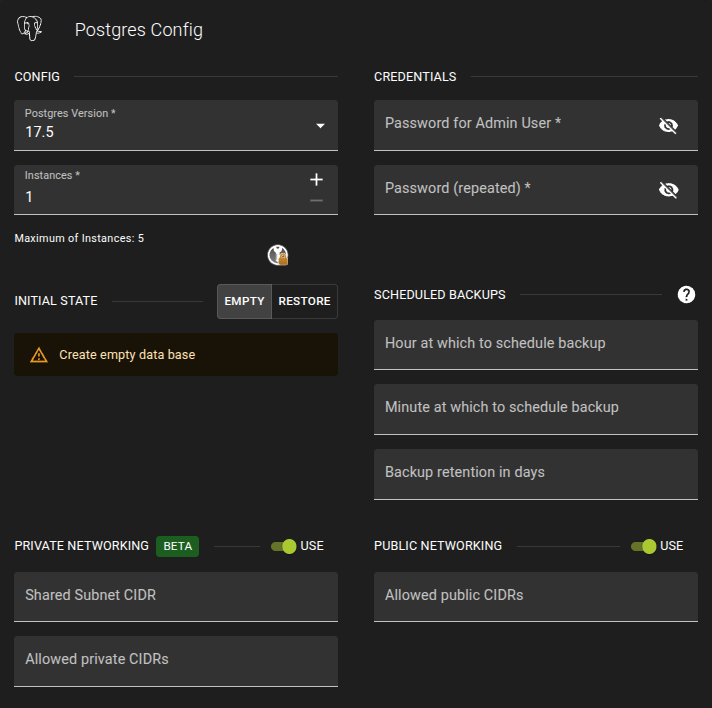
Config
Prostgres Version- Selects the version of Prostgres
Instances- Sets number of instances you want
Credentials
Password- Defines the password to be used for the database
Initial State
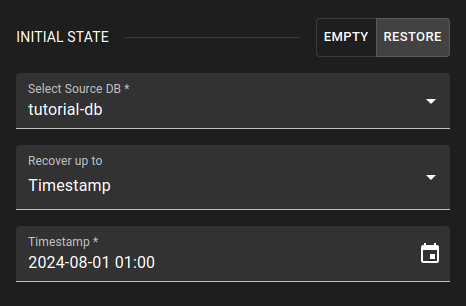 Here you can chose what the initial state of your database should be.
-
Empty- Provisions a fresh empty database.
-
RESTORE- Initializes from a state of another database using
- most recent state
- timestamp
- named restore proident
- LSN
- XID
Scheduled Backups
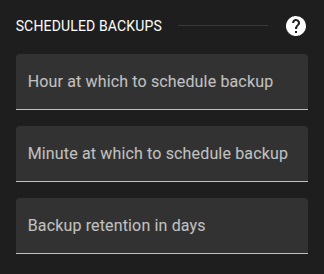
Here you can control when and at which interval backups will be performed
Scheduled Backups can be configured to certain time and will be perfomed daily.
The duration of how long to keep the backups can be configured by setting the Backup Retention in Days. The Default value of Backup Retention is 7 days.
Any Recovery can be done by creating a new Database with the backups created for a database, which will be listed on creation under initial State as described above.
Here you can control when and at which interval backups will be performed
Private Networking
Enabling private networking for a database will result in a private network to be provisioned in openstack that you can connect to.
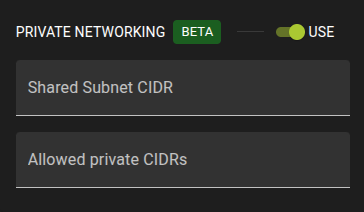
You can toggle private networking using the switch.
-
Shared subnet CIDR- CIDR for the private subnet that will be created in openstack and shared with you.
-
Allowed Private CIDRs- Here you can add CIDRs that are allowed to access the database over the private network
Public Networking
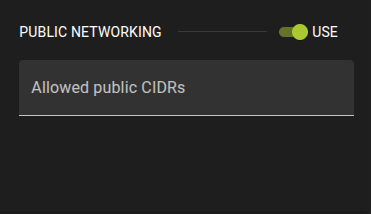
You can toggle public networking using the switch
-
Allowed Public CIDRs- Here you can add CIDRs that are allowed to access the database over the public network
DBaaS Terraform Provider Example:
# Terraform Provider configuration

terraform {
  required_providers {
    sys11dbaas = {
      source = "syseleven/sys11dbaas"
      version = "0.2.0"
    }
  }
}

# DBaaS configuration

provider "sys11dbaas" {
  api_key      = "#API_KEY"
  project      = "#PROJECT_ID"
  organization = "#ORG_ID"
}

resource "sys11dbaas_database" "postgresql" {
  name = "example-postgresql-changed-name"
  description = "Add optional Description here"
  application_config = {
    instances = 1
    type      = "postgresql"
    version   = 16.2
    password  = "veryS3cretPassword"
  }
  service_config = {
    disksize = 25
    flavor   = "m2c.small"
    region   = "dus2"
  }
}
Inspect and Modify Database
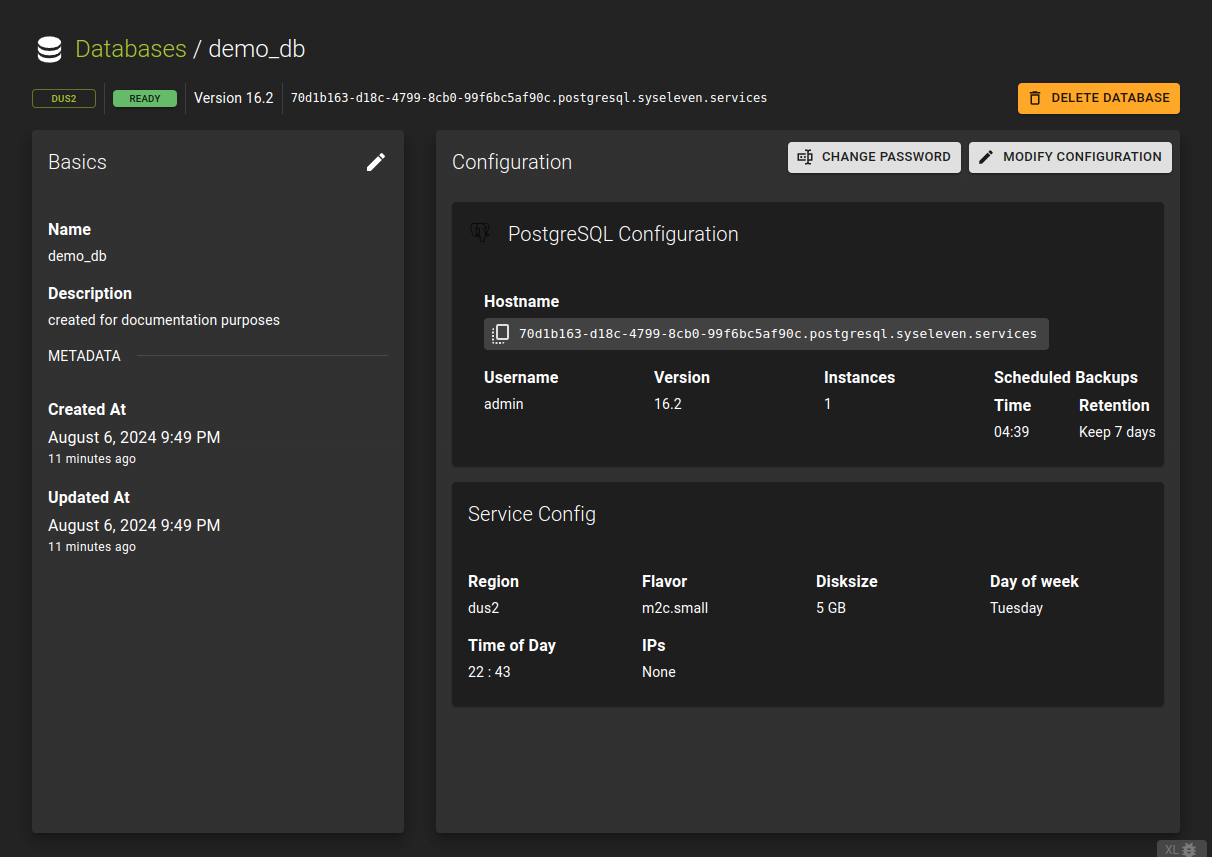 To view the details and manage a database you can click on the name of the database in the databases list.
Here you can perform various task
- Make changes to the service and rename it
- Modify the database configuration
- Change the password
- Delete the database
The options here can vary depending on the type of database.
DBaaS Terraform Provider Example:
Modify Name and Description
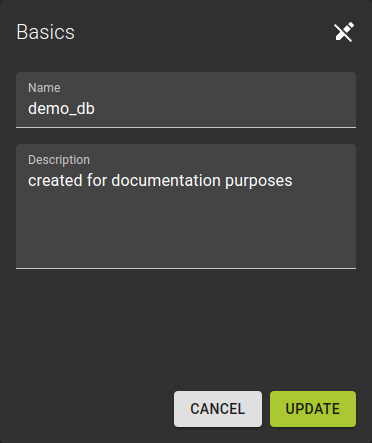
Navigate to the details page of your database by clicking on its name in the databases list. Enter edit mode by clicking the icon.
- Provide a
NameandDescription - Click Update to save your changes
DBaaS Terraform Provider Example:
# Terraform Provider configuration

terraform {
  required_providers {
    sys11dbaas = {
      source = "syseleven/sys11dbaas"
      version = "0.2.0"
    }
  }
}

provider "sys11dbaas" {
  api_key      = "#API_KEY"
  project      = "#PROJECT_ID"
  organization = "#ORG_ID"
}

resource "sys11dbaas_database" "postgresql" {
  name = "example-postgresql-changed-name"
  description = "Add optional Description here"
  application_config = {
    instances = 1
    type      = "postgresql"
    version   = 16.2
    password  = "veryS3cretPassword"
  }
  service_config = {
    disksize = 25
    flavor   = "m2c.small"
    region   = "dus2"
  }
}
Modify Database or Service Configuration
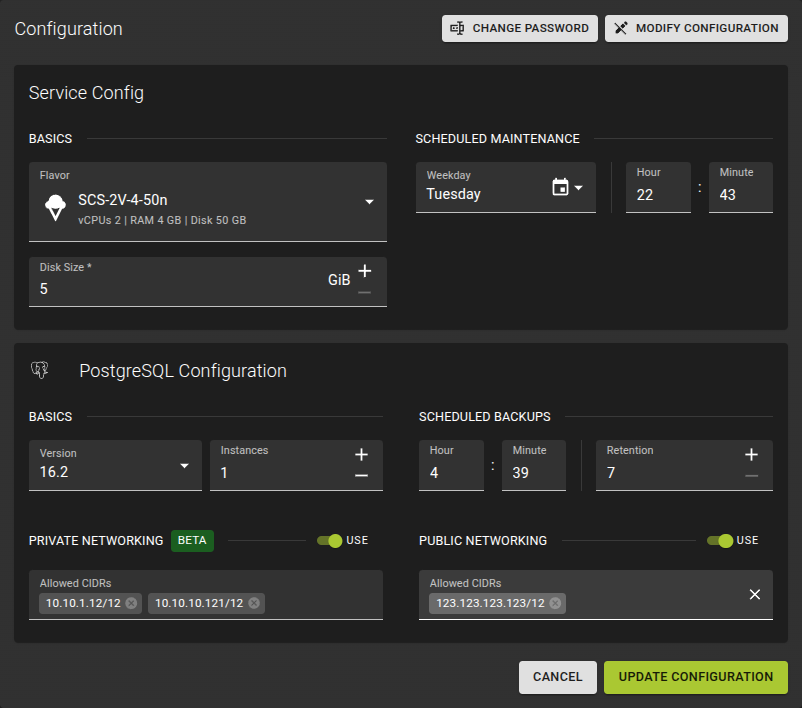 Databases can be configured by choosing the database you want to edit and click Modify configuration .
You can change the Configuration for
- Scheduled Backups
- Maintenance Windows
- Basics (Flavors and Disk Size)
- and the AllowList for IPs
DBaaS Terraform Provider Example:
# Terraform Provider configuration

terraform {
  required_providers {
    sys11dbaas = {
      source = "syseleven/sys11dbaas"
      version = "0.2.0"
    }
  }
}
provider "sys11dbaas" {
  api_key      = "#API_KEY"
  project      = "#PROJECT_ID"
  organization = "#ORG_ID"
}
resource "sys11dbaas_database" "postgresql" {
  name = "example-postgresql"
  description = "Optional Description"
  application_config = { #modify any entry on here and apply the changes
    instances = 1
    type      = "postgresql"
    version   = 16.2
    password  = "veryS3cretPassword"
  }
  service_config = {
    disksize = 25
    flavor   = "m2c.small"
    region   = "dus2"
  }
}
Change Database Password
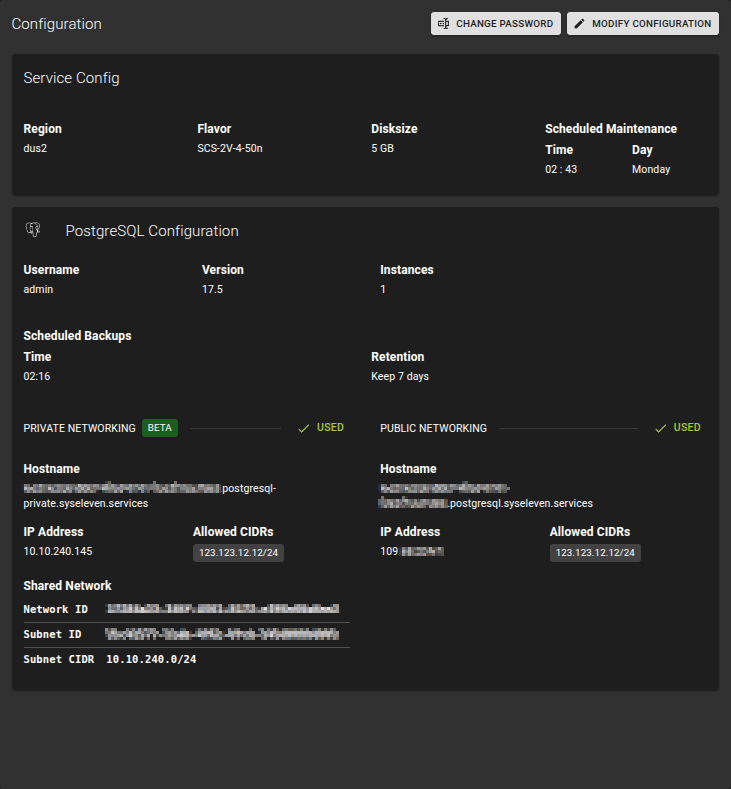 To change the password of your database
- Navigate to the details page of your database.
- Click on the Change Password button in the title of the Configuration card.
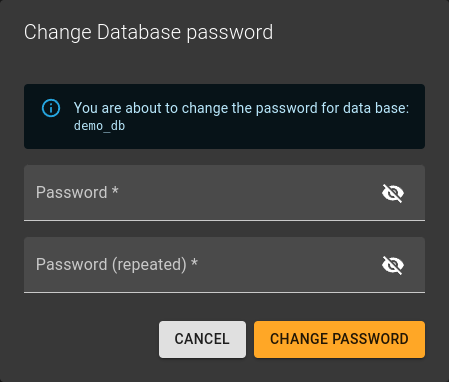
In the emerging dialog
- Provide a new password and repeat it
- Confirm the operation by clicking Change Password
DBaaS Terraform Provider Example:
# Terraform Provider configuration

terraform {
  required_providers {
    sys11dbaas = {
      source = "syseleven/sys11dbaas"
      version = "0.2.0"
    }
  }
}
provider "sys11dbaas" {
  api_key      = "#API_KEY"
  project      = "#PROJECT_ID"
  organization = "#ORG_ID"
}
resource "sys11dbaas_database" "postgresql" {
  name = "example-postgresql"
  description = "Optional Description"
  application_config = { #modify any entry on here and apply the changes
    instances = 1
    type      = "postgresql"
    version   = 16.2
    password  = "ChangeVeryS3cretPassword" #here to change
  }
  service_config = {
    disksize = 25
    flavor   = "m2c.small"
    region   = "dus2"
  }
}
Delete Database
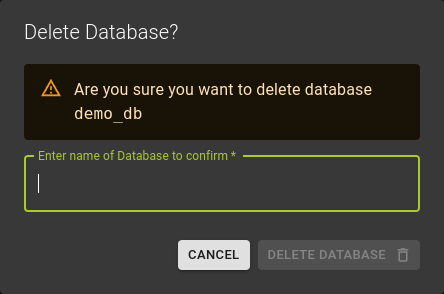
To delete a database you can
- either use the option at the end of each entry on the databases list
- or use the Delete Database button on the database detail page
In the emerging dialog confirm the deletion by
- Entering the name of the database you want to delete
- Clicking the Delete Database
DBaaS Terraform Provider Example: