Projects
Concepts
Projects are resource containers within your organization. Use them to manage your resources with fine-grained access control.
Users, service accounts and teams can be related to a project and thereby gain access to the project's resources. API Keys (deprecated) and S3 users are owned by a project.
Ownership and Access Control
Projects are owned by an organization. The visibility of projects follows these principles:
- Regular users (
memberaffiliation) can see and access only the projects they have been granted access to (e.g. when they created it, or when they were granted specific permissions, or when they were added to a team that has been granted specific permissions). Regular users with the permissionBecome Project Administratorcan see and manage ALL projects within the organization. - Users with the organization
owneroradminaffiliation can see and manage ALL projects within the organization
List Projects
Permission required
- You will need the necessary permissions to perform this operation.
- For details refer to the authorization model
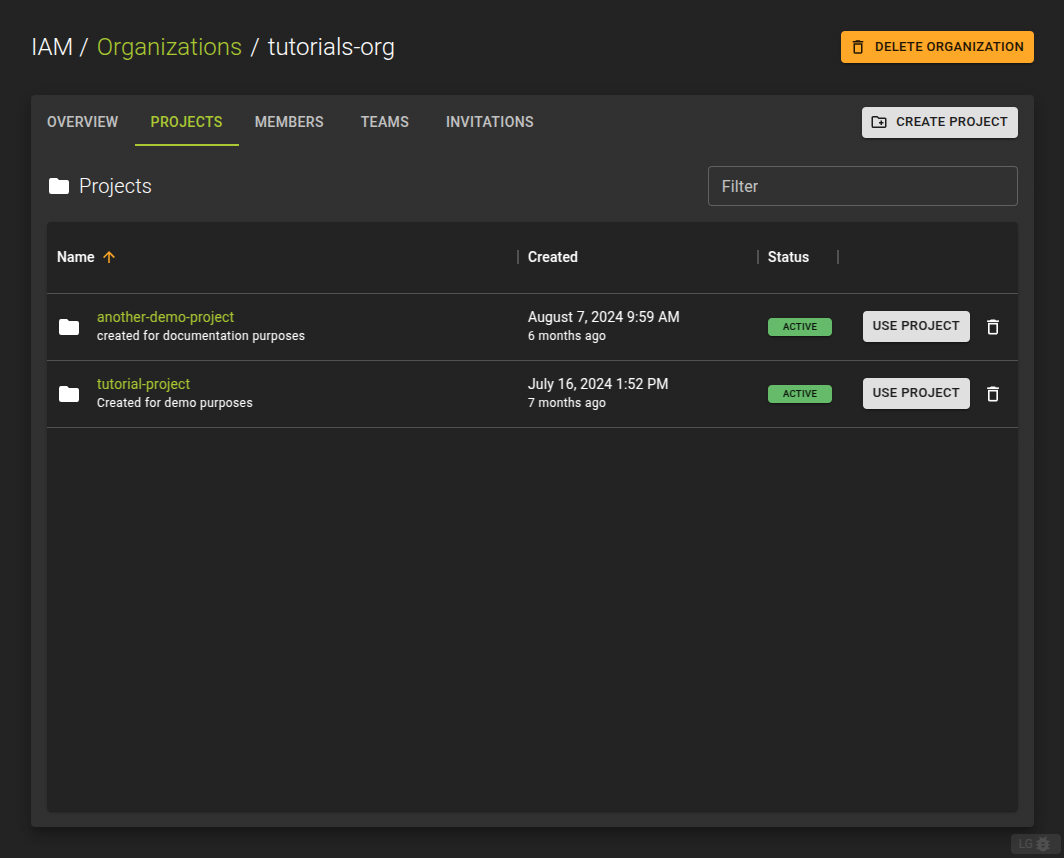
To list all projects within an organization navigate to the details page of an organization and switch to the Projects tab.
The projects list allows:
- Creation of new projects by clicking the Create Project
- Termination of a project by clicking the icon at the end of each entry.
- Switching into a projects context and managing its resources by clicking the Use Project button
Create Project
Permission required
- You will need the necessary permissions to perform this operation.
- For details refer to the authorization model
To create a project
- navigate to an organizations detail page
- switch to the Projects tab
- click the Create Project button
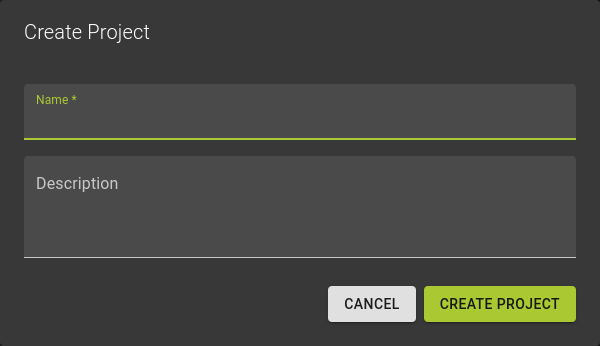
In the emerging dialog
- Name your project
- Optionally provide a description for your project
View and Manage Project
Permission required
- You will need the necessary permissions to perform this operation.
- For details refer to the authorization model
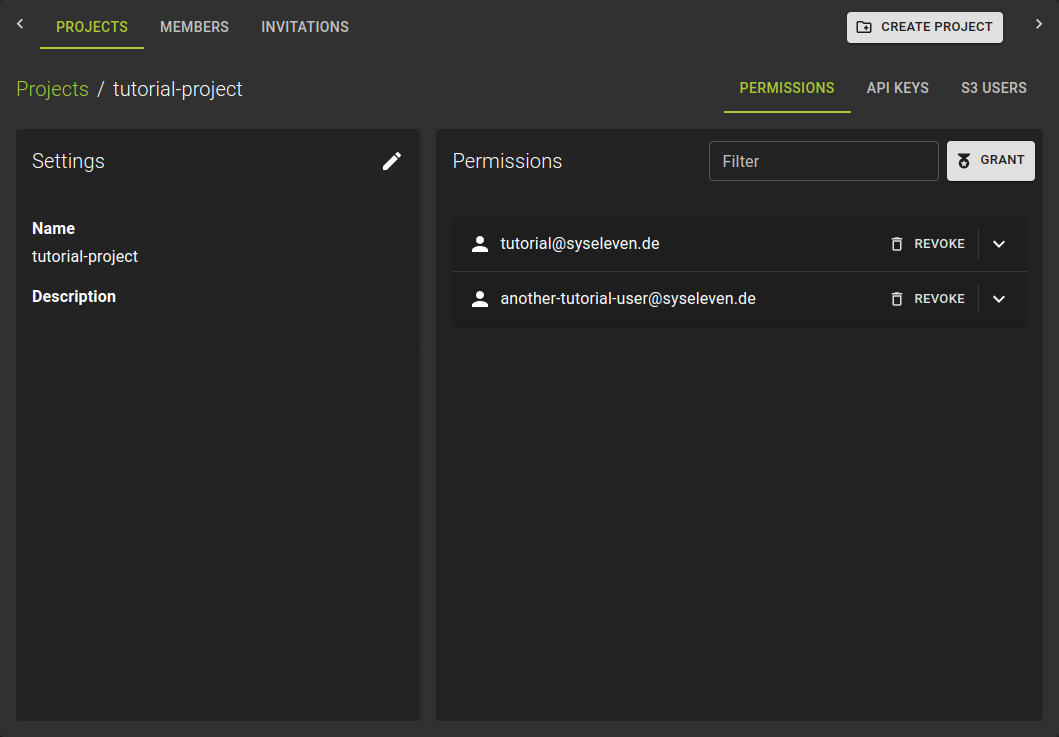
To manage an individual project navigate to the projects detail page by clicking its name from the projects list.
Here you can:
- Rename a project and describe it
- Manage the permissions of members on the project
- Manage API keys
- Manage S3 users
Basic Settings
To modify the name or description of a project click on the icon on the settings card on the project detail page.
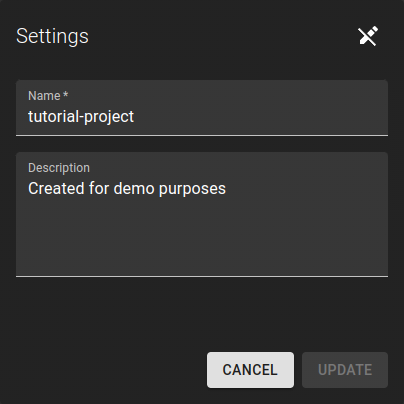
This will put the settings card into edit mode.
- Update name and description as needed
- Confirm the changes by clicking the Update button.
Delete Project
Permission required
- You will need the necessary permissions to perform this operation.
- For details refer to the authorization model
Warning
- Deleting a project will also delete all cloud resources belonging to the project.
- Please be cautious. This operation can not be reverted
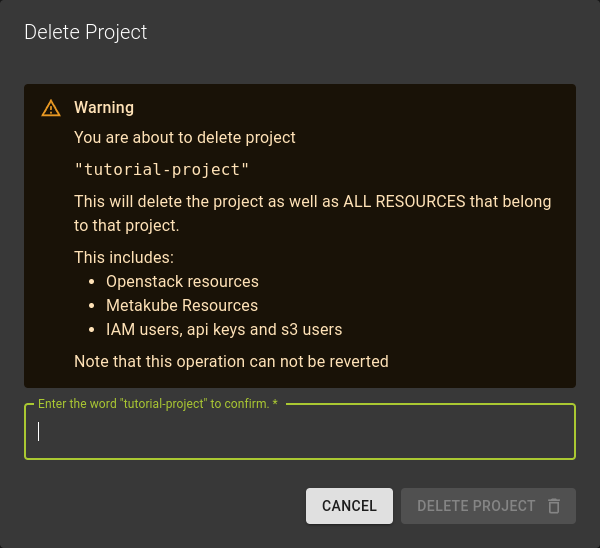
To delete a project
- Navigate to the details page of the organization containing the project and switch to the Projects tab.
- Either click the icon at the end of the entry representing your project
- Or on the details page of a project click the Delete Project button in the title bar.
In the emerging dialog confirm the operation by
- Entering the name of the project you want to delete
- Clicking the Delete Project button