Setting up Backups of VMs and restore them
Warning
Backup as a Service is currently only available upon request.
This guide will walk you through the process of creating a secret key, creating (un)encrypted backup schedules, and restoring VMs from backups using the UI.
Prerequisites
- Access to SysEleven OpenStack Cloud
- Sufficient permissions to create VMs, Secrets and backups
- Unlocked UI access towards Barbican for OpenStack and Backup as a Service
- A resource you want to backup (e.g. a VM)
Steps
1. (Optional) Obtain a secret via Barbican
First, we will create a secret order to let Barbican supply us with a random key. There are different ways to create a secret, we are following this way via a secret order to receive a secret which is compliant with the backup service requirements.
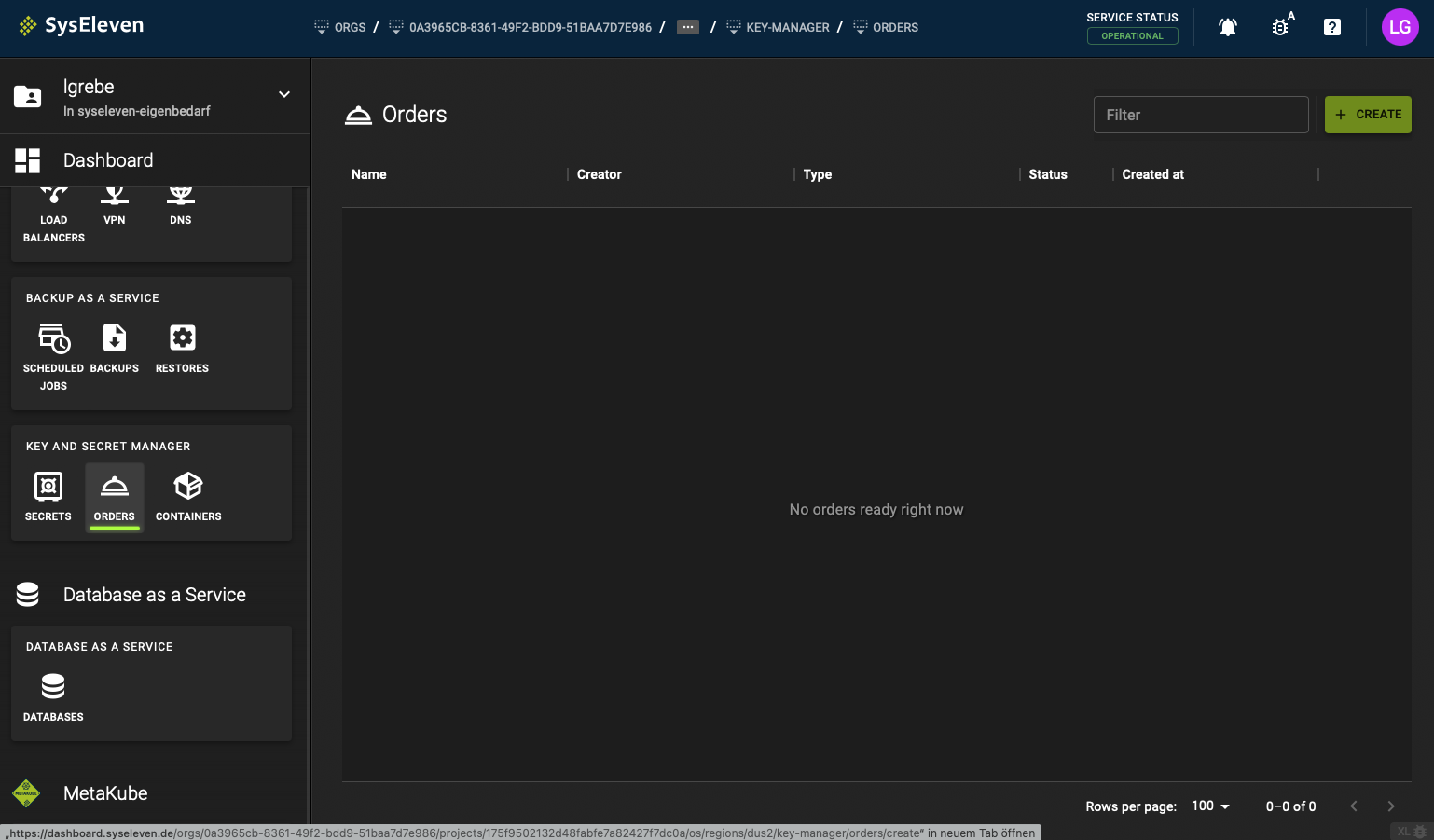
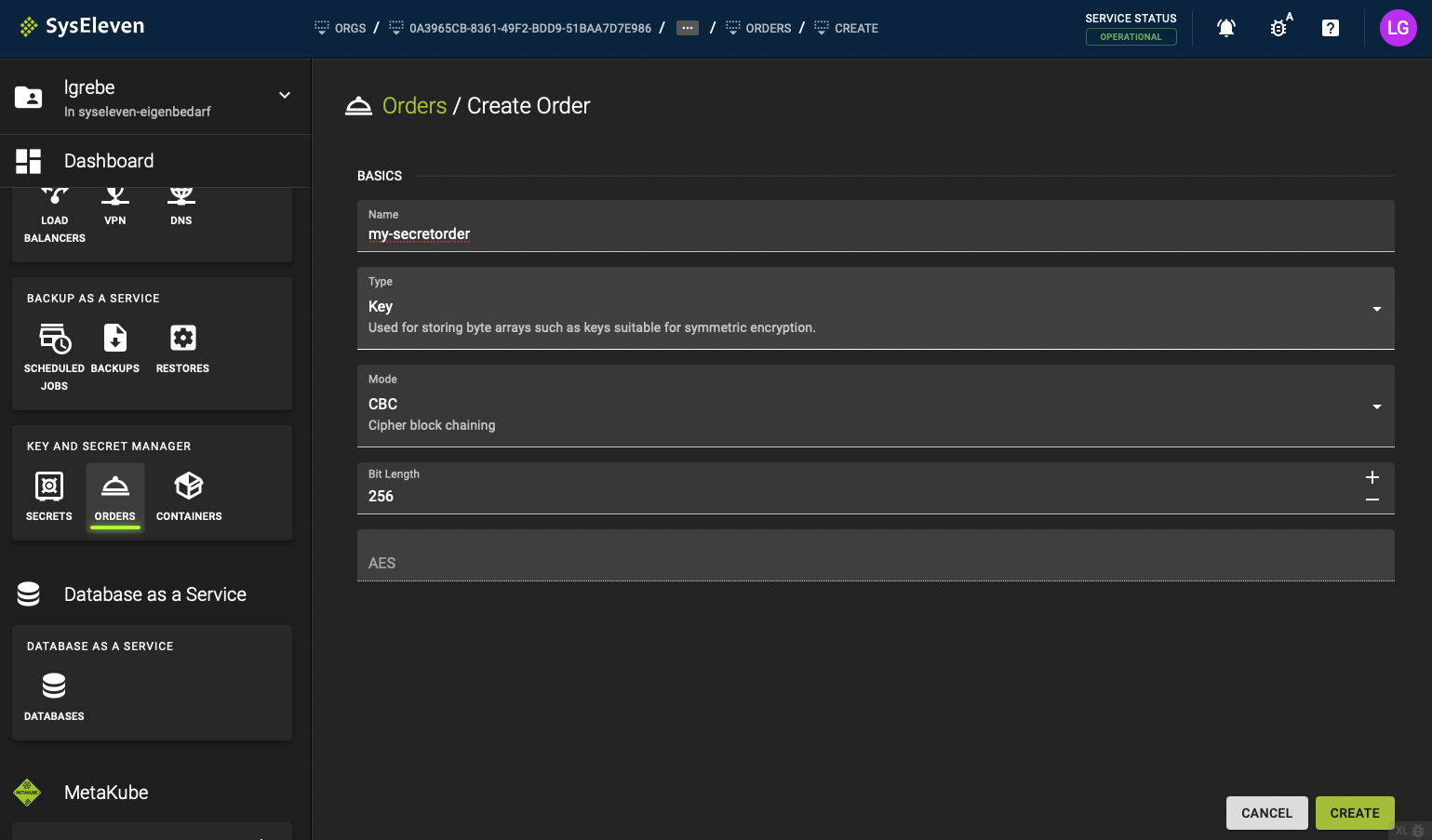
In the prompt we suggest to configure a name for your secret order for the start.
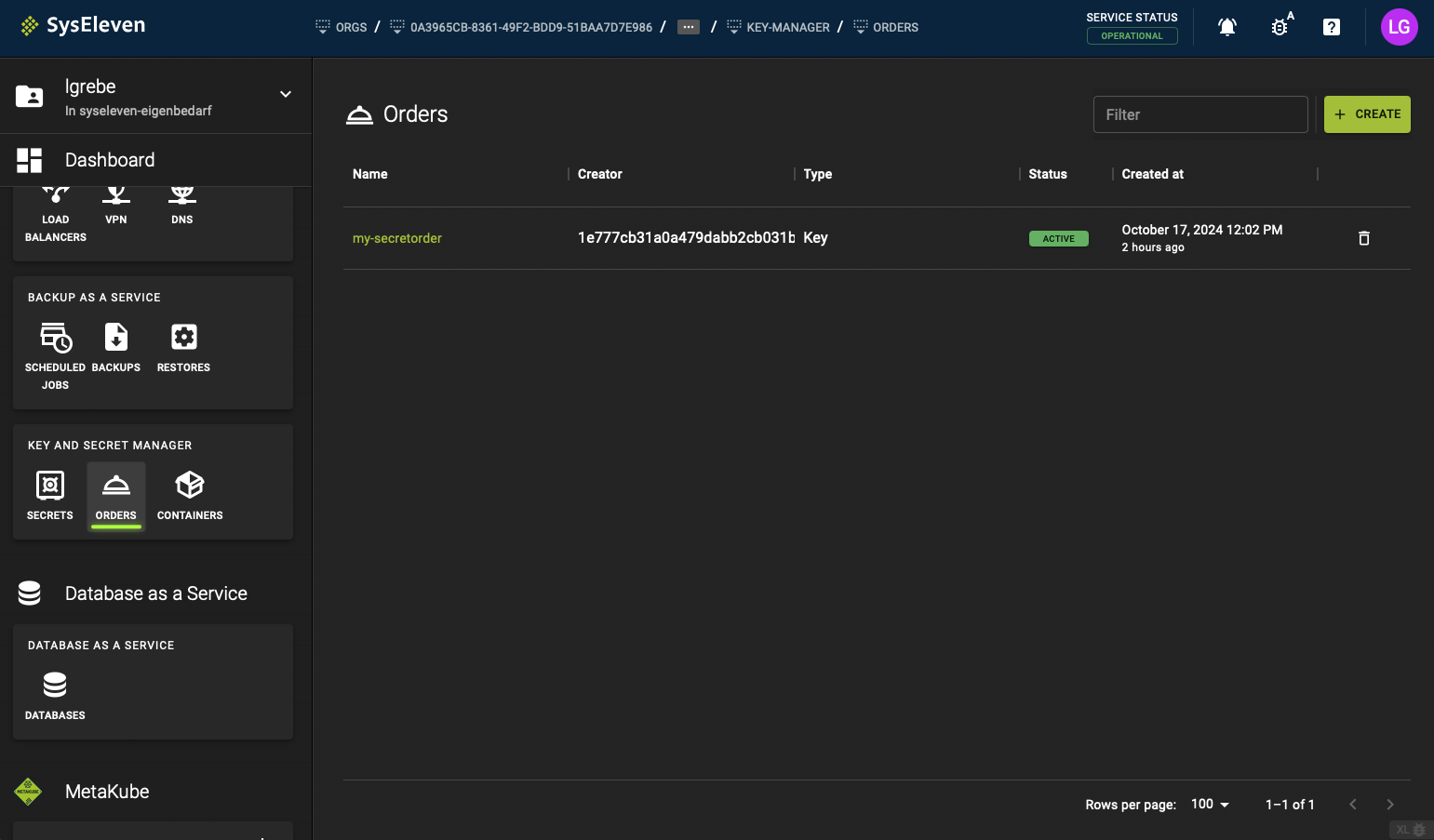
You should see your secret order has been created successfully.
After creation of the secret order we will also see a secret has been created for us
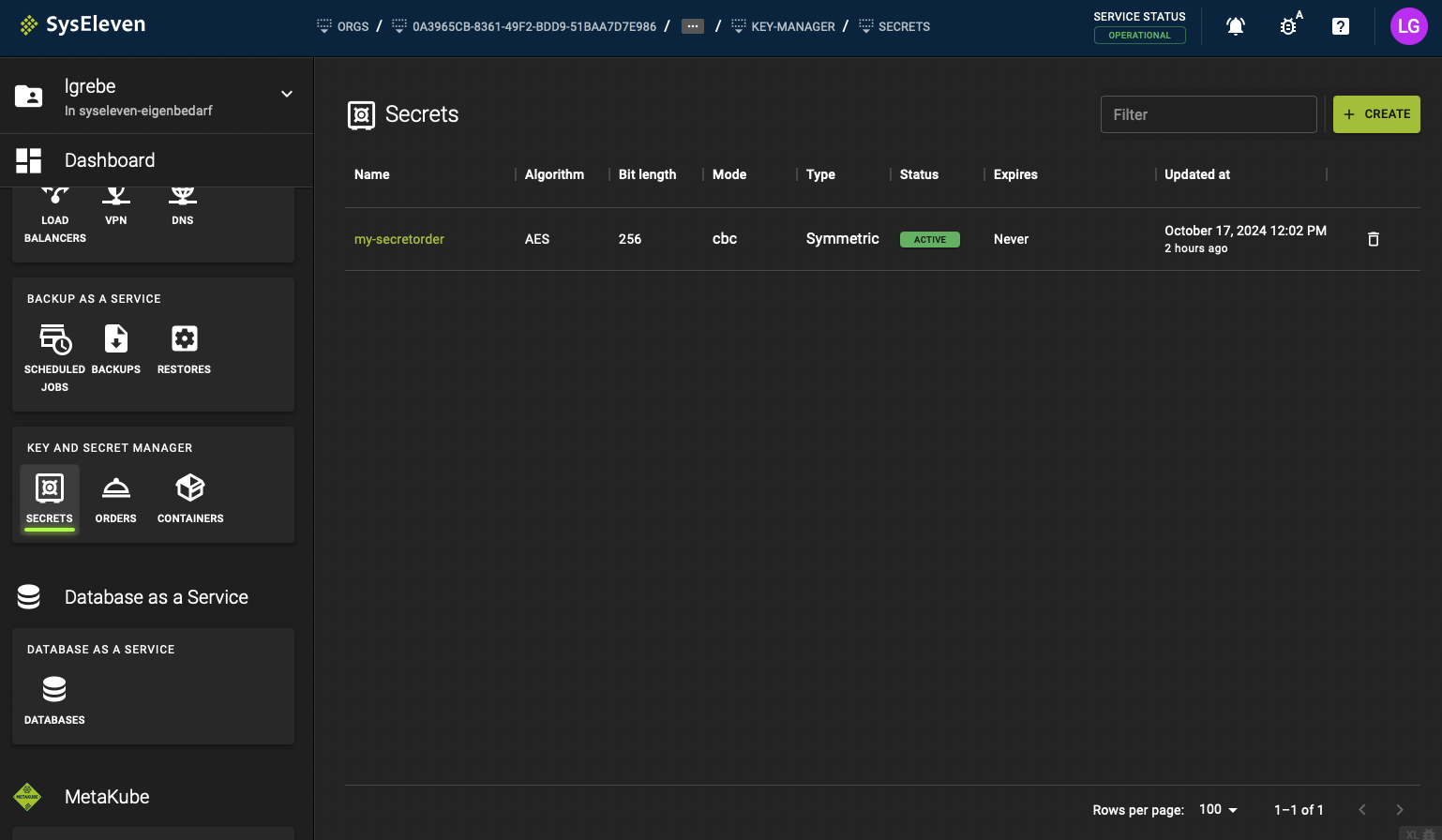
This is the secret we will be using to encrypt our backup.
2. Create a scheduled job for backups
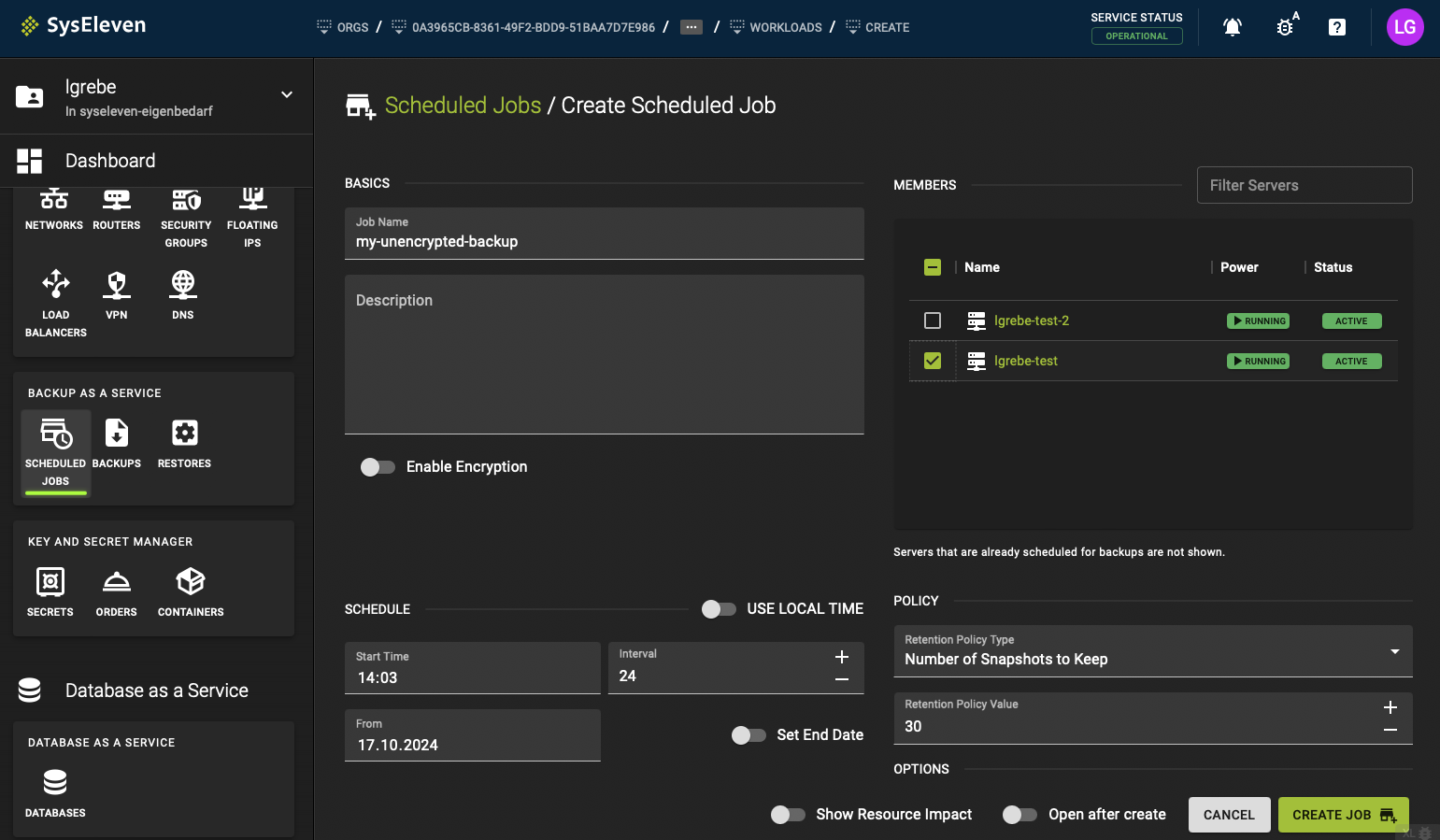
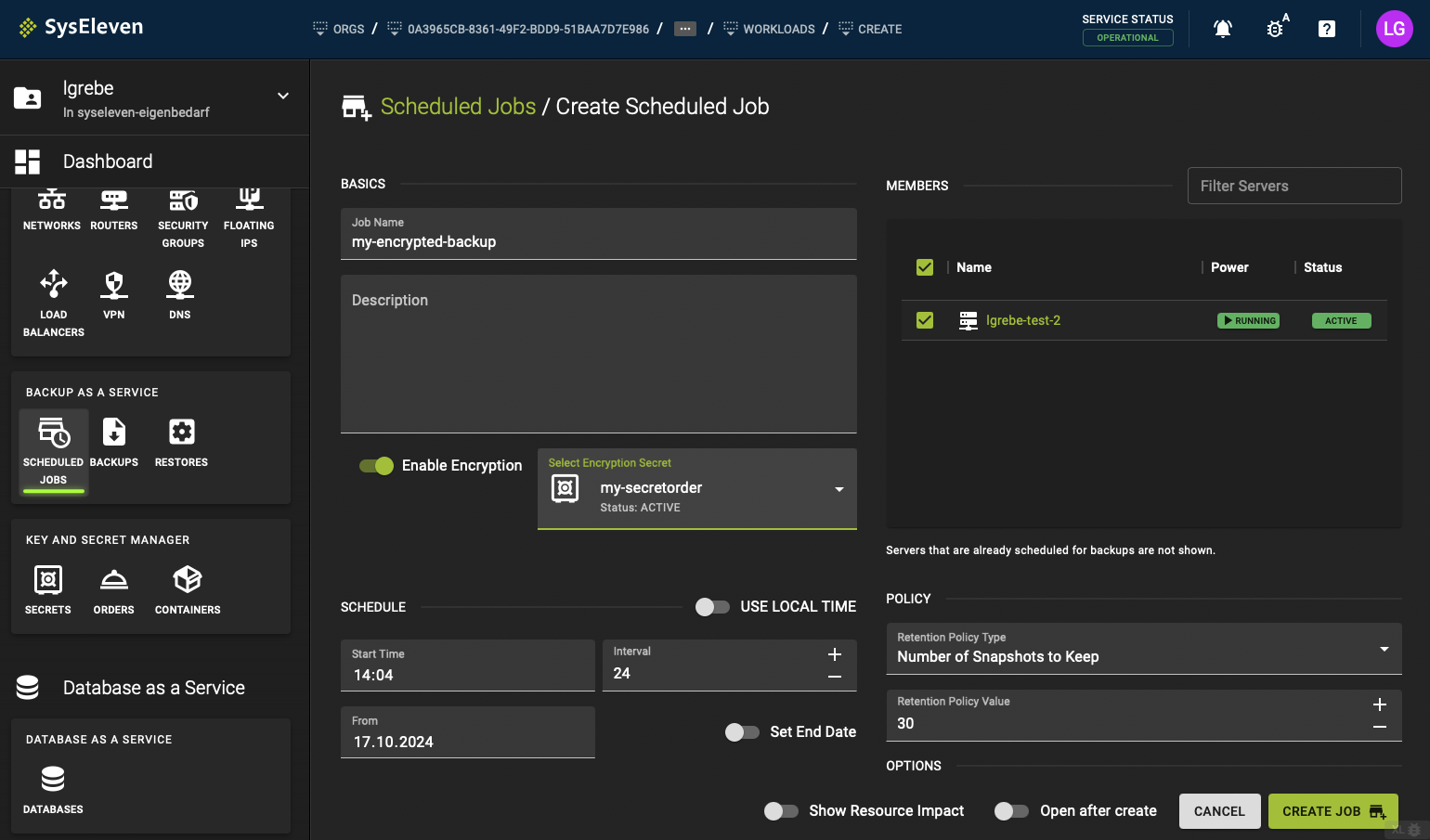
The next step is to create a scheduled job for our backup to ensure you have automatic backups created periodically from your resource. In this example we have 2 VMs, we want to encrypt the backup for 1 VM and leave the second backup unencrypted. You cannot encrypt single resources of a backup, you have to decide to either fully encrypt it or leave it unencrypted.
We start with the unencrypted backup.
For the encrypted backup we will choose our obtained secret from the first step.
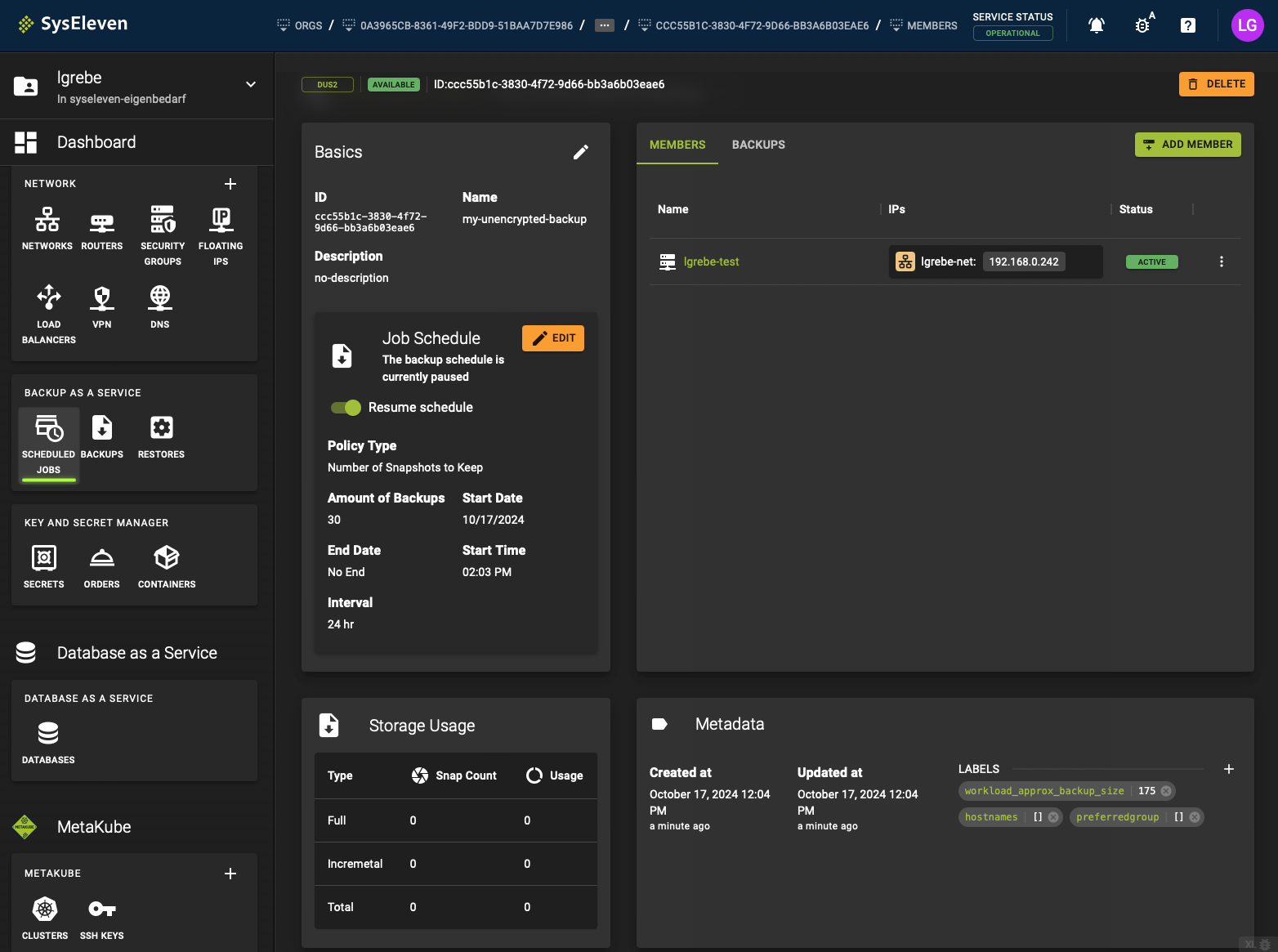
After creating the scheduled job you will see the following (here the example for the unencrypted backup). You will see the resources which are part of the backup as members inside of this job.
3. Manually trigger creation of a backup
The scheduled job created in the second step is automatically creating backups according to the schedule. It is also always possible to manually create backups via accessing the schedule directly. As there currently is no backup in our example we will create a full backup of the VM(s).
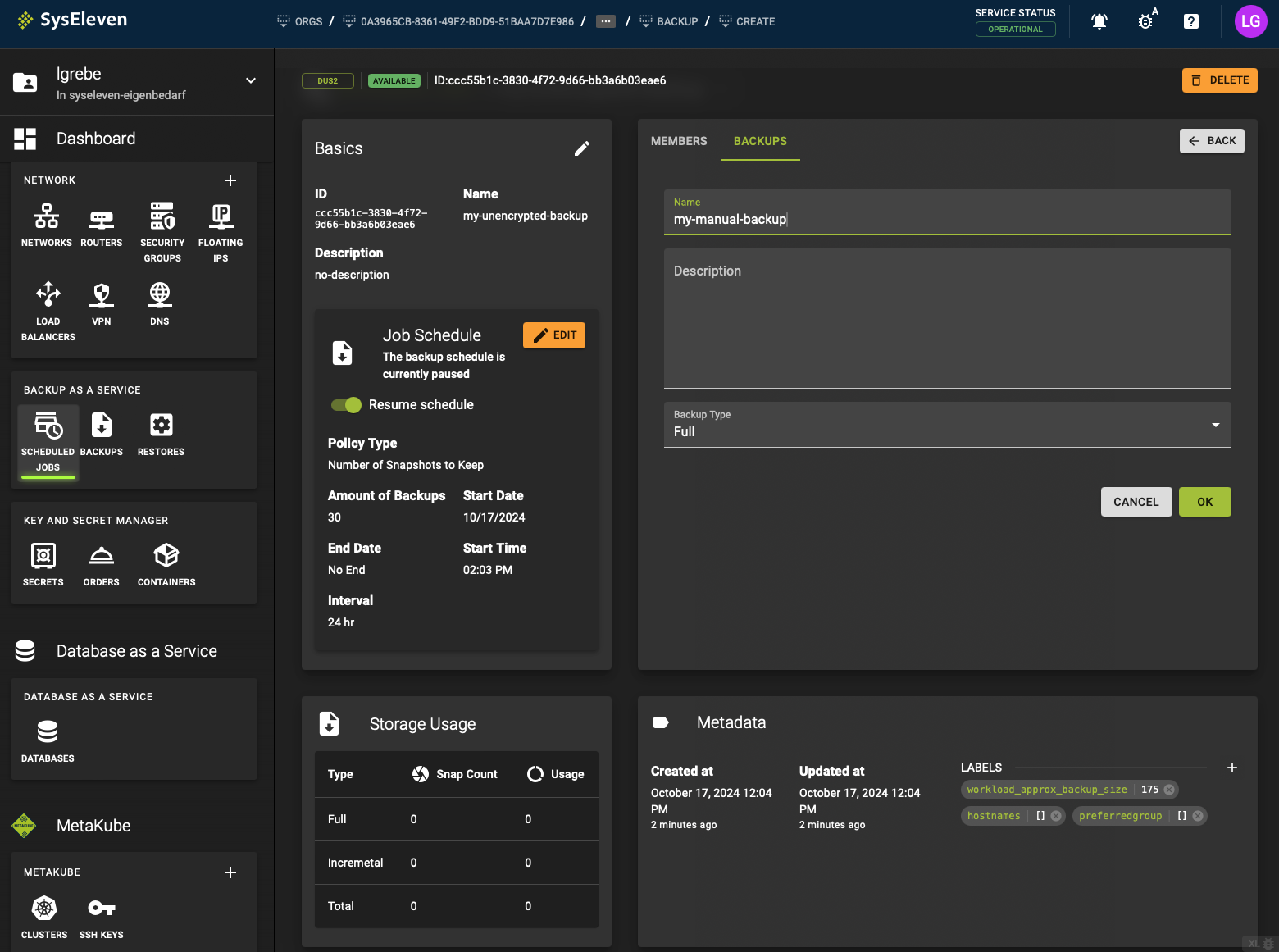
The process of the backup creation is being shown in the UI, once it is reported as available
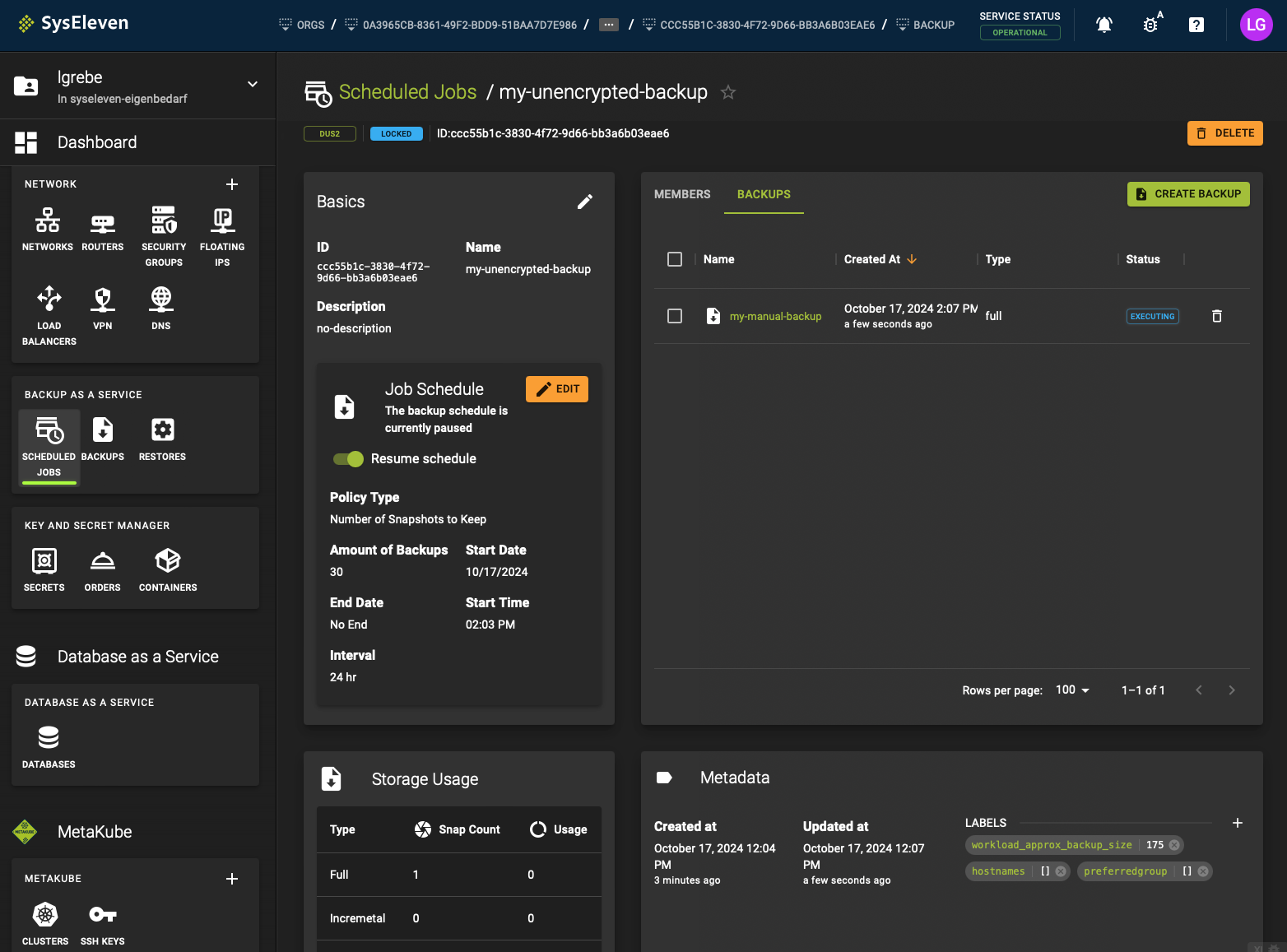
4. Delete VMs and restore them from backup
There are 2 ways to restore a backup. The first would be a "one click" restore, the second is an "inplace" restore. The "one click" restore option is viable if you lost all the related VM resources of your backup. If parts of your VM resources are still running you have to choose the "inplace" option. In this example we will work with the "one click" restore. So to be able to restore our backups we should first delete our currently running VMs.
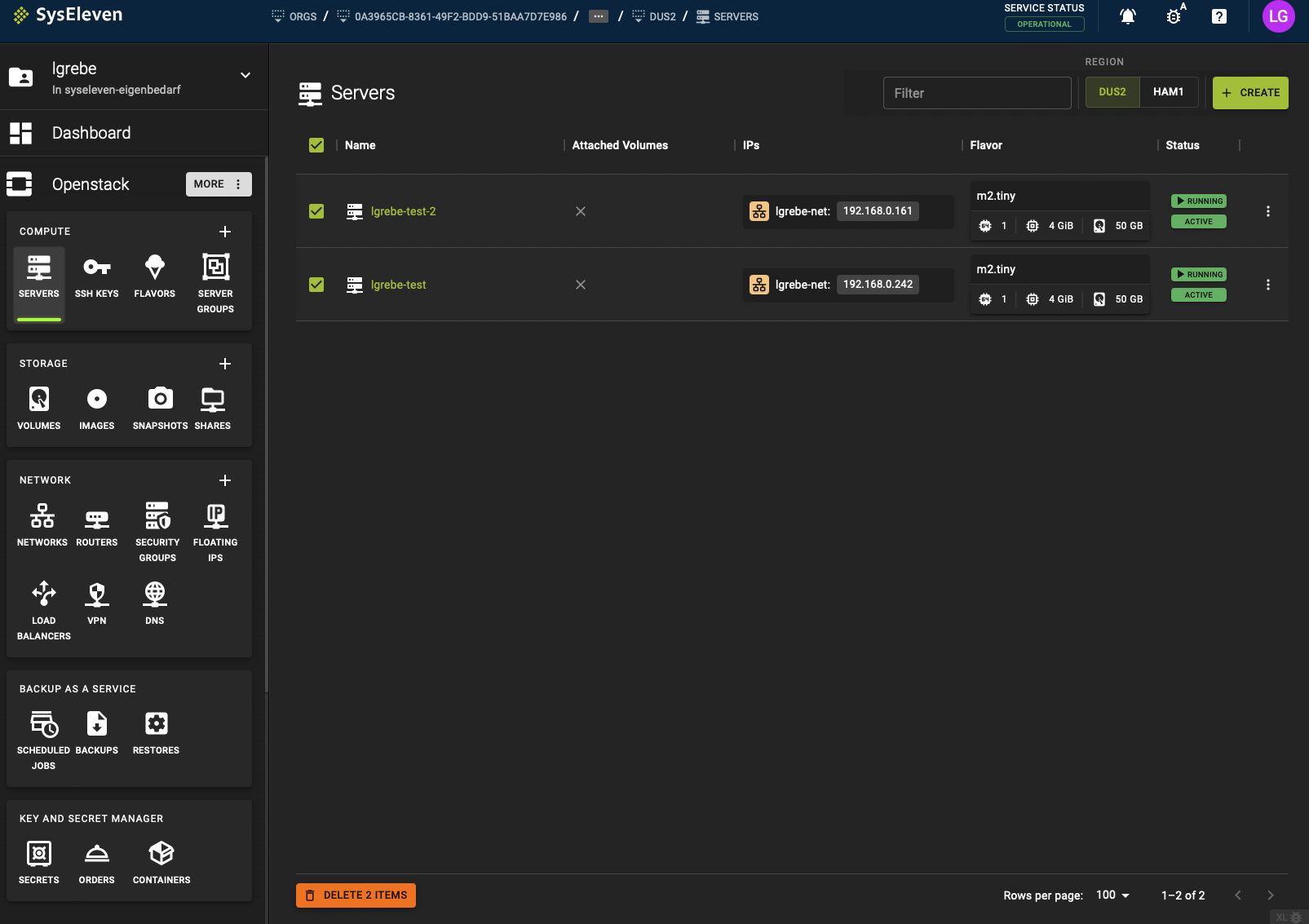
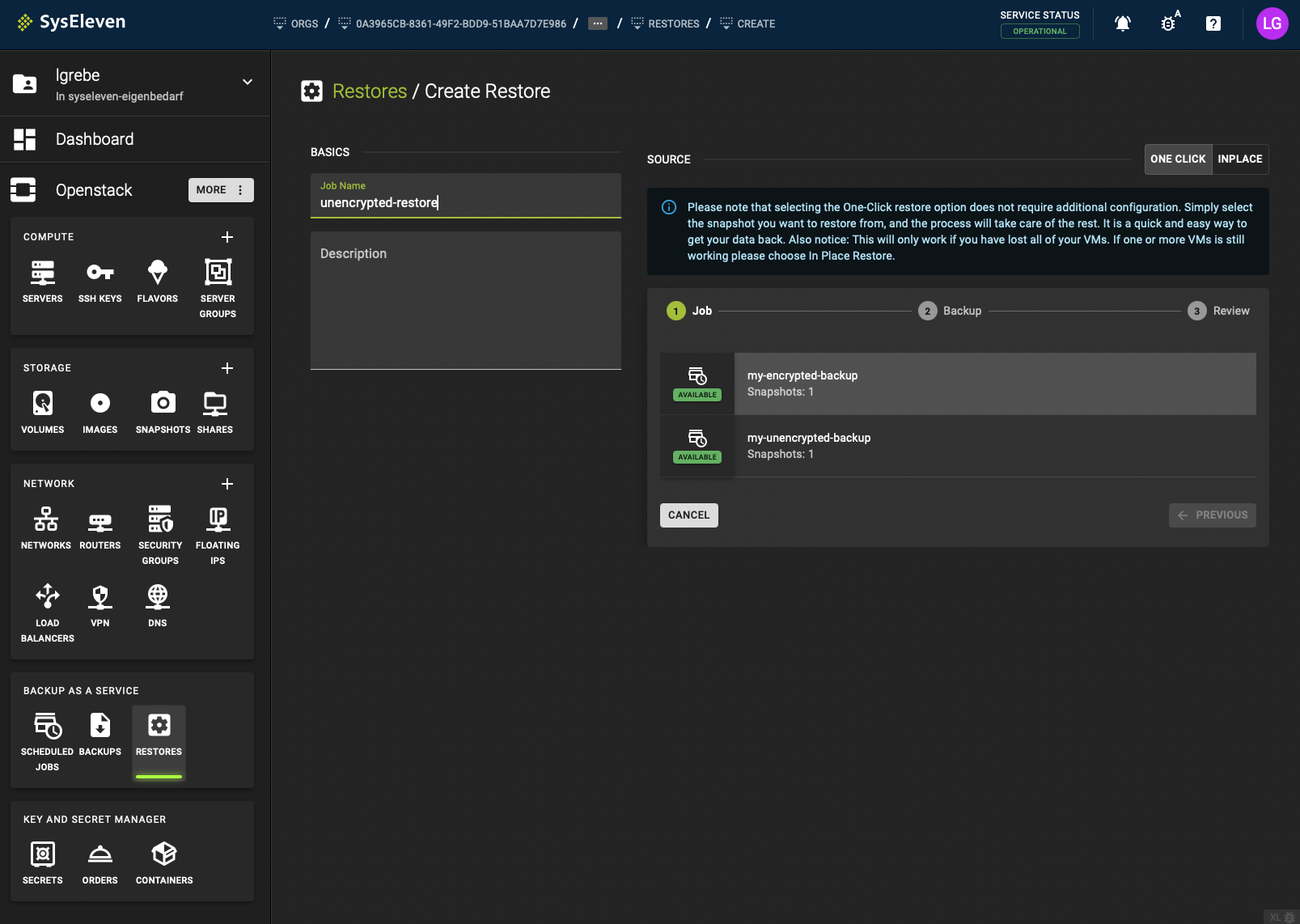
As the next step we will create a new "one click" restore and choose one of our scheduled jobs. The prompt will guide you through the next steps.
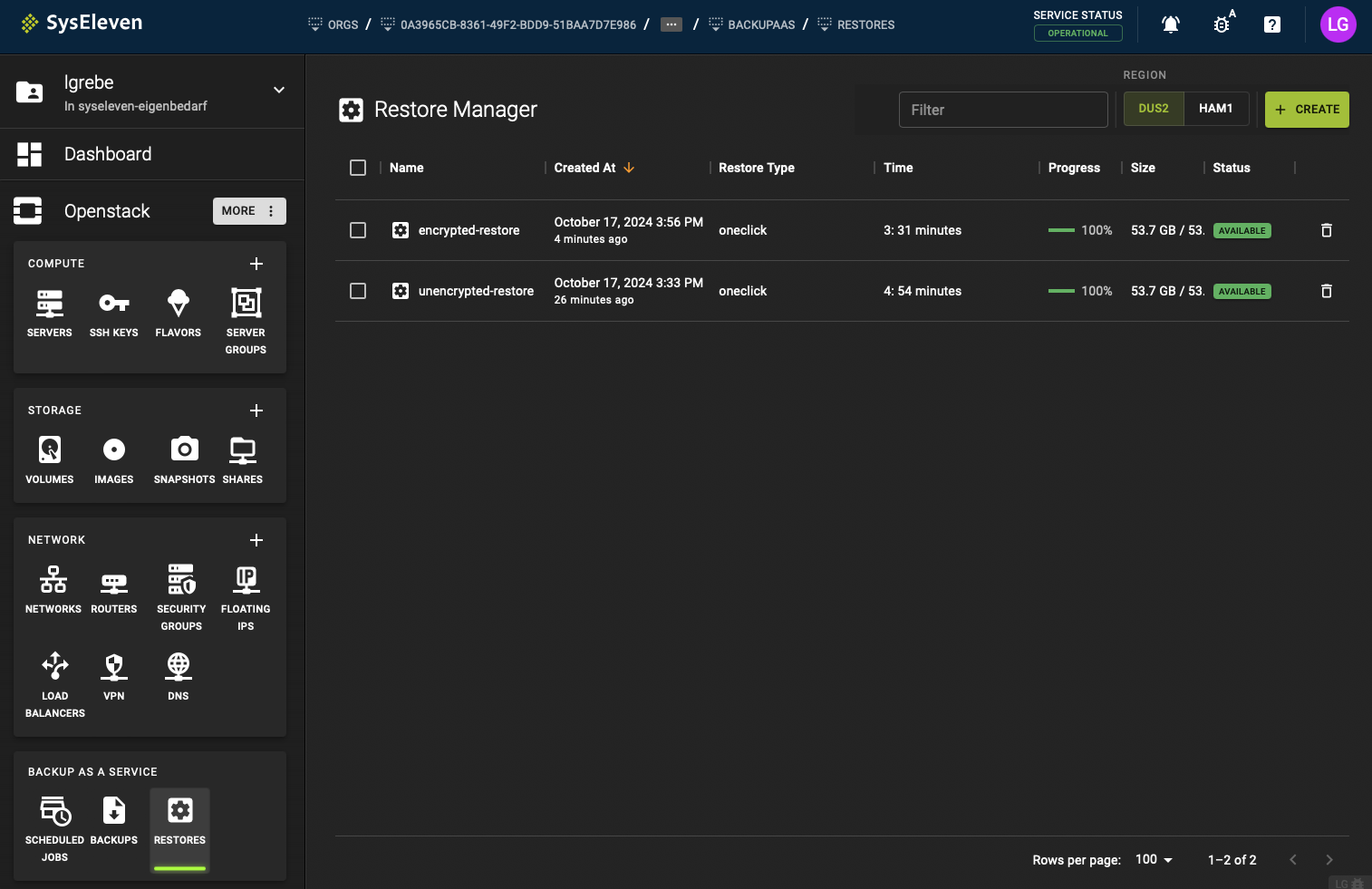
After creation of the restore you will see the UI showing the progress of the operation.
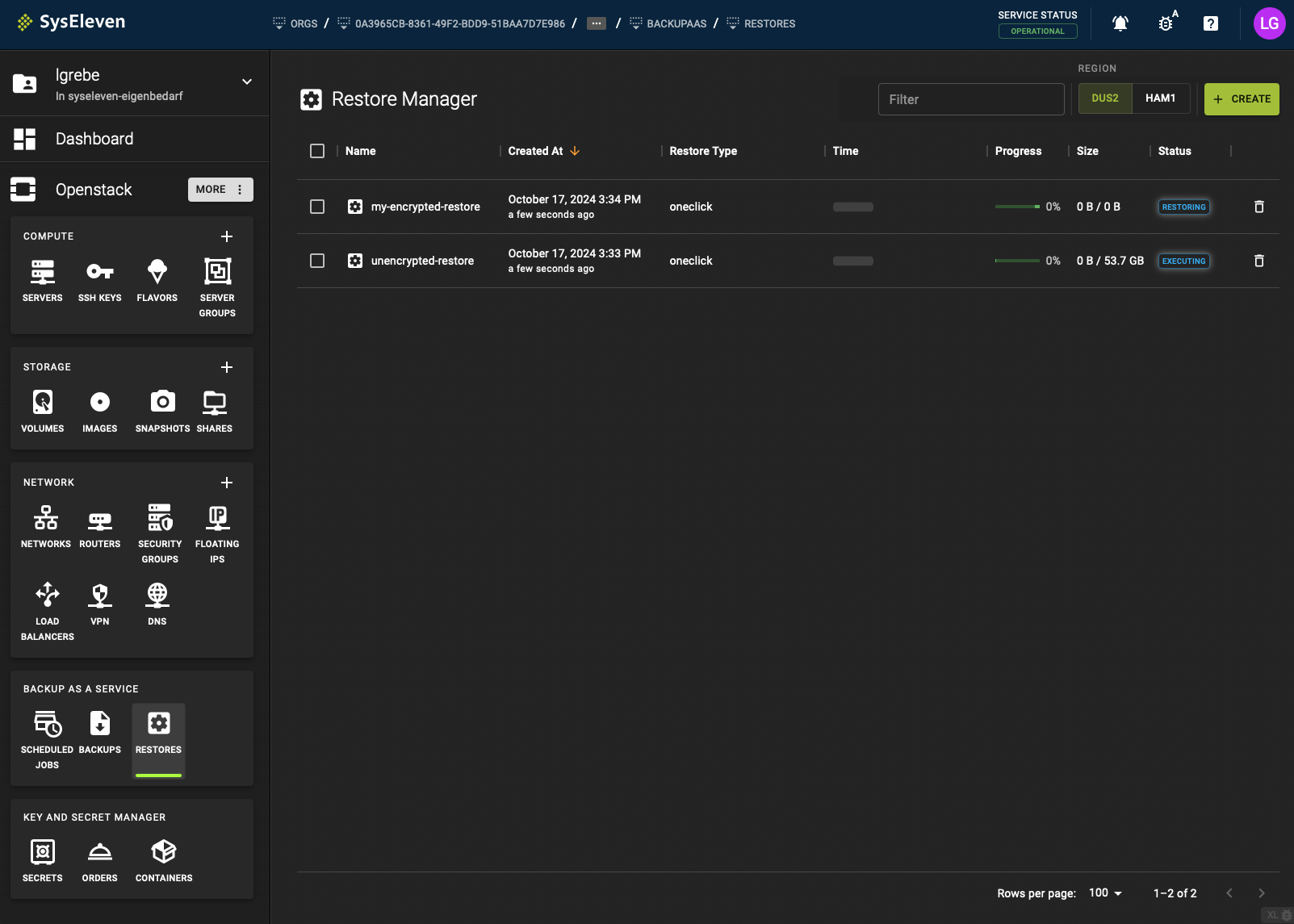
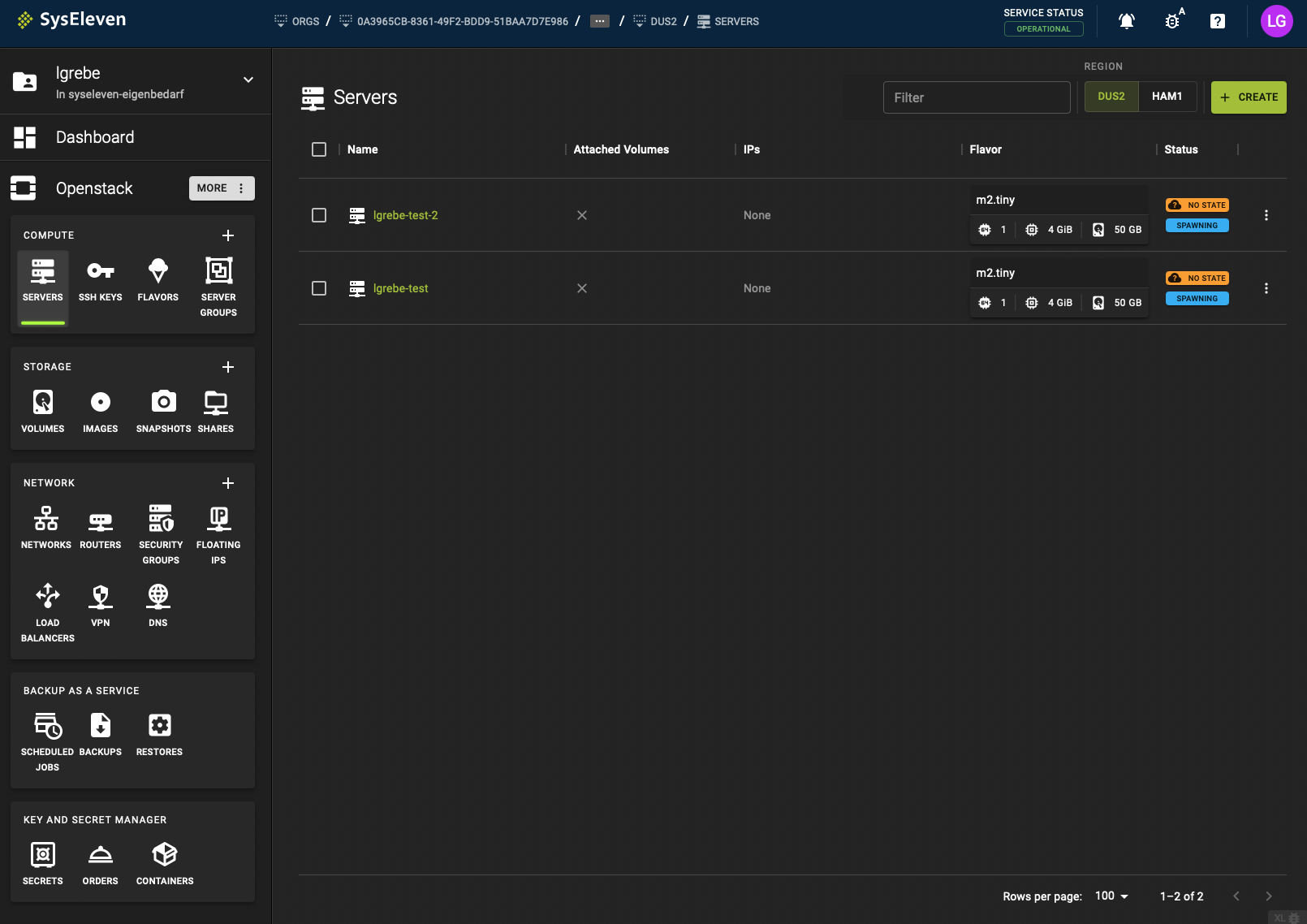
If you check for your VMs you will see the before deleted VMs are now being spawned from the backup again.
Once you can see the restore is being reported as available your backup restore is finished.
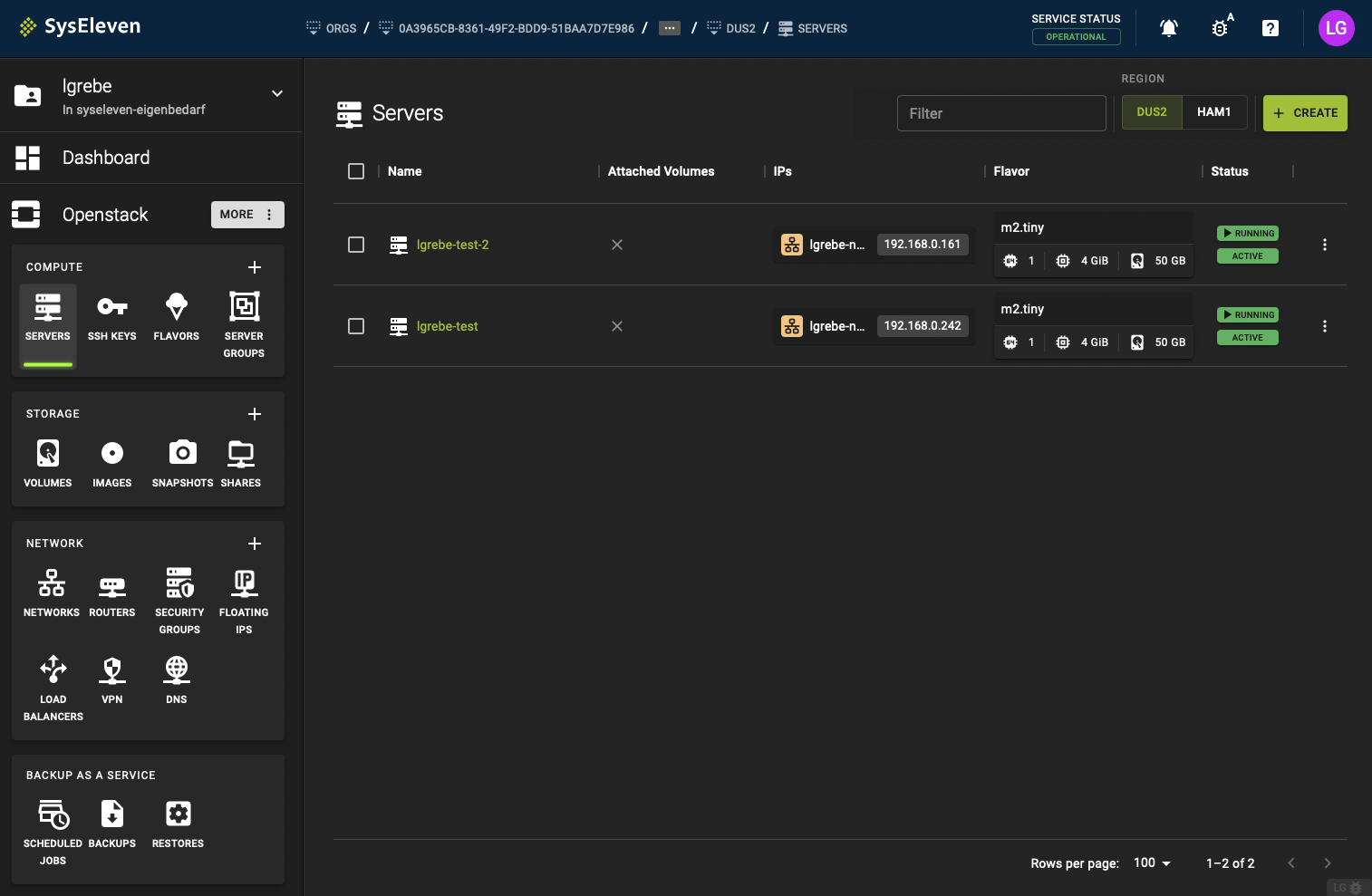
Checking our VMs we can see they have been brought back back from the restore.
Conclusion
You have successfully created a secret, a schedule to automatically create (un)encrypted backups for your VM, and tested to restore your newly created backup.