Setting up a PostgreSQL Database
The following section describes a production-ready PostgresDB deployment.
Prerequisites
To test the provisioned Database, a postgres cli tool is sufficient.
If any IDE or other GUI-based Database tools are already available, this step can be skipped.
The simplest way to connect to a postgres database is to install the following postgres client.
The most convenient way on MacOS is to use the brew package manager. The following command will install only the postgres client.
If brew doesn't suggest how to add the installed client to your PATH, simply run:Note: This will add all symlinks to your path.
The client will be available in any new shell.
The easiest way is to download the installer from the Windows installer page
Create a Postgres DB deployment
For demonstration purposes, the following section will describe just a simple single PostgresDB deployment:
Info
The provisioning process may take a couple of minutes.
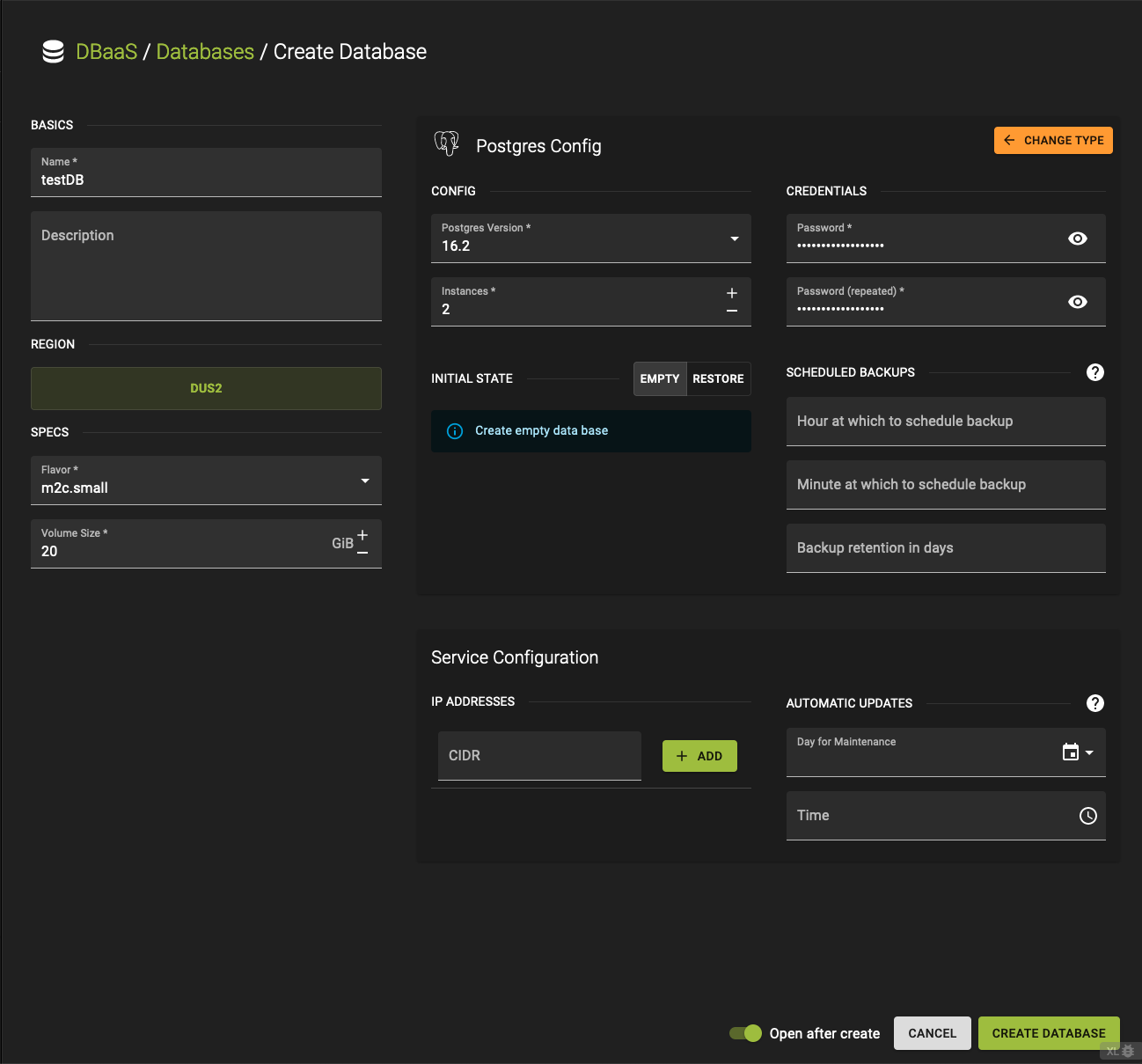
This example PostgresDB has a default daily scheduled back-up. A scheduled backup will set the time and the retention period, but not the interval. All backups will remain on a daily basis.
Coming soon.
Test the new Database
To test the connectivity, most of the GUI-based SQL clients do have a test connection feature as soon a new database connection has been configured. In the following a connection is tested with the postgres command line client.
As soon, the database is marked as 'active,' the database hostname is available from the following view.
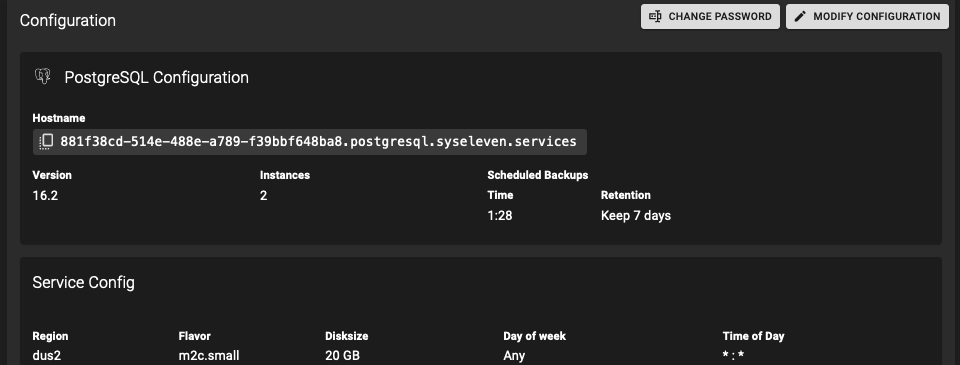
In this example, the database hostname 881f38cd-514e-488e-a789-f39bbf648ba8.postgresql.syseleven.services will be used for the psql command mentioned below.
psql -h 881f38cd-514e-488e-a789-f39bbf648ba8.postgresql.syseleven.services -d admin -p 5432 -U admin

Password for user admin:
output:

SSL connection (protocol: TLSv1.3, cipher: TLS_AES_256_GCM_SHA384, bits: 256, compression: off)
Type "help" for help.

admin =>
Scheduled Backups
DBaaS includes automated backup processes to protect databases. These backups are scheduled at regular intervals.
To ensure data durability and accessibility during a regional outage, database backups are stored in a location outside the region where the databases are hosted.
User-Initiated Backups
Users can use pg_dump to create backups of specific databases, tables, or schemas.
check on the installed postgres version
To follow the steps below psql version >= 16 needs to be installed.
In the following command line sequence a backup task is being created. In this case the whole database will dumped to a recoverable sql file.
First we create some test database with sample data. Create a csv file with the following sample content. (you can use any editor instead of vi)
vi testdata.csv

London,sunny,42,89
New York,cloudy,32,75
Los Angeles,rainy,12,49
Bielefeld,sunny,52,89
insert the database hostname from the overview above.
psql -h 881f38cd-514e-488e-a789-f39bbf648ba8.postgresql.syseleven.services -p 5432 -d admin -U admin

password:<yourPassword>

admin=> create schema tutorial;

admin=> alter schema tutorial owner to admin;

admin=> create table tutorial.weather
    (
        id serial,
        city        text    not null,
        type        text    not null,
        temperature integer not null,
        humidity    integer not null,

        primary key (id)
    );
Exit the psql shell or use the \copy section from within the psql shell.
With the following command some test data is persisted into the new created table called weather.
psql -h 881f38cd-514e-488e-a789-f39bbf648ba8.postgresql.syseleven.services -p 5432 -d admin -U admin -c "\copy weather(city,type,temperature,humidity) from testdata.csv with (format csv,header true, delimiter ',');"
The following command will dump the new database.
n/a yet
n/a yet. Stay tuned.
Restore
Scheduled backups can be restored to fresh DBaaS instance. For CLI approach, the dump from the User initiated backup section will be recovered.
In the UI part of this section, a new database will be created, but it will be recovered from an existing (working) one.
The use cases between both approaches will be a bit different.
First, connect to your database. The next 2 steps are for demonstration purposes only.
Next, drop the database and its contents:Now execute the recovery process using the backup file in your current directory:
To create a new database from an existing one, click create but set the initial state to RESTORE instead of EMPTY.
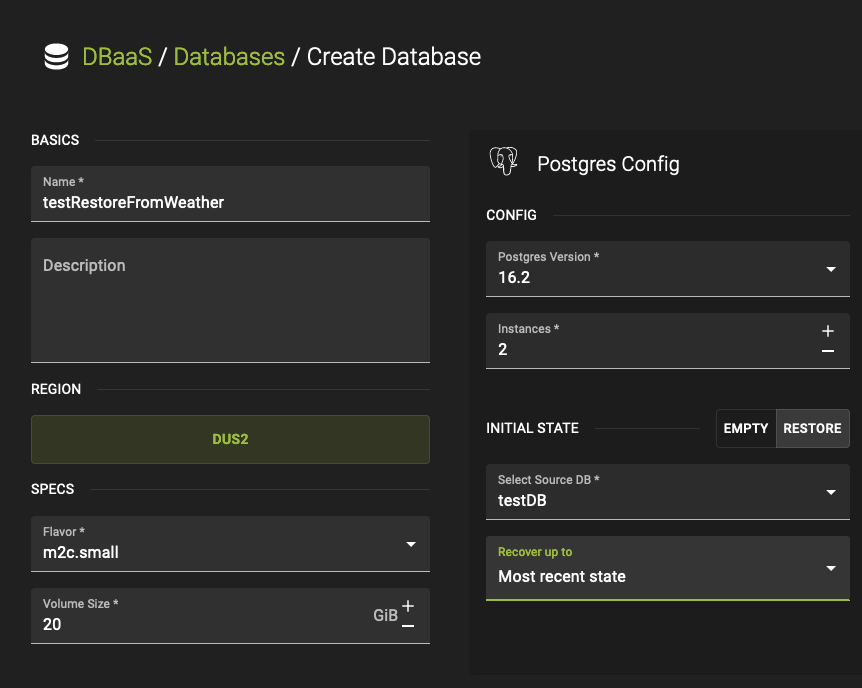
The following 5 recovery options are available:
- Most recent state
- Timestamp
- Name Restore Point
- LSN (Log Sequence Number)
- XID (a given transaction ID)
For this example, select Most recent state. A select * from weather; from a psql shell will show the content from the original database.
n/a
Known limitations
Changing database configuration via ALTER SYSTEM fails
ALTER SYSTEM is not supported by our PostgreSQL DBaaS as it conflicts with configuration provided to the API.
Please use the API database configuration options. If required configuration parameters are not supported yet,
please open a support ticket with us.